
Imagine opening your email on a laptop, plugging in something smaller than a house key, and touching its little metal circle. You may enter a PIN first. No text message to wait for. No six-digit code to copy. That small object is a FIDO security key: a physical device that helps prove it is really you signing in.
Why bother when your phone already does that? Because a key can keep access to important accounts separate from your phone—and travel between compatible computers without leaving its secret behind. But you do not automatically need one. If a passkey on your phone or computer already suits you, you may have the phishing protection you need.

Security is Key
It may look like a USB stick, but you do not drag your passwords onto it. Instead, you register it with each supported account. Later, the service asks the key to prove that it is the same one you enrolled. Some keys plug into USB-A or USB-C ports; some also work by tapping them against a compatible phone using NFC, the short-range technology used for contactless payments.
One physical key can protect multiple accounts, with a separate credential for each service. Depending on the service and key, it can act as a second step after a password or hold a passkey for passwordless sign-in. Buying a key does not magically remove every password you have.
Think of a passkey as the credential and a security key as one possible place to keep it. They are not rival inventions. FIDO2 is the family of standards behind modern passkey authentication; you do not need to memorize the protocol names to use it.
Fighting Fake Sign-In Sites
A convincing fake login page can ask for your password and then ask for the code that just arrived on your phone. An attacker can relay both to the real service before the code expires. An authenticator app’s changing numeric code can be relayed too; repeated approval requests can also pressure people into accepting a sign-in they did not start.
FIDO authentication changes the exchange. The real service sends a fresh challenge. Your key uses a private cryptographic key to sign a response, and the service checks it using the public part registered earlier. The private key stays on the authenticator. Crucially, the credential is tied to the service’s identity: a lookalike site does not get a reusable answer for the real one.
That website binding is what makes passkeys phishing-resistant. It is not simply the fact that you touched a piece of hardware. A touch usually establishes that someone is present; a PIN or biometric check can additionally verify the user. The PIN unlocks the authenticator locally rather than serving as the website password.
SMS and ordinary MFA are still better than a password alone. The next improvement is choosing a method that resists the fake-login trick itself. Microsoft explains the distinction in its passkey authentication overview.

Key Decisions
The useful question is therefore not “Which one has the most impressive security label?” It is “Where do I want my credentials to live, and how will I get in when that device is unavailable?”
A physical security key: the credential stays on the key. You carry it to another compatible computer and use it there. It does not depend on a phone battery or syncing that credential through a personal cloud account. You do have another object to buy, carry and avoid losing.
Windows Hello: your face, fingerprint or PIN unlocks supported credentials on your Windows device. A locally stored passkey is convenient when that is the computer you normally use. Do not assume the same credential will appear on a replacement PC simply because you use the same Windows account; check where the passkey was saved and how that provider handles recovery.
A phone-based passkey: you unlock the phone to sign in. On supported services, you can also use your phone to approve a sign-in on another device through a cross-device flow. “On my phone” does not tell you whether the passkey is device-bound or synced: that depends on the app or passkey provider.
A synced passkey: a provider makes the credential available across your authorized devices. That is often the easiest option for everyday accounts and replacing a device. It is still phishing-resistant; the extra consideration is how you protect and recover access to the provider account.
Three situations where a physical key earns its place
The useful question is therefore not “Which one has the most impressive security label?” It is “Where do I want my credentials to live, and how will I get in when that device is unavailable?”
Your main personal email account. This is often where password-reset links for other services arrive. If your email provider supports hardware keys, a key and a separately registered spare can give that important account a sign-in route independent of your everyday phone. Review recovery options as carefully as the login method.
Microsoft 365 at work. A key can be useful when you move between compatible work computers or cannot use a personal phone. Your organization must enable the method and allow your key model. Microsoft Entra supports both synced and device-bound passkeys, but your employer can restrict the permitted types. Ask IT before ordering hardware.
Privileged or high-impact accounts. Someone managing company systems may want credentials that cannot sync into a personal passkey provider. A hardware key offers that separation. It is one layer, not a replacement for limited permissions: our guide to Azure Privileged Identity Management explains why administrator access deserves its own controls.

Key Questions
So how do you get the right FIDO2 key?
Start with the account. Open its official security settings and check whether it supports FIDO2 security keys or passkeys on external authenticators. “Supports MFA” is not enough: it might mean only SMS or an authenticator app. A key that only produces one-time codes is not the same thing as a FIDO2 authenticator.
Then check the devices. Match USB-A or USB-C to the computers you actually use. If tapping a phone matters, verify NFC support for that phone, key and service together. Do not assume every browser or app supports every connection method.
Check registration as well as sign-in. A platform may let you use a key already registered elsewhere without supporting every first-time setup step. Microsoft’s current compatibility matrix separates browsers, native applications and platform limitations. A successful browser login is not a promise that every desktop app will behave the same way.
For work, get the approved model. IT may enforce a specific authenticator type or require proof of the key’s make and model. Microsoft describes these controls in its passkey policy guide. Check before buying, not after opening the box.
Register it without locking yourself out
Exact labels vary by provider, but the safe sequence is straightforward. Use a trusted, updated device, and keep your existing working sign-in method available throughout setup.
1. Open the account’s security page yourself. Use a saved bookmark or type the known address rather than following an unexpected “secure your account” message. For a Microsoft 365 work account, start at Security info. Your organization must permit self-service registration.
2. Add a sign-in method. Look for the service’s security-key or passkey option and choose the external security key when the browser asks where to save it. Do not accidentally save it to a password manager if your aim is to put it on the physical key. Complete any existing-account verification requested.
3. Follow the key prompts. Connect or tap the key as supported, set or enter its PIN if requested, and touch it when prompted. Give it a recognizable account label, such as “Daily key,” if the service allows one. A fingerprint reader is optional hardware, not a requirement for every security key.
4. Test a fresh sign-in. Keep the original account session open while checking the key in a separate browser session. Confirm you can actually get in, rather than assuming the registration success message proves your whole setup works.
5. Add and test your backup. Register a spare key separately with the same account, where supported. Repeat for each important service. Adding a second key does not copy the first key’s credentials; each needs its own enrollment.
Keep a Spare
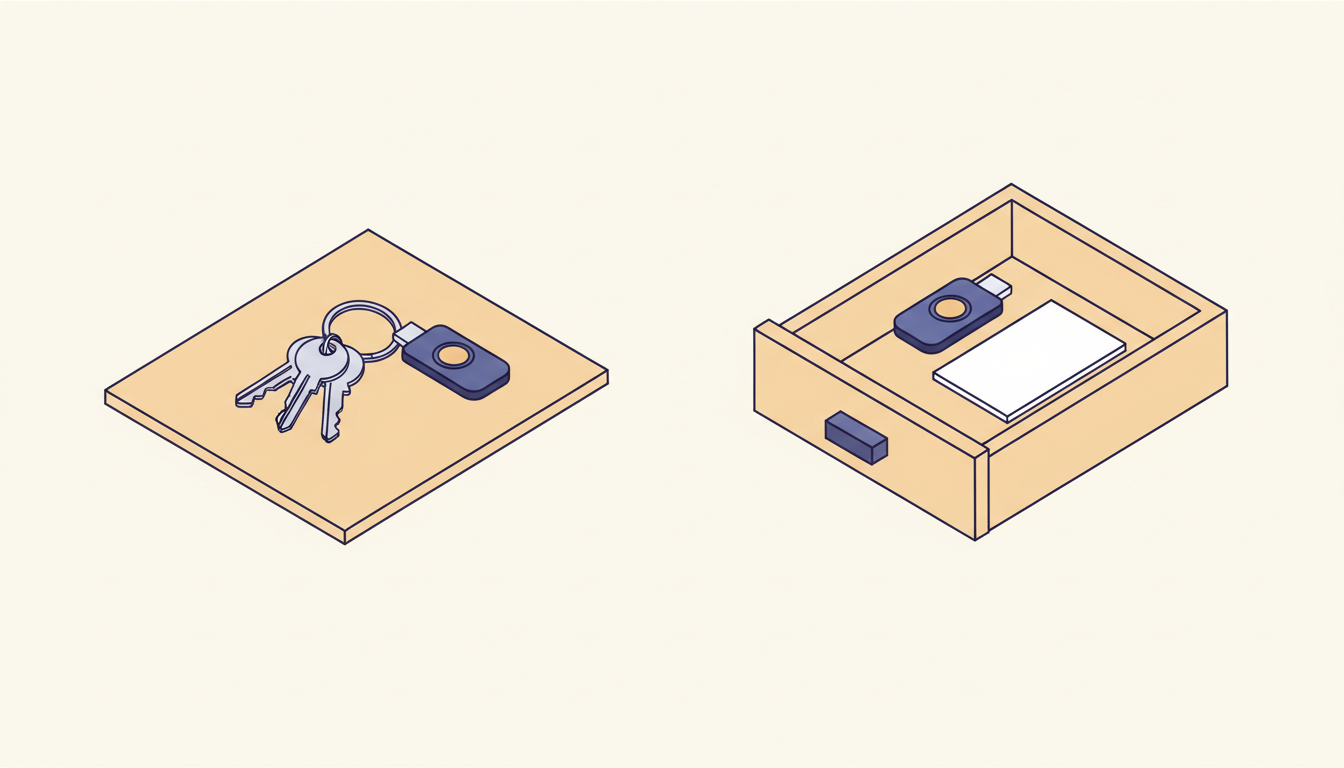
Two keys on the same keyring are convenient until you lose the keyring. Keep the spare in a separate secure location. If the service provides recovery codes, store them somewhere protected and accessible without the account or device you are trying to recover. Treat them like keys, not harmless notes.
If your daily key disappears, use the spare or the provider’s supported recovery route, remove the lost key from each affected account, and enroll a replacement. For a work account, contact your IT helpdesk promptly. If you lose every registered method, a new key alone cannot restore access: you must satisfy the service’s recovery process.
Do not remove all older methods until you have tested the replacement and understand recovery. Then review whether a weak fallback could undermine the protection you just added. The aim is a recovery route you can use—not one an attacker can easily talk their way through.
What the key cannot fix
A security key does not make a compromised computer trustworthy. Malware may abuse a signed-in session, and a thief who steals an active session may not need to repeat your login. It also cannot decide whether an app’s permission request is sensible or stop you sending a confidential file to the wrong person.
Keep devices updated, lock screens, review recovery settings and be cautious about app permissions. Phishing-resistant sign-in closes an important door; it does not turn the whole house into a vault.
Start with one account
Open the security settings for the account you would least like to lose. Check which passkeys it supports, where yours would be stored, and how you would recover access tomorrow if your phone vanished today.
If the answer is already reassuring, you may not need another gadget. If you want a portable credential that stays separate from your phone and cloud account, a compatible security key—with a tested spare—can be a very practical upgrade. The best key is not the fanciest one. It is the one that fits your devices, protects the account that matters, and still leaves you a safe way back in.