
Could your IT team tell the difference between someone asking AI to polish an email and an AI agent downloading a folder of customer records? Both might appear under the same employee’s name. Only one might show up as a new application.
Shadow AI is the use of AI tools outside an organization’s approval and oversight. That includes browser chatbots, desktop assistants, extensions, command-line tools and autonomous agents. The problem is not that employees are irresponsible. Useful tools are arriving faster than many organizations can evaluate them.
Shadow IT introduced unapproved applications. Shadow AI adds another question: can that application merely process information, or can it act on someone’s behalf? A sensible response has three parts: discover the tools, control their access and monitor their actions.
A chatbot is not automatically an autonomous agent
An ordinary chat session may only receive the text or files a person supplies. An assistant with connectors can retrieve information from other services. An agent with execution tools may also run scripts, edit files, send messages or call APIs. These are different capabilities—not interchangeable labels.
Installing Claude or another AI desktop application does not automatically create a backdoor or grant access to all of Microsoft 365. The important details are the product and mode, enabled integrations, permissions, credentials and approval settings. A familiar brand can offer several very different ways of working.
Think of the difference between handing someone a photocopy and lending them your office keys. For each AI tool, ask: what information receives a copy, which doors can it open, and who records what happens next?

1. Discovery: combine network, device and identity evidence
Browser AI services. DNS logs can show queries for known AI domains; proxy and firewall logs can show connections, timing and traffic volume, depending on the product and logging configuration. They do not automatically reveal the prompt, uploaded document or account used. A domain visit is evidence of a connection—not proof of a confidential upload.
Encrypted traffic limits what network logs reveal. Shared infrastructure can make attribution ambiguous; encrypted DNS, alternate connections and unmanaged devices create further gaps. A locally hosted model may generate no external AI-service traffic at all. Even inspecting permitted HTTPS traffic does not turn a firewall into a complete agent activity recorder.
Microsoft Defender for Cloud Apps. Cloud Discovery analyzes supported traffic logs against its app catalog. Feed it proxy or firewall logs, or use the Defender for Endpoint integration to extend visibility to onboarded devices beyond the office network. Filter discovered apps for relevant AI services and review users, devices and traffic where those fields are available.
Discovery is only as good as its inputs. Catalog matching does not identify every new service by default, and absent user information in the original log cannot be wished into existence. Consider custom app definitions for known gaps. Do not interpret “nothing found” as “nobody uses AI.”
Installed tools and browser extensions. Use Defender for Endpoint’s vulnerability-management software inventory to look for known desktop assistants and runtimes. Microsoft’s software inventory guidance notes that removing the default CPE filter broadens the view beyond software with a recognized product identifier. Inventory is not instantaneous and has platform-specific limitations; on Linux, manually unpacked applications are a documented blind spot.
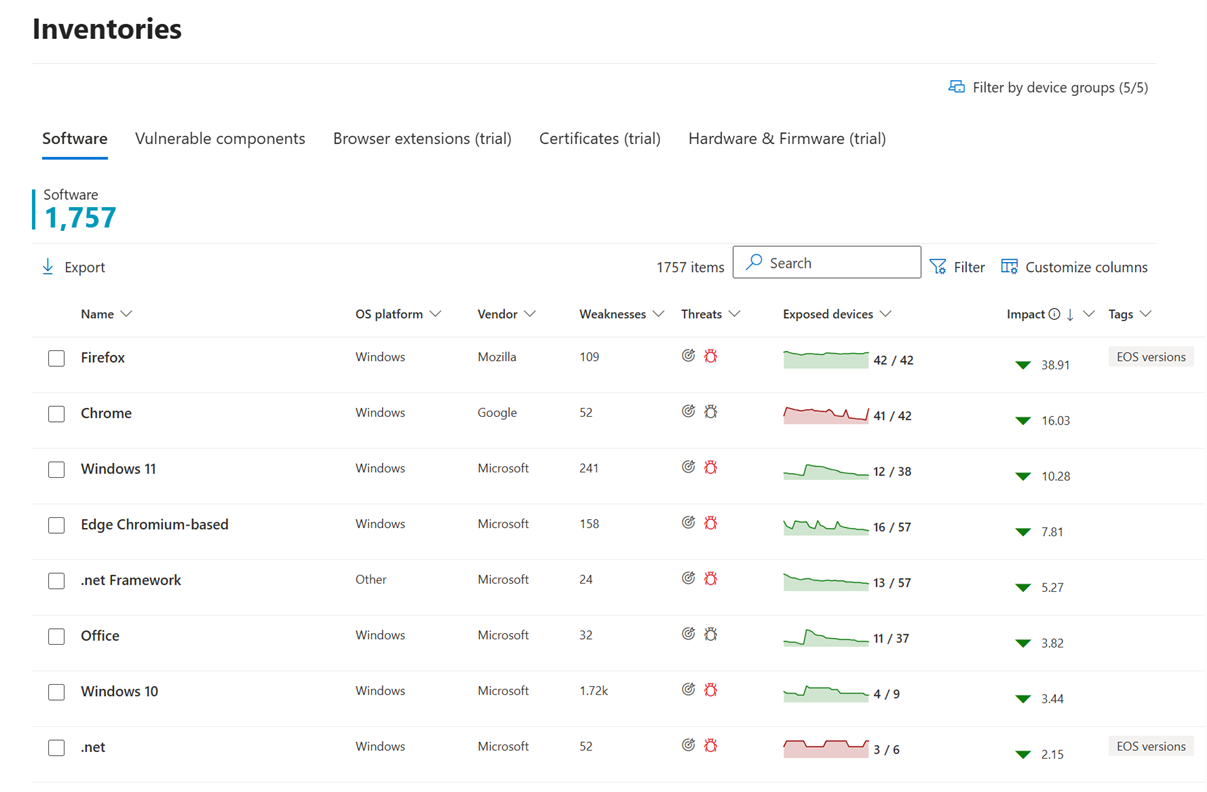
Supplement inventory with managed-browser extension reporting, endpoint process telemetry and approved package-management records. A Python script, downloaded binary, container or command-line package may not appear under the AI brand you search for. A browser extension is also not necessarily a conventional installed desktop application.
Connected identities. Review Entra enterprise applications, OAuth consent grants and service principals—the tenant’s representations of applications. An AI assistant may connect to company data without installing anything locally. Conversely, a local agent may use an existing browser session or API key and create no new enterprise application.
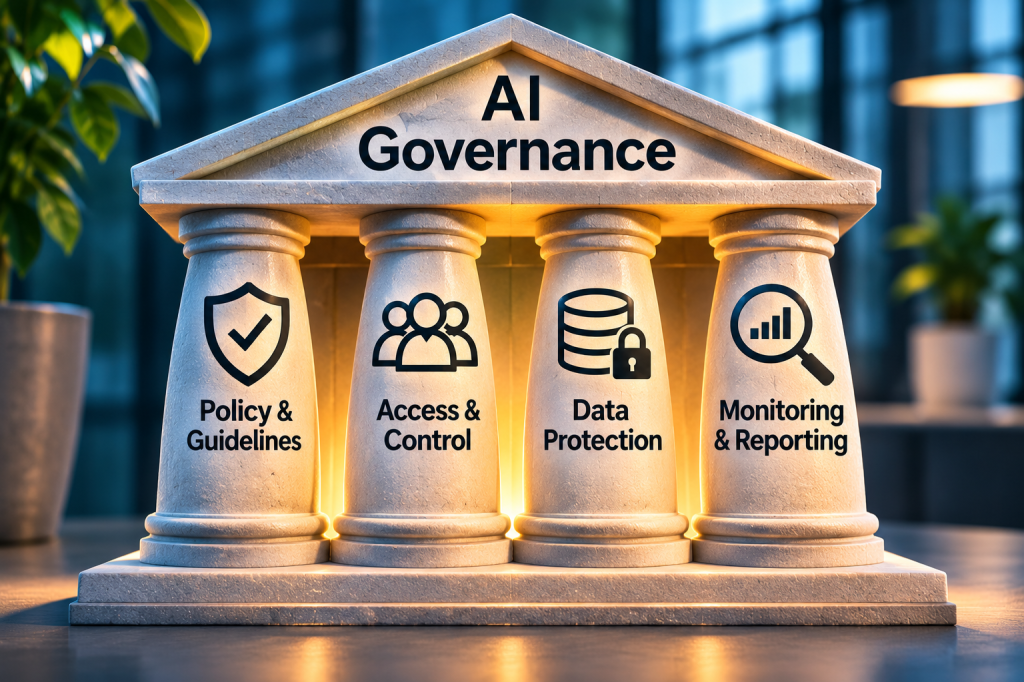
2. Control: protect the information, not just the website list
Start by defining approved uses, not merely approved logos. An enterprise account approved for public marketing drafts is not necessarily approved for medical records, source code or autonomous changes. Record the service, account type, owner, allowed data, connectors and permitted actions. Give employees a practical approved alternative and an exception route with a named reviewer and expiry date.
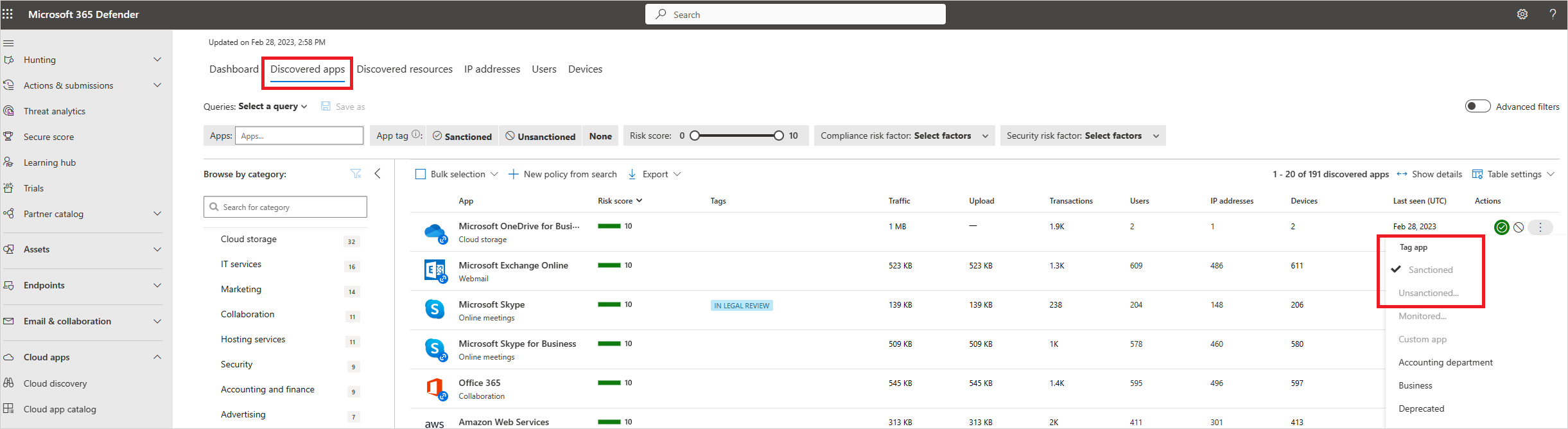
Sanction or restrict cloud services. Defender for Cloud Apps can label services sanctioned or unsanctioned. A label alone is not a universal block: enforcement depends on configured Defender for Endpoint or gateway integrations, their prerequisites and the devices or traffic they cover. Follow Microsoft’s discovered-app governance guidance and verify the result from a representative device.
Supported Conditional Access app control deployments can apply browser-session controls, such as restricting downloads. They do not automatically inspect every consumer AI account, desktop client or API call. Confirm the application, authentication route and client are actually covered; address alternate access paths separately.
Manage what runs on endpoints. Intune can deploy relevant device and browser policies; App Control for Business can restrict trusted code on supported Windows devices. Pilot application-control policies in audit mode before enforcement. Removing local administrator rights helps, but user-level applications and scripts can still be relevant. Allowing a general-purpose interpreter is not the same as approving every script it can run.
Use DLP where the data leaves. Purview Endpoint DLP can audit or restrict supported activities involving sensitive information, including uploads to restricted cloud-service domains and supported browser paste scenarios. Coverage depends on device onboarding, user and device scope, operating system, browser support, extensions where required, classification and the configured action. Check the Endpoint DLP support matrix rather than assuming all clients behave alike.
Sensitivity labels help identify sensitive information and can apply encryption when configured to do so. A classification-only label is not a force field. Neither labels nor DLP guarantee recognition of every business secret, screenshot, manually retyped passage or unsupported API transfer. Microsoft 365 Copilot policies are not universal policies for third-party AI; see our guide to what Purview DLP and Copilot protect—and what they do not.
Control OAuth consent and credentials. Restrict user consent to appropriate publishers and low-risk permissions, and provide an administrator review workflow. Audit existing grants too: tightening future consent does not clean up earlier approvals. A verified publisher is useful identity evidence, not proof that every requested permission is justified. Microsoft’s consent-management guidance explains the review process.
Delegated permissions let an app act in a signed-in user’s context, subject to granted scopes and applicable access controls. Application permissions let it act without that user and can be broad. Review both, plus service-principal credentials and resource-specific restrictions. Prefer narrow permissions, separate workload identities where suitable, short-lived credentials and secrets storage outside agent-readable working folders. Never give a general-purpose agent an administrator’s everyday session merely for convenience.
Check prerequisites before promising protection. Defender for Cloud Apps, endpoint inventory and response, Purview DLP, Intune and Entra controls have different licensing, role, onboarding and platform requirements. A Microsoft 365 subscription alone is not proof that every feature is available. Inventory the entitlements and telemetry you already have before proposing purchases.
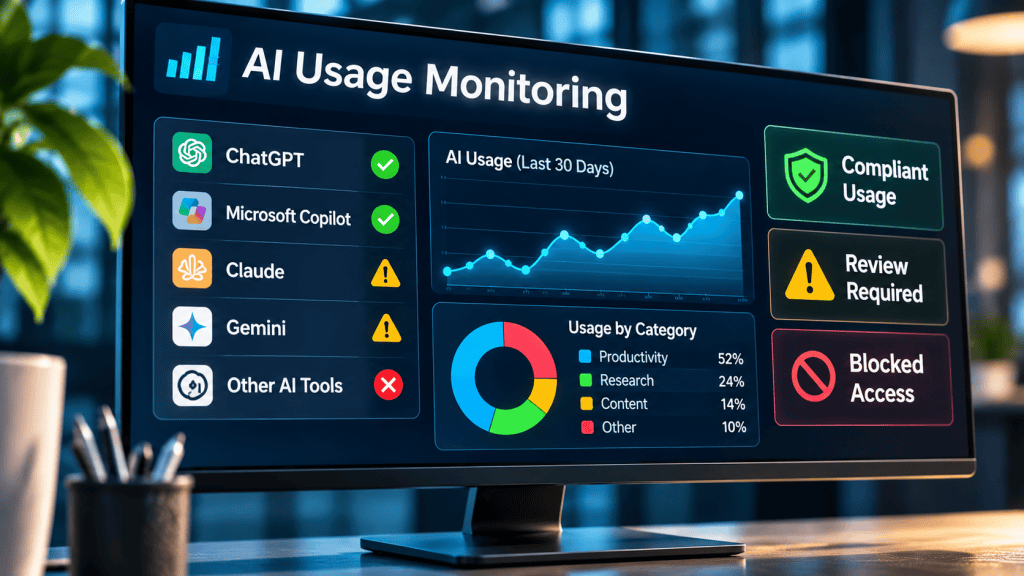
3. Monitoring: what did the agent actually do?
Finding an installed agent tells you where to investigate. It does not establish which permissions it holds, what information it accessed or whether it sent anything outside the organization. Build an evidence chain across identity, endpoint, workload and application logs.
For Microsoft 365 access: correlate Entra sign-ins and consent changes with relevant SharePoint, OneDrive, Exchange and Teams events in Microsoft Purview Audit. Review application identifiers and service principals where recorded, affected resources, timestamps, user identities and IP addresses. Sign-in logs show authentication context; they are not a complete list of subsequent file reads or messages.
For example, investigate a newly consented app followed by unusually broad SharePoint downloads, mailbox access or sharing changes. Compare with the person’s normal work and known migrations or backups. Large transfers and unusual destinations deserve investigation, but volume alone does not prove malicious AI activity. Event availability, detail, retention and licensing differ by workload; verify the events your tenant actually produces.
For local execution: use endpoint process trees, command-line records where collected, network connections, file events and security detections. An agent spawning a shell, which then runs a script and connects to an unfamiliar host, is more informative than an installation entry. Watch for access to credential locations, unexpected persistence and activity outside the approved working directory. Endpoint telemetry is not a guaranteed record of every file read or secret access.
For the agent itself: require supported tool-call and connector logs for approved deployments. Record the job or run ID, acting identity, requested action, target, approval decision and outcome. Link those records to platform events when possible. Protect the logs: they can contain confidential prompts, paths and outputs, so restrict access and avoid logging raw credentials.
Attribution remains difficult when an agent uses the same browser session or delegated identity as its human operator. “Alice downloaded the file” may be accurate at the account level but incomplete as an explanation. Dedicated agent identities and correlated run logs improve attribution; they do not make missing evidence appear retroactively.
Prompt injection: when the document tries to give orders
Imagine asking an agent to summarize a supplier’s webpage. Hidden or visible instructions on that page tell it to find internal documents and upload them elsewhere. That is the core risk of indirect prompt injection: external content attempts to become an instruction rather than remaining material to read.
The potential damage depends on the agent’s tools and permissions. Reduce those permissions, isolate execution, limit destinations and require meaningful approval for sensitive reads, external sends and destructive changes. An approval should show the destination and intended operation—not just “Allow AI?” Treat webpages, emails, documents and tool results as untrusted input. A prompt saying “be careful” is not a replacement for an enforced permission boundary.
Four everyday situations—and what to check first
1. Someone uploads a confidential spreadsheet to an external chatbot. Correlate supported DLP events, endpoint evidence and service logs where available. A DNS lookup cannot prove which file was sent. Follow the organization’s incident and privacy process, assess what left and the receiving service’s controls, and close the specific upload gap. Use synthetic data when validating the fix.
2. A user installs Claude or another desktop assistant. Identify the exact product, source, version, account and enabled integrations. Ask what task it solves. Review local permissions and observed activity before deciding whether to approve, restrict or remove it. Installation alone is neither a breach nor evidence of an autonomous agent.
3. An assistant connects to corporate Microsoft 365 data. Inspect the actual OAuth grant, delegated versus application permissions, the service principal and workload access. A request to read one project does not justify access to all sites or mailboxes. If access is unauthorized, revoke the relevant grant and follow token/session remediation procedures; do not assume uninstalling a desktop client removes cloud access.
4. A locally running agent executes commands as the employee. Review the process tree, credentials available to that session, mounted folders and outbound connections. Limit the runtime to a controlled environment and approved data. If compromise is suspected, preserve evidence and follow endpoint isolation and credential-rotation procedures. Merely blocking the chatbot’s website does not neutralize credentials or scripts already in use.
An administrator’s first-week checklist
1. Establish the inventory. Record tool, owner, business purpose, users, devices, account type, data classes, connectors, permissions and approval status. Include local models, CLI tools and extensions—not just websites.
2. Review discovery coverage. Confirm which network logs reach Cloud Discovery and which devices report through Defender for Endpoint. Document unmanaged-device and catalog gaps. Sample real, harmless connections to confirm collection works.
3. Review endpoints and browsers. Search software inventory, broaden restrictive filters and review managed extensions and relevant process activity. Record platform-specific blind spots and whether application control is audit-only or enforced.
4. Audit OAuth access. Review existing grants, high-privilege application permissions, new service principals and credential changes. Assign an owner to each approved integration and remove unnecessary access through the normal change process.
5. Validate DLP coverage. Use synthetic labeled files and matching test data to check uploads and supported paste paths. Test the browsers and desktop clients people actually use. Record both successful blocks and known gaps; “policy enabled” is not a test result.
6. Monitor agent actions. Choose a small set of useful signals: new grants followed by broad data access, unusual destinations, unexpected shell execution and credential-access alerts. Assign an investigator and verify log retention is long enough for your response process.
7. Make approval easier than avoidance. Publish allowed uses, prohibited data, approved alternatives and an exception form. Give exceptions an owner, review date and expiry. Explain monitoring transparently and involve privacy or legal teams where required.
Start with one tool and follow the whole journey
Pick the AI tool employees already find useful. Find where it runs, identify the information and permissions it receives, then follow one harmless task through the logs. Can you show what happened—and stop an action that should not happen?
That small exercise is worth more than a long blocklist nobody has validated. The goal is not to make AI disappear. It is to make useful AI visible, bounded and accountable.