
What happens when someone asks Copilot to “summarize everything about next year’s salaries”—and a forgotten SharePoint folder is open to half the company? The uncomfortable answer is that an AI assistant can make an existing access problem much easier to notice.
Microsoft Purview Data Loss Prevention (DLP) adds useful guardrails. But it is not a magic “make Copilot safe” switch. The trick is to separate three questions: who can open a document, how sensitive it is, and whether Copilot should use it.
Feature snapshot: 30 October 2026. Some controls are in preview or rolling out; check availability and licensing in your tenant before planning a deployment.
Permissions are the door key. DLP adds rules inside the room.
Microsoft 365 Copilot runs in the security context of the person asking the question. It does not give that person permission to read a document they could not otherwise access. That is reassuring—but “already has access” is not the same as “should have access.”
Imagine an HR spreadsheet stored in SharePoint with an overly broad sharing arrangement. Copilot need not break any rules to surface information to an employee who already has access. The underlying permissions are the problem. The same principle applies to files shared through OneDrive.
A Copilot DLP policy can exclude matching content from AI processing. It does not, by itself, repair the document’s sharing permissions. Review site membership, sharing links and access to sensitive folders separately. If collaboration has become difficult to govern, our article on the SharePoint paradox is a useful companion.
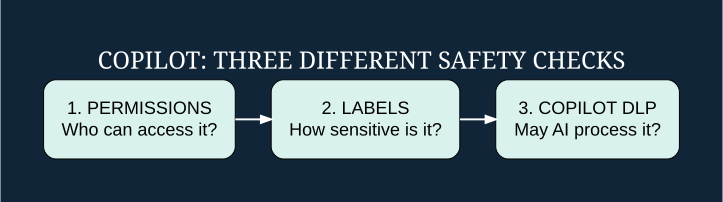
Sensitivity labels and sensitive information types: not the same thing
A sensitivity label is a classification attached to an item: for example, “Internal” or “Highly Confidential.” Depending on its configuration, a label can also apply encryption or other protections. A label can equally be classification-only; its name alone does not tell you what it enforces.
A sensitive information type, often shortened to SIT, is a detector for particular kinds of information, such as credit card or passport numbers. Microsoft provides built-in types, and organizations can create custom ones. Think of a label as the stamp on a folder and a SIT as a detector looking for a recognizable pattern.
This distinction matters in Copilot DLP: a label-based rule can exclude labeled files and emails from processing, while SIT-based rules can inspect the text typed into prompts. Do not assume that selecting a credit-card detector automatically scans every document Copilot might encounter.
Three useful controls—and three different outcomes
1. Keep labeled content out of an answer. Suppose HR labels salary-planning documents “Highly Confidential.” A rule targeting that label can prevent Copilot from using their contents in a response. Microsoft notes that an excluded item can still appear in the response’s citations. Excluding its content is not the same as hiding its existence.
2. Block a sensitive prompt. An employee pastes sensitive customer details directly into the prompt. A matching SIT rule using the Processing prompts action prevents Copilot from returning a response and from using that prompt for internal or external web searches. Microsoft currently identifies this capability as preview and rolling out: verify it is available before relying on it.
3. Block external web search for a sensitive prompt. With the Performing Web Searches action, a matching prompt cannot use external web search as a grounding source. Copilot can still respond using permitted internal Microsoft 365 sources. “Grounding” simply means using information sources to inform an answer. This is a narrower restriction than blocking the whole prompt.
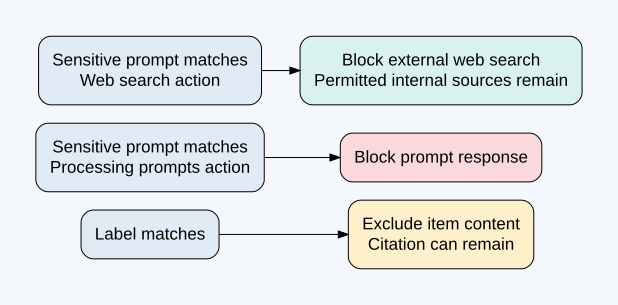
These controls belong to the Microsoft 365 Copilot and Copilot Chat DLP location. An existing SharePoint or OneDrive DLP policy should not be mistaken for this Copilot-specific configuration. Microsoft makes the Copilot location available through the Custom policy template, and selecting it disables the other locations for that policy.
A practical starting policy: leave salary files out of Copilot answers
Start with a clearly defined business requirement: “People who can open salary-planning documents may still open them, but Copilot must not use their contents in answers.” That is different from “only HR may open salary files,” which also requires access controls.
Before you begin: confirm the relevant Microsoft 365, Copilot and Purview entitlements for the users and features involved. Do not assume a Copilot subscription includes every DLP capability. Use Microsoft’s current licensing guidance linked below. Have an administrator with an appropriate Purview role—such as Compliance Administrator—perform the configuration; use the least privilege needed rather than defaulting to Global Administrator. The intended sensitivity label must already exist and be applied to the test files.
Step 1. Sign in to Microsoft Purview. Open Data Loss Prevention → Policies → Create policy. Choose Custom → Custom policy. Give it a descriptive name, such as “Copilot – exclude salary planning.”
Step 2. On the locations page, select Microsoft 365 Copilot and Copilot Chat. Remember that this is a separate policy location, not an extra checkbox to add to a multi-location SharePoint policy.
Step 3. Add a rule using Content contains → Sensitivity labels. Select the actual label used on your salary documents—for example, your existing “Highly Confidential” label. Choose the action to prevent Copilot from processing content.
Step 4. Review the scope and the consequences before enabling the policy. A broad label may cover far more than payroll. Use a controlled evaluation with synthetic documents and an agreed rollout window; do not casually switch on an organization-wide block just to see what happens.
Step 5. Save and enable the intended policy, then verify its behavior in the Copilot experiences your staff actually use. If a required option is missing, stop and check permissions, licensing and feature rollout rather than substituting a different control.
Want to restrict typed card details as well? Create a separate rule with Content contains → Sensitive information types and the appropriate prompt or web-search action. Microsoft does not allow sensitivity-label and sensitive-information-type conditions together in the same rule; separate rules can live in the same policy.
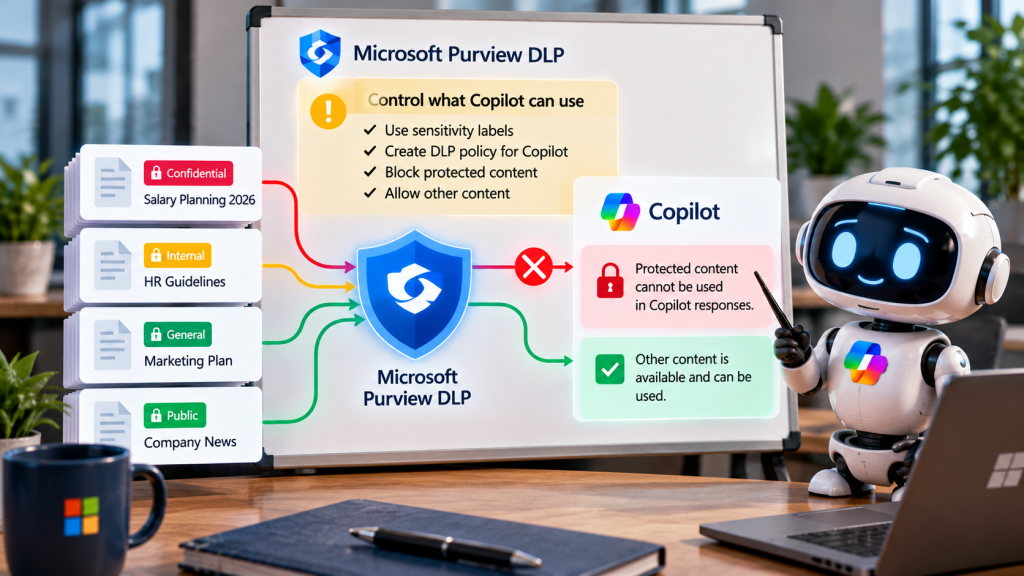
It’s easy to test when everything works perfectly. The real question is what happens when it doesn’t.
Use a harmless test document with invented salary figures and a distinctive phrase. Give your test user access, apply the chosen label and ask Copilot to summarize that document. The desired outcome is that the protected content is not used—not necessarily that its citation disappears. Compare with a permitted, differently labeled test document to check that you have not blocked more than intended.
Also check that the user can still open the protected file directly if that is part of your requirement. This confirms the distinction between an AI-processing restriction and an access restriction. For prompt rules, use approved synthetic test data that actually matches your chosen detector; random digits are not a reliable test of sensitive-information detection.
If a label was applied while a file was already open in Word, Excel or PowerPoint, close and reopen it before testing. Microsoft says this Copilot DLP evaluation happens at file open, so a mid-session label change is enforced the next time the file opens.
The gaps you should know before calling it “protected”
Direct uploads are a trap for assumptions. Microsoft says DLP does not scan the contents of files uploaded directly into prompts for sensitive data; it checks the text typed into the prompt. Do not treat the prompt SIT rule as an attachment-content scanner.
Coverage is specific. Label-based protection covers supported file items and emails sent on or after 1 January 2025. Calendar invites are not supported by this Copilot DLP control. A capability available in one workflow should not be assumed to cover every app, content type or AI tool.
Classification quality matters. A label-based rule cannot match a missing or incorrect label. A pattern detector cannot guarantee recognition of every business secret. The plain-language sentence “we are buying our competitor next month” may be sensitive without matching the number-based detectors you selected.
External email is a separate concern. Microsoft also documents a preview control to exclude externally received emails from Copilot grounding. It evaluates the sender domain against the tenant’s accepted domains, not the email body. It is not a universal prompt-injection detector, nor proof that all internal email is trustworthy.
Start with one business rule, not every checkbox
Pick one sensitive information flow: salary planning, customer identifiers or confidential deal documents. Fix who has access first. Make sure the labels or detectors match the information you actually want to protect. Then choose the smallest Copilot restriction that meets the requirement, document expected behavior and validate it with synthetic examples.
Tell employees what to do when a request is blocked: remove unnecessary personal details, use an approved process, or contact the data owner. A guardrail works much better when people understand why it is there—and do not have to invent a workaround.
Further reading
Microsoft: DLP for Microsoft 365 Copilot and Copilot Chat — supported conditions, actions, limitations and rollout notes.
Microsoft: Learn about sensitivity labels — classification versus protection settings.
Microsoft: Security and compliance licensing guidance — check current feature entitlements before rollout.