
An administrator cleans up a resource group, selects the wrong target, and clicks Delete. The permissions are valid. The intention is not. Azure resource locks provide a useful extra guardrail for this kind of mistake—but only if you understand what they protect and what they leave untouched.
This guide explains how to choose a lock level, where to apply it, and what to check before production rollout. The central distinction is simple: protecting the Azure resource is not the same as protecting all the data inside it.
What are Azure resource locks?
A management lock restricts operations at subscription, resource-group, or individual-resource scope. Unlike an ordinary role assignment, it applies across users and roles: having permission to delete a resource does not make an applicable delete lock disappear. However, a person with the necessary lock-management permissions can remove the lock. It is a guardrail, not an unbreakable security boundary.
Microsoft exposes two levels. Delete in the portal is CanNotDelete in command-line terminology: authorised users can read and modify the resource but cannot delete it. Read-only, or ReadOnly, prevents updates and deletion while allowing reads. These descriptions concern management operations, not every action an application can perform.
Choose Delete protection before considering Read-only
For an administrator whose specific concern is accidental infrastructure deletion, a Delete lock is usually the narrower starting point. It still needs testing: operations that remove related objects can be affected. Do not interpret “can modify” as a promise that every maintenance workflow will work unchanged.
Read-only is much more restrictive than its friendly name suggests. Microsoft documents that a read-only lock on a resource group containing a virtual machine prevents starting or restarting that VM. Those actions use management requests that the lock blocks. A read-only lock on a storage account also prevents listing account keys, because that operation uses POST.
Imagine a small team protecting a production VM. Preventing accidental deletion might be appropriate; preventing the on-call administrator from restarting it during an incident is a different decision. Pick the level around required operations, not around the idea that “more restrictive” automatically means “better”.
The critical boundary: control plane versus data plane
The control plane manages Azure resources. The data plane uses the capabilities those resources expose. Creating a storage account is a control-plane operation; reading and writing its data uses the data plane. Microsoft explicitly states that resource locks apply to control-plane operations, not data-plane operations.
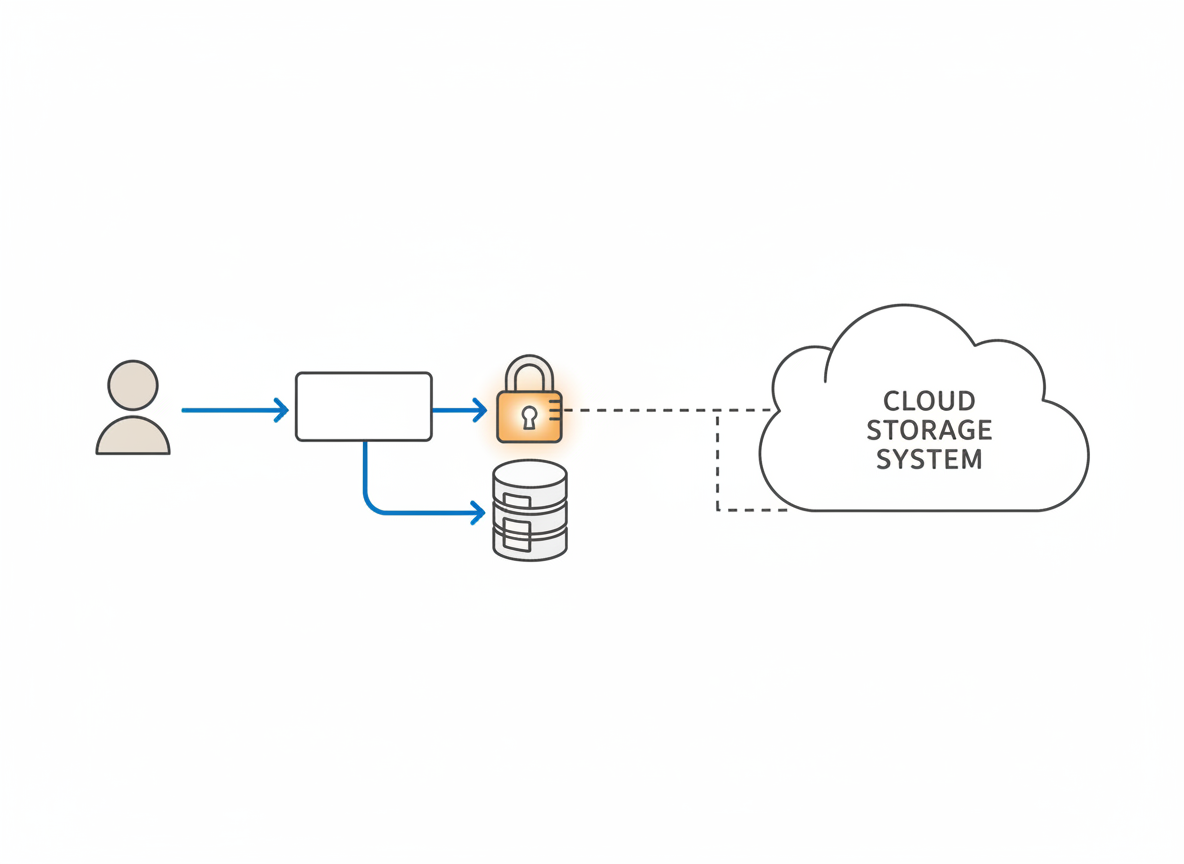
A lock on a storage account therefore does not provide blanket protection against deleting blobs or changing files through service data APIs. Similarly, a read-only lock on an SQL Database logical server does not stop authorised database users from changing or deleting data through queries. The management restriction and the application’s data permissions are separate controls.
This is why locks are not backups. Keep suitable recovery mechanisms, data access restrictions, and tested restore procedures alongside them. The appropriate combination depends on the service and its requirements. For any operation you need to protect, check the actual API or access path rather than guessing from a button label.
Scope and inheritance: small decisions can have a wide reach
Resources inherit locks applied at a parent scope, including resources added later. The most restrictive applicable lock takes precedence. A resource-group lock can be convenient when everything in that group has the same operational requirements, but it can also affect resources you did not have in mind when you created it.
A Delete lock on one resource also blocks deletion of its containing resource group. Microsoft describes this as an all-or-nothing operation: Azure does not partially delete the group and leave only the locked resource behind. That is helpful protection, but it can surprise a cleanup script.
Start by identifying exactly what must survive an accidental cleanup. Consider a resource-level lock when unrelated workloads share a group. Use broader scopes only after reviewing all affected resources and their lifecycle. Management groups are not a supported scope for these resource locks.
Add a lock through the Azure portal
1. Confirm the target. Check the subscription, resource group, and resource name. Begin with a disposable, non-production environment where you can evaluate operational effects safely.
2. Open the lock settings. Navigate to the selected resource, resource group, or subscription. Microsoft documents the subscription navigation label as Resource locks; resource groups use Locks. Portal layouts may evolve, so confirm that you are viewing the intended scope.
3. Select Add. Provide a meaningful name and choose the lock level. For an accidental-deletion scenario, evaluate Delete first. Use the optional notes to record the reason, responsible team, and reference to your maintenance process.
4. Review inherited restrictions. A lock shown against a resource may come from a parent. Understand that parent scope before planning any removal. Removing a local lock does not remove an inherited restriction.
5. Validate the result. Inspect the saved lock and exercise the expected operational workflows in the test environment. Never test deletion protection by deleting a production resource. If destructive testing is necessary, use a clearly disposable resource whose loss is acceptable.
Who should be able to remove a lock?
Microsoft states that creating or deleting management locks requires access to Microsoft.Authorization/* or Microsoft.Authorization/locks/* actions. Owner and User Access Administrator have the required access; some specialised built-in roles and appropriately designed custom roles can also provide it.
Treat removal as a controlled change. Record why it is needed, who approves it, and when protection must be restored. A useful runbook includes a final check that the intended lock is back in place. Avoid a process where an emergency workaround silently becomes the permanent configuration.
For the wider privileged-access discussion, see ClickCoach’s Azure PIM guide. Privileged access management and resource locks solve different parts of the operational-risk problem; neither replaces the other.
Test the maintenance path, not just the happy path

Before rollout, list the actions your team and automation perform: deployments, restarts, scaling, backup maintenance, access changes, and cleanup. Check Microsoft’s service-specific guidance for each affected resource. A workflow that includes deletion can fail even when its overall purpose looks like an update.
Two documented examples deserve particular attention. A cannot-delete lock on a resource group prevents automatic deletion of deployment-history entries; reaching the documented history limit of 800 deployments can then cause deployments to fail. Microsoft also warns against a cannot-delete lock on the resource group created by Azure Backup Service, because it prevents restore-point cleanup and can cause backups to fail.
Those examples are not a reason to abandon locks. They are a reason not to apply a broad “lock everything” rule without understanding service lifecycle requirements. Review Microsoft’s full considerations list and involve the team that owns the protected workload.
A practical rollout checklist
Define the risk: name the accidental action you want to prevent. Choose scope: identify every affected resource, including inherited coverage. Choose level: justify Read-only rather than assuming it is the default. Test operations: include routine and emergency maintenance. Assign ownership: document removal approval and restoration. Keep recovery: verify separate data protection and restore plans.
Review the lock when the workload changes. A resource group that was once static may later host automation, scaling services, or managed infrastructure with different deletion requirements. Protection should follow the current architecture, not a forgotten deployment decision.
Bottom line: a useful guardrail, not a recovery strategy
Azure resource locks can interrupt an expensive mistake before it happens. Use the narrowest scope and lock level that address the actual risk, understand the control-plane boundary, and test the operations your team depends on. Keep backups and data permissions as separate priorities. The goal is to make the wrong action harder without making necessary maintenance impossible.
Sources and further reading
Technical claims were checked against Microsoft Learn on 25 October 2026: Lock your Azure resources to protect your infrastructure and Control plane and data plane operations. Consult the current service documentation before changing a production environment.


