If your computer recognises your face and your phone already holds passkeys, why carry another piece of hardware? A physical FIDO2 security key can look like an answer to a problem that passwordless authentication has already solved. In practice, it solves a different problem: carrying a credential between supported devices without synchronising its private key through a cloud provider.
That distinction matters for administrators, shared workstations, recovery planning, and organisations that need control over which authenticators are used. It does not mean everyone needs a security key—or that synced passkeys are inherently unsafe. The useful question is where you want the credential to live, how you want to use it, and what happens when you lose access.
First, separate the credential from the unlock gesture
A passkey is a public-key credential associated with a particular service. The service stores the public key. During sign-in, the authenticator signs a challenge using the corresponding private key; the service verifies the signature. A PIN, fingerprint, or face check unlocks use of the credential locally. Your fingerprint is not a password sent to each website.
FIDO2 combines WebAuthn, used by browsers and applications, with CTAP, used for communication with authenticators. These mechanisms bind authentication to the relying party. A lookalike phishing site cannot simply request the genuine site’s credential and replay it like a stolen password or one-time code.
Passwordless is not synonymous with single-factor. A passkey used with local user verification can combine possession of the authenticator with a PIN or biometric. Conversely, do not assume every passwordless mechanism or every touch-only security-token workflow provides the same assurances. Evaluate the actual method and policy.
Windows Hello, platform passkeys, and synced passkeys are not the same thing
Windows Hello for Business provides a device-specific credential unlocked with a PIN or biometric, with enterprise management capabilities. Microsoft describes its PIN as staying on the device. The PIN is not a shorter network password that someone can reuse from another computer. Windows Hello can also support sign-in to compatible websites through FIDO/WebAuthn.
Windows Hello and Windows Hello for Business are related, but the enterprise deployment, account type, and management controls matter. Do not assume that any consumer or local-account Hello setup is equivalent to an organisation’s managed Hello for Business deployment.
A platform authenticator is integrated into a device, rather than carried as a separate external token. That describes where the authenticator is used, not necessarily whether every credential it handles is synchronised. A biometric prompt by itself does not tell you where a passkey is stored.
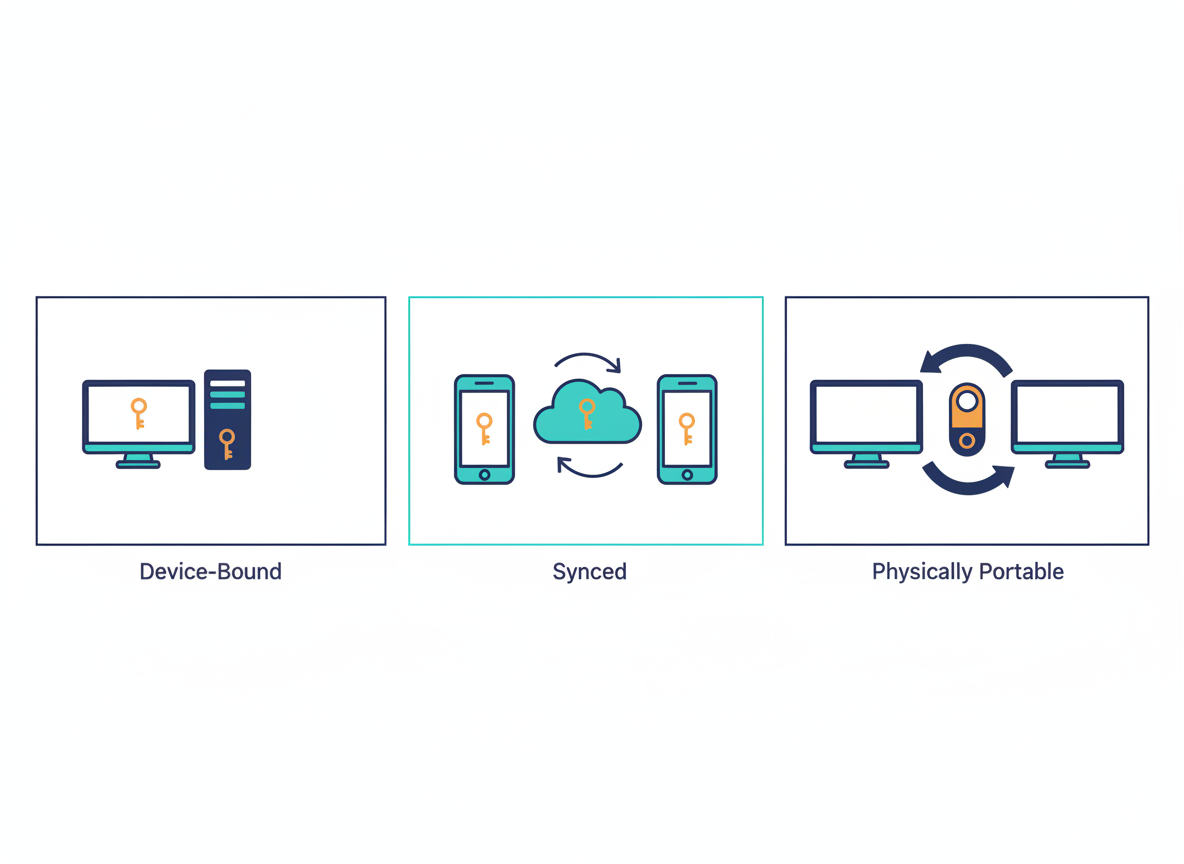
Synced passkeys can become available on other authorised devices through a passkey provider. Microsoft names Apple iCloud Keychain and Google Password Manager as examples. This makes moving between devices and recovering from replacement hardware more convenient, while making the provider account, its recovery process, and organisational policy part of the trust decision.
What a physical FIDO2 security key adds
A FIDO2 security key is a roaming authenticator. Its device-bound credential stays on the key while you physically carry the key to a compatible computer or phone. Connection options depend on the model and host device; USB and NFC support must be checked rather than assumed. A supported sign-in may require the key’s PIN or biometric verification and a deliberate user action.
The practical benefit is portability without cloud credential synchronisation. You can use the registered key on another supported endpoint without first placing that credential in the endpoint’s local authenticator or signing it into your personal passkey-sync account. You still need a compatible application, browser, operating system, and policy.
This is not permission to trust any public computer. A hardware key protects the authentication exchange; it does not make a compromised endpoint safe, prevent all session theft, or stop a user approving a harmful action after sign-in. Treat endpoint security and session controls as separate requirements.
Three situations where a key earns its place
Privileged administration. A security team may want administrator credentials on approved, device-bound authenticators rather than in a personal synchronisation ecosystem. Microsoft recommends FIDO2 security keys for highly regulated environments or users with elevated privileges, while also identifying device-bound passkeys in Microsoft Authenticator as an option. Hardware keys are not the only phishing-resistant choice.
Moving between managed workstations. A technician or frontline worker may use multiple approved stations and not want a credential tied exclusively to one workstation. A physical key can fit that workflow. Test the actual Windows and application sign-in paths: browser sign-in support does not automatically establish support for every desktop, remote-session, or legacy scenario.
An independent recovery route. A separately registered spare key can reduce reliance on the same phone, laptop, or provider account used every day. This only works if the service permits the extra method and the organisation’s policies accept it. An unregistered spare in a drawer is not a recovery method.
For a person who works on one managed Windows computer, Hello for Business may already be the most convenient daily method. For general users moving within a supported device ecosystem, synced passkeys may be a better usability fit. Choose based on the workflow, not on which option looks most like security equipment.
Phishing resistance belongs to passkeys—not just hardware
Both device-bound and synced passkeys can provide phishing-resistant authentication. Their important differences concern credential storage, synchronisation, device provenance, policy control, and recovery. Describing synced passkeys as “just passwords in the cloud” misses the public-key and relying-party binding that make passkeys different.
Microsoft’s current Entra documentation distinguishes attestation from authentication. Attestation can help establish the authenticator’s provenance during registration and support restrictions on approved models. Synced passkeys do not support attestation in the documented Entra model; enforcing attestation excludes them. An unattested credential should not be confused with a phishable password, and attestation does not prove the whole endpoint is uncompromised.
Also inspect fallback routes. A service may offer a strong passkey option while still allowing a weaker recovery or password path. An attacker may target that path instead. Review registration, sign-in, helpdesk recovery, and replacement as one system—not as four unrelated projects.
Plan loss, replacement, and revocation before rollout
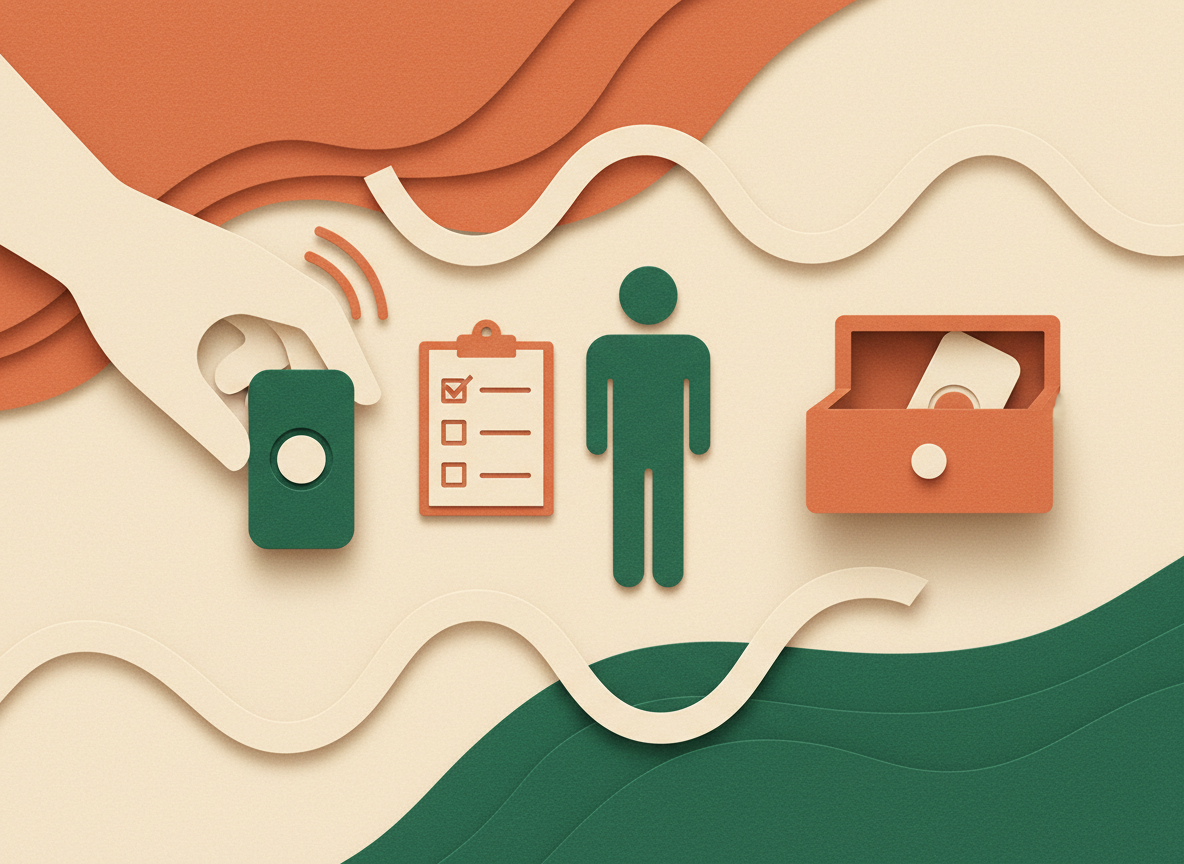
Where supported, register two keys independently and store the spare separately from the primary. Do not describe this as cloning a hardware key: device-bound private keys are not meant to be exported and copied. Each authenticator needs its own registration with the services where it will be used.
If a key is lost, follow the service’s process to remove its registration, recover access through an approved route, and register a replacement. Review active sessions where appropriate; removing a sign-in credential should not be treated as proof that every existing session has ended. A stolen key with local verification is not automatically a successful compromise, but it still needs a prompt response.
Write down who verifies a recovery request, what evidence is required, and how a user gets back in without persuading the helpdesk to bypass policy. For synced credentials, test provider-account recovery. For device-bound credentials, test loss of the device. For all methods, rehearse the case where the user has none of their usual equipment.
A sensible Microsoft Entra pilot
Microsoft’s guidance retrieved for this article says Entra ID supports synced passkeys as well as device-bound passkeys on FIDO2 security keys and in Microsoft Authenticator. It also documents passkey profiles for group-based controls. These capabilities and supported combinations evolve, so check the linked deployment guidance against your tenant before implementation.
1. Define the group and use case. Separate routine office work from privileged administration and shared-workstation use. Choose a small pilot that includes both users and support staff.
2. Define accepted authenticators. Decide whether synced credentials are allowed, whether attestation is required, and whether specific authenticator models should be restricted. Check device, browser, connector, and operating-system compatibility before buying hardware.
3. Separate enablement from enforcement. Allowing registration is not the same as requiring a particular method for access. Microsoft documents Conditional Access authentication strengths for enforcement. Check applicable licensing and policy dependencies separately rather than assuming that enabling passkeys makes every related feature free.
4. Test complete workflows. Include registration, ordinary sign-in, a second device, lost-device recovery, replacement, and offboarding. Verify that account recovery does not undermine the intended protection. Expand only after the support process is workable.
This builds on ClickCoach’s earlier discussion of improving Microsoft 365 security with MFA. For privileged accounts, combine authentication decisions with appropriate privilege controls; see the Azure PIM guide. Strong authentication does not justify permanent broad administrative access.
The verdict: choose the credential’s home deliberately
Windows Hello for Business makes a managed device a convenient authenticator. Synced passkeys make credentials easier to use across a provider’s supported ecosystem. Physical FIDO2 keys add a different form of independence: the credential travels with dedicated hardware rather than being copied through synchronisation.
That gap is valuable where portability, approved hardware, or a separate recovery route matters. It is not a reason to issue hardware blindly to everyone. Start with the risk and the work pattern, then choose the authenticator—and make recovery part of the design from day one.
Official sources and scope
This is a documentation-based guide, not a hands-on product test. Sources checked on 27 October 2026: Microsoft Entra passkeys (FIDO2) concepts, enabling passkeys and configuring profiles, and Windows Hello for Business overview. Images are conceptual AI-generated visuals, not product photographs or configuration screenshots.


