Identity Governance – Access Packages

Recently I’ve been spending a lot of time talking about PIM (Privileged Identity Management). It’s a good way of making sure that administrative accounts only have they rights they actually need and when they need them.

But let’s look at a diferent use case. Fred has just started his new job in accounting. Fred doesn’t really know what rights or permissions he needs but having the same rights as Lola (she’s been with the company for a while) seems like a great start. He doesn’t know about Active Directory or Entra but he can work those balance sheets like magic. ‚Access Packages‘ are a better fit for this use case.

  • PIM: Provides role-based access to Entra and Azure resources
    • Is mainly based on Entra roles
    • You request access to a certain role or group
    • Requires more IT knowledge (because you need to know the role you need)
  • Access Packages: Provides role-based access to applications and data
    • Is more focused on user activity and applications
    • you request access to a predefined set of rights

But what are these ‚Access Packages‘ you keep talking about? How do they work?

Let’s say that Fred’s role mainly needs access to two applications:

  • The main accounting application
  • a program to calculate VAT payments

Let’s take a step back and think about what would happen if there was no formal way of requesting access…. Lola from accounting writes an e-mail to IT „Fred needs access! Same as me!“. So what can IT do? Should they just copy all group memberships and Bob’s your uncle? Unfortunately, if Lola also has access to the CEO’s expense reports, this could go very badly.

That’s were „Access Packages“ step in. The decision about what type of access is needed should not be made by IT but by the business departments. Only they know what type of access Fred needs (or doesn’t need).

Create an ‚Access package‘

So now we’re ready to create our very first „Access Package“. Go to the ‚Azure Portal‘ and look for ‚Identity Governance‘. Click on ‚New Access Package‘ to get started.

First we should set it up with a meaningful name and description.
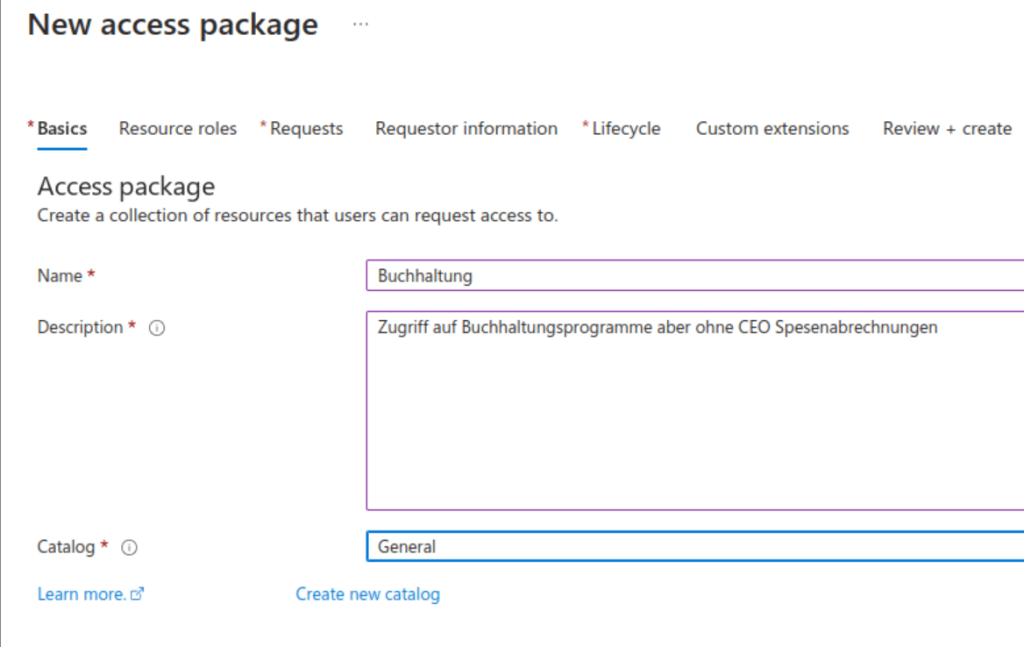
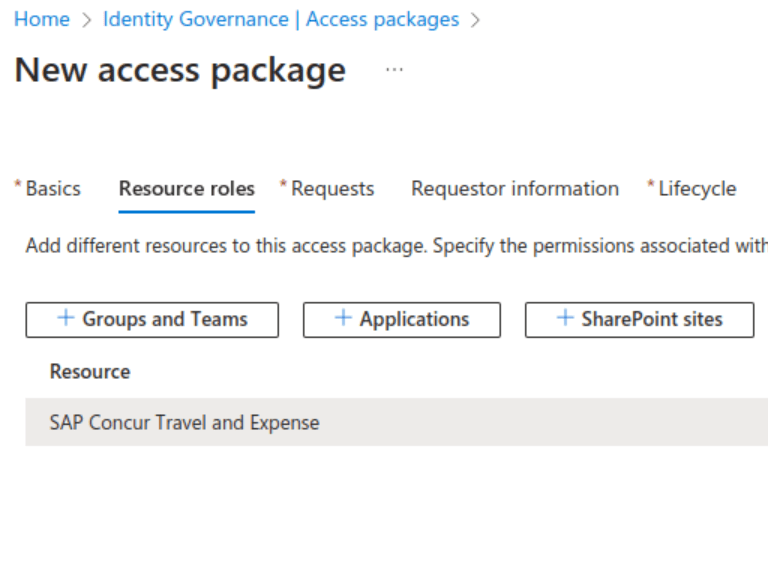
Now this next screen is the beating heart of the ‚Access Package‘. What do accounting employees need to do their job? In our example, we select a well-known accounting program with three letters (hint: SAP). But we can mix and match any number of groups and applications to create the perfect set.
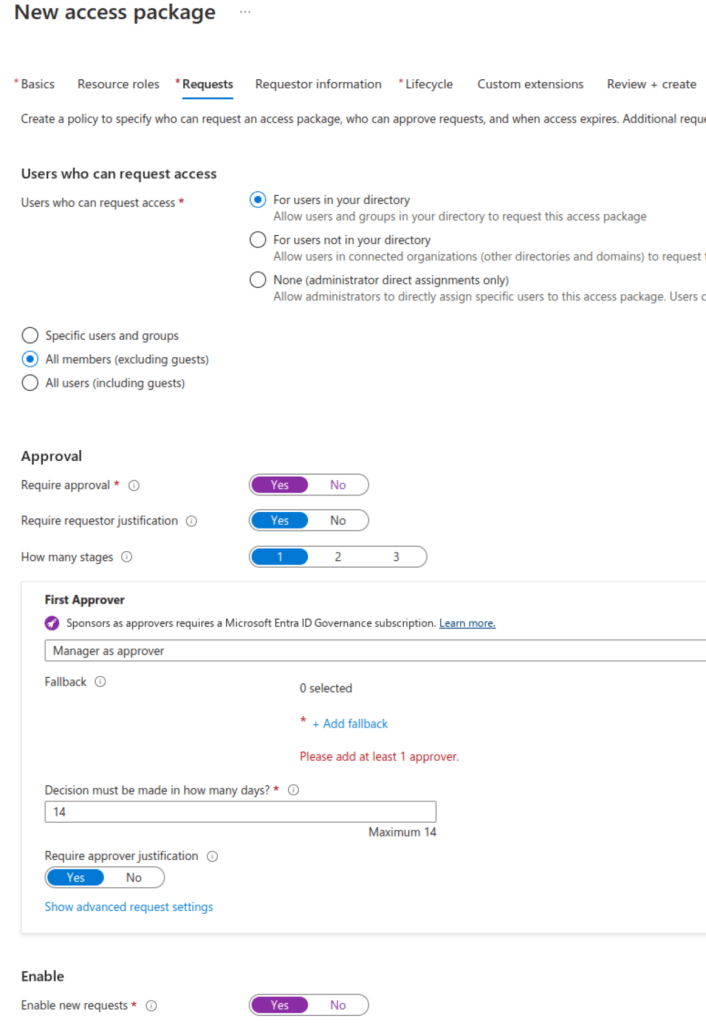
This brings us to the ‚Requests‘ tab, where we can further refine our access requirements.

  • Who is allowed to ask for access? Remember: This doesn’t actually provide access, it only provides the right to ask for access. So don’t be too strict here since you want the business to decide. In our example, anyone within the company (except guest accounts) can request access.
  • Wo is the approver? Although you can select ‚Manager‘, it’s usually best to setup a group with at least two people to ensure that requests can be answered in a timely manner.
  • Why do you need this access? A justification can and should be required.
  • How long will it take? By default, a request must be answered within 14 days.
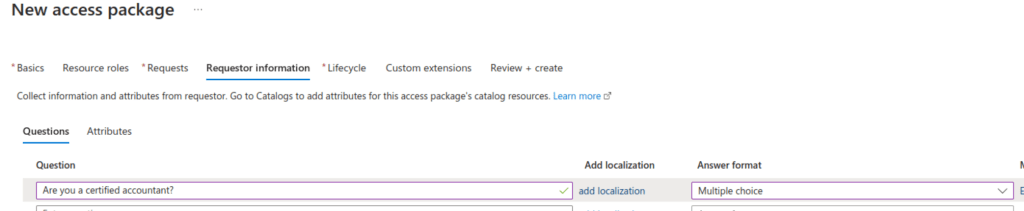
You also have the option of asking additional questions. What is your cost centre? Are you aware of the company regulations? Who is the president of the United States?
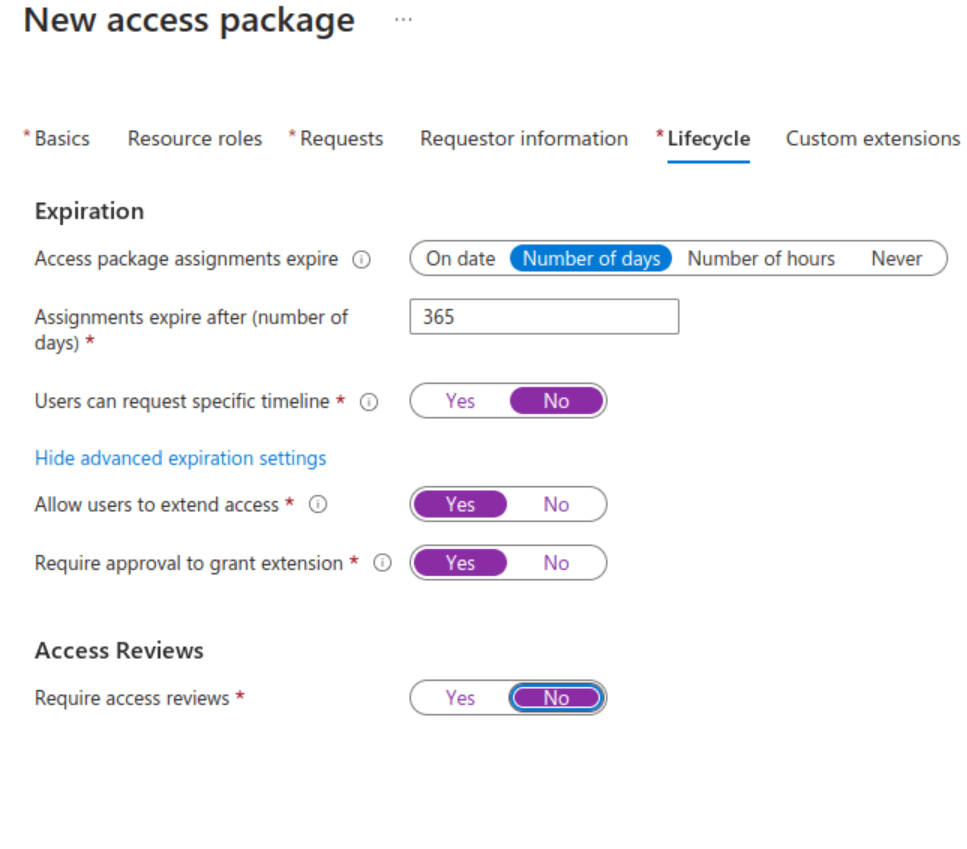
Job responsibilities are a moving target. People move between departments or they are on a short-term contract. That is why access should never be permanently granted.Here are some of the available options:

  • Will the access expire or is it permanent?
  • When will it expire?
  • Can the user request an access extension?
  • Will the extension require another approval?
  • You could also directly link the request to an access review. However, as I will be talking about access reviews more specifically in another article, I have set this to ‚No‘ here.
Most of what we’re doing here requires an Azure P2 license. However, some extra features would also need an ‚Identity Governance‘ license. The details are listed here.

As soon as we click ‚Review and Create‘, our first ‚Access Package‘ is ready to go.

Requesting access

For a self-service type of concept to work, it’s really important to have a central and easily available web portal. Microsoft provides this in the form of the ‚Access Portal‘.

Select ‚Access Packages‘ to see a list of all available packages. Our recently created package will be visible here. Select it and click on ‚Request‘.
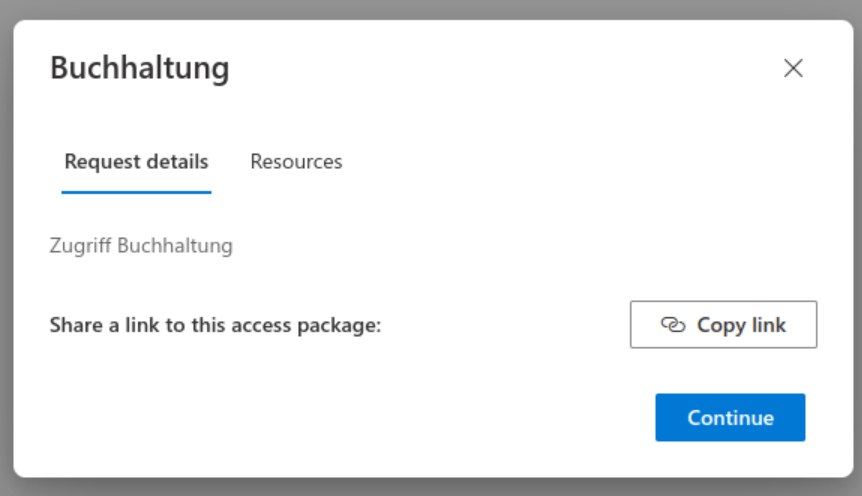
This will tell you:

  • Which access package we are talking about
  • What are the resources that we are requesting access to
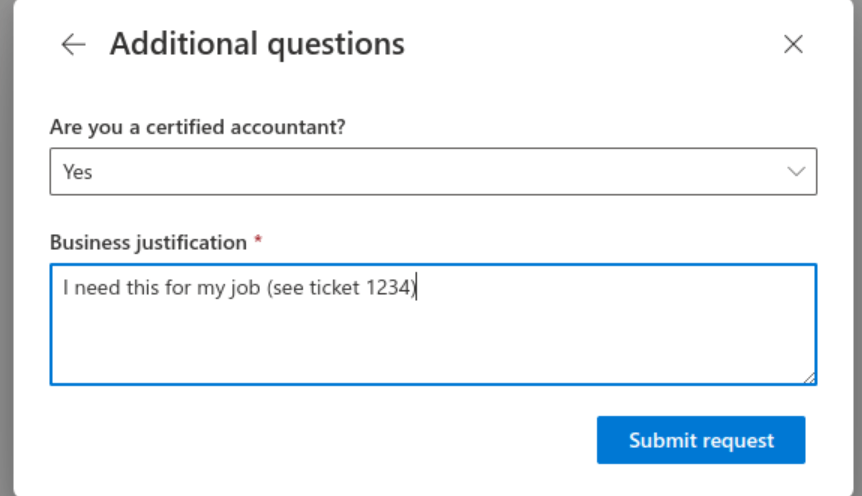
Since we defined some extra questions, you’ll have to answer them here before you can submit the request.

Granting access

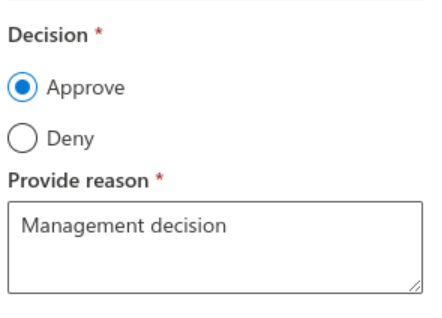
The request will be sent to the approver by e-mail and will contain a link. Clicking on the link will take us to the Access Portal. Only this time in the role as approver, we have to check out the ‚Approvals‘ section. This is where we can open the request and either approve or deny it.
Using access

Again, an e-mail will be sent to the requester, telling him or her that the request has been granted. You can check the status of the request by going back to the Access Portal.

You“ll be able to see the start date and the end date. You can use the ‚Actions‘ to end your access ahead of the deadline, if you no longer need it.

Final thoughts

Microsoft has really put some thought into this and has provided a tool that can reduce the IT workload by making it possible for business departments to manage their own access rights. Entra roles are not currently supported but will be integrated at a later stage. In my next article, I will explain how this ties into ‚Access Reviews‘ and how the two options work together.

Feedback

  • We’d love to hear from you. Leave your feedback or questions here.
  • Would you like to support the Blog and look good at the same time? Try our T-Shirt
Access Reviews
Today’s topic: Access Reviews

Defender – Identity Protection

What is something that all companies have in common? They need to protect their identities. And not just internal identities but external ones, as well. They need to know what changes have been made to important groups and accounts. Who made the changes and when? Are my key identities under attack? To be able to answer these questions, we need good reporting tools. What are cloud identities? Think of them as an extension of your internal accounts and groups. If you think of them that way, it clearly makes sense to use a single tool to report on both internal and external identities. Instead of using isolated tools that don’t give us the big picture, let’s replace them with something that doesn’t just look at Active Directory but that can extend that view to the cloud.

Protect your assets: Identities

Today we’re going to talk about ‚Defender for Identity‚. It’s one of the arrows in the quiver of the Defender family of products. And, you guessed it, the focus of this ‚arrow‘ is…Identities. Did you know that ‚Defender for Identity‚ can be installed in a day and provides immediate value? If you’re like most companies, you’ll have a ‚legacy‘ product that looks at Active Directory only. You pay per user licenses for something that you’ve probably already paid for as part of your Microsoft Cloud licenses. It’s striking how IT often relies on legacy 3rd party products, mostly because ‚that’s they way we’ve been doing it‘. Defender does not require any additional servers or infrastructure. All you have to do is install the agents (aka ’sensors‘) and you’re up and running. The user interface is web-based and easy to understand and work with. Using Defender can save you money, right out of the box. And it’s not just about replacing your internal Active Directory reporting tool (although that’s a quick win). You’re extending and combining your views, to include your cloud accounts.

Your Active Directory Domain Controller is at the heart of your internal Identitites. So it makes sense to have these key systems report directly to the M365 Cloud solution. Your goal has to be to discover the state of users and systems in realtime and to act accordingly. This is in line with modern authentication and Conditional Access. If you’re able to move away from static lists to dynamic discovery, you’ll be able to react more quickly and discover threats as they take place (rather than after the fact).

If you want to give it a spin, you’ll need these permissions:

  • Global Admin at Tenant level
  • Domain Admin rights for your On-Prem Active Directory

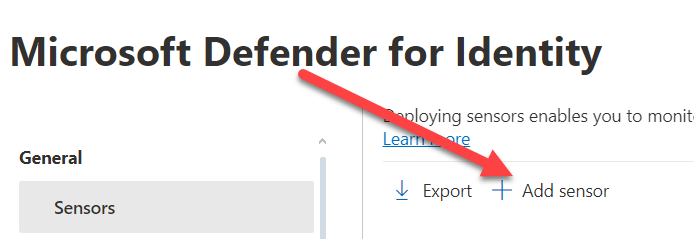
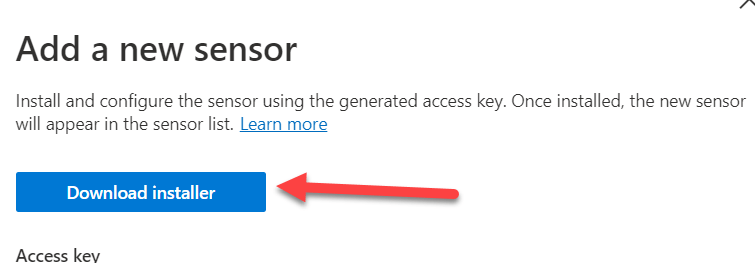
To get started, you’ll have to download the agent (Microsoft calls it ‚Sensor‘) from the Security Portal under ‚General Settings‘.

When you click on ‚Add Sensor‘, this will generate a random ‚Access Key‘. You’ll have to provide this key again when you run the setup on the Domain Controller, so don’t forget it. The recommendation is to install a ‚Sensor‘ on every Domain Controller to get the complete picture. And yes, there is a complicated und annoying way to run this on a member server instead (think ‚Port Mirroring’…). Why? Just do it the recommended way, and you’ll be fine.

Another option you’ll find under ‚General Settings‘ is the definition of the service accounts that are required. There are two different types of accounts:

  • Directory Service Account – this is account with read-only rights to your local Active Directory. All this account does is read the current state of the directory. So don’t give this account any admin rights, as they are not required.
  • Action Account – Yes, Defender can disable accounts or reset passwords pro-actively. If you install the ‚Sensor‘ directly on the Domain Controller (the recommended way) then the Local System Account will be used.

So is that all that’s needed to get ‚Defender for Identity‚ up and running? There is a missing step, and that is the activation of the Audit settings. You can’t report on something that’s not logged, so this is an important step. The good news is, that if you’re using any of the legacy Active Directory reporting tools, you probably don’t need to change much because most tools need these settings too. But don’t worry, if you fail to change these settings, Defender will tell you so as part of the health check. Details can be found here.

Be aware, that there is an initial 30-day learning period and during this time Defender builds a baseline of your network. The goal is to understand what is usual vs. unusual behavior. It’s possible to deactivate the learning period and to report on everything right away. However, this is not recommended as it may lead to false positives. Regardless, the reporting on changes to groups and accounts is available from day 1 and works a 100 percent from the start.

Next is an overview of the standard reports that you can run either ad-hoc or on a schedule. They are available from the Security Portal (Go to ‚Reports‘ ‚Identities‘):

  • Changes to sensitive groups – This includes both well-known groups such as Domain Admins but also your own definitions.
  • ‚Passwords in clear text‘ – Did you know, that even today, there are still programs that connect to AD by sending clear-text passswords, for example to run an LDAP query? Spin up your network sniffer and you’ll be able to read these passwords. To put an immediate stop to this, you’ll have to find the culprits firsts. And this report will show you the source of the problem.
  • ‚Lateral Movement‘ – Imagine that the front-door to your house is heavily secured. Unfortunately, there is another entrance via the garage, with only a simple lock. ‚Lateral movement‘ means that less important accounts and systems will be attacked to gain control of privileged accounts and systems. This report will help you to identify these types of attacks.
  • The ‚Summary‘ report does just what is says. It gives you a overview of all alerts and the status of the sensors over a period of time.

That all sounds wonderful, but how dow I replace my current monitoring solution so that can I report on all Active Directory changes?

Let’s recall the four steps that are required to replace your current AD Logging solution with ‚Defender for Identity‘ and at the same time extend your view to include all identies (Cloud and On-Prem):

  • Change your Audit settings for Active Directory
  • Download and install the Agent (aka ‚Sensor‘) on every Domain Controller (from the ‚Security Portal‘)
  • Define groups and accounts you want to monitor (in addition to the well-known groups)
  • Configure and schedule the reports to be notified of changes

That’s it! Let’s finish with five interesting facts about ‚Defender for Identity‘ that may help you on your journey to secure your environment:

  • You can configure ‚Honeytokens‘. These are accounts that only appear to be important but are there to draw out hackers. Attacks on honeytoken accounts will divert hackers from your real assets but will still trigger alerts for investigation.
  • Although ‚Defender for Identity‘ works quite well on it’s own, it will benefit from using additional Defender products. For example, you might learn from ‚Defender for Endpoint‚ that an attack has started by downloading a virus on a PC or by entering credentials on a phishing site.
  • If you store ‚Password Hash‘ in the cloud, then that means Defender can compare the values against known Darknet sources. If a match is found, that means a password has been compromised and should be changed asap. You can configure Defender to reset the password.
  • All the information gathered by Defender can be forwarded to ‚Sentinel‚ for further analysis and long-term archiving of events.
  • The default monitoring can discover a large number of well-known attacks such as ‚Brute Force‘, ‚Golden Tickets‘ etc. A complete list can be found here.

This article is the final one to be published in 2023. It remains for me to wish all the readers a happy new year and we’ll be back with new and interesting topics in January.

Approach the Coach

Azure Sentinel: Circle the Wagon

Remember those old Wild West movies? Whenever the trek of settlers was under attack, they would immediately circle the wagons. The same was true whenever the trek had to stop overnight. But why? Obviously, they felt protected within the circle. Attackers could easily be spotted and repelled. Can you spot the connection between Wild West tactics and modern network design? Yes, there are still companies that think in terms of ‚inside -good‘ – ‚outside – bad‘. Anyone inside the circle has to be one of us, one of the good guys. No need to double check! But what if someone steals a cowboy hat and sneaks into the camp at night?

white fedora hat hanged during golden hour
What’s hiding underneath the hat?

Users want to access everything from everywhere. They don’t care where the system is located. They might be using a mobile phone or a tablet or perhaps a trusty old desktop PC. Is it a ‚private‘ BYOD device or a ‚managed‘ company computer? It really shouldn’t matter. On the other hand, there is the continuous drive to optimize costs and to standardize processes. Cloud services support up- and down-scaling because new systems can be turned on (and off) at the touch of a button. This just in time approach means that you only pay what you need and when you need it. In this brave new IT world, there is no place for ‚circle the wagon‘ because your data or your systems can be anywhere in the world, thanks to Cloud services. But if anything goes, how can we ensure a high level of protection?

Looking at Azure and M365 environments, there’s of course ‚Conditonal Access (CAP)‚. Whenever someone tries to access a system, there is a transparent but detailed background check. Depending on the device type or user etc. we can ask for additional security checks (MFA) or deny access completely. For example a suspicious access pattern might lead to an immediate access revocation.But is this a sufficient level of protection? Hackers and Cyber criminals will always try to find new ways to get their hands on your company data and will look for weaknesses. You need to stay ahead of the curve. There has to be an intelligent early warning system that can discover attempted attacks and sound the alarm. The good news: There is no need to reinvent the wagon wheel. Today we will talk about ‚Sentinel‘.

So what do you need to use Sentinel?

An active Azure subscription. You may already have one for your M365 services, but if not you can get a free trial subscription here.

So what can Sentinel do?

  • Centrally retain logfiles from different Azure / M365 and 3rd party solutions for further analysis
  • Inform and alert (using both automated templates and manual rulesets)

What will Sentinel cost me?

To get a detailed overview you can alway use the Sentinel calculator. What it all comes down to is the amount of data you want to keep and for how long. There is also the matter of any automated workflows (Logic Apps) as you will be charged every time they are triggered. That may sound expensive, but really it isn’t. That’s because the recommended way to rollout Sentinel is gradually and not to enable everything at once. And there’s an (almost) free 30-day trial version. The important thing is to keep an eye on the charges. The most expensive monitoring and and alerting system will always be the one that’s not there.

So how does it work? How can I get this up and running quickly?

So here’s how you can activate and use Sentinel in a few quick and easy steps.

  • Logon to the Azure Portal
  • Look for ‚Sentinel‘ and click ‚Create‘ to setup a new Sentinel environment.
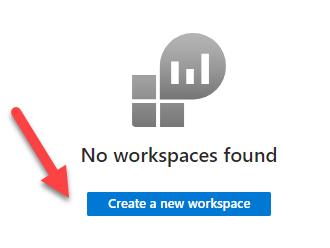
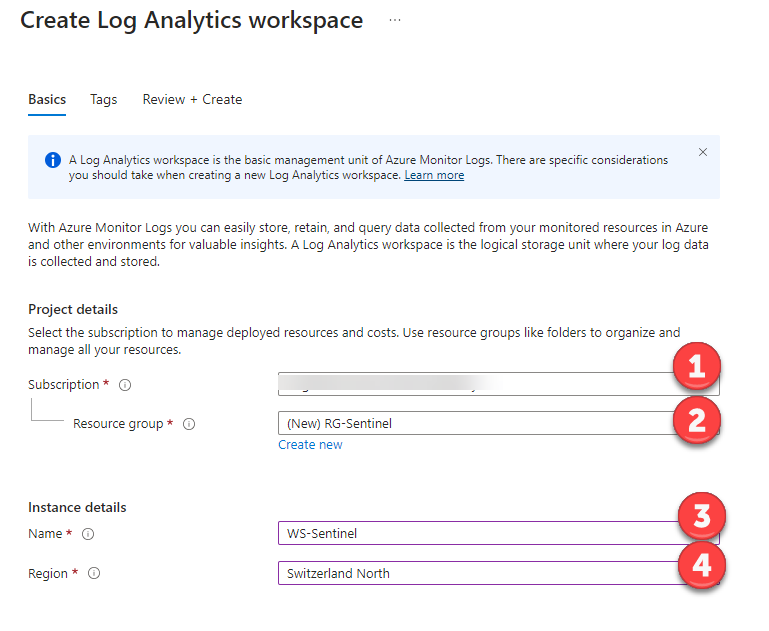
  • The first thing you’ll need is a ‚Log Analytics Workspace‘ (this is where the actual logdata is retained). So we’ll create a new workspace as part of the initial setup.
  1. Select your subscription
  2. Consider grouping objects in an ‚Azure Resource Group‘ (think of it as a type of management container)
  3. Pick a unique name for the workspace
  4. Pick your ‚Azure‚ region. Local laws and regulations may dictate a certain region but also keep in mind that there are cost differences between regions. See the calculator for details.
  • Once created, select the new workspace from the list
  • As a new user you may be elligible for the free 30-day trial. You’ll be asked to confirm this.
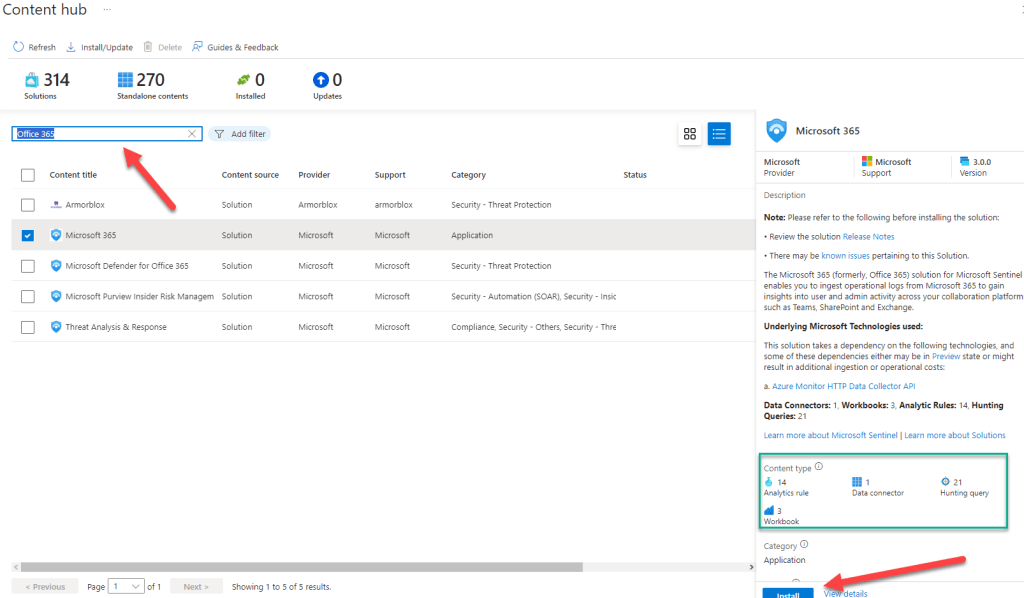
  • Your next stop is the ‚Content Hub‘. This is where you’ll find predefined out of the box solutions for both Microsoft and 3rd party applications and services. For example, a search for M365 or Azure will show you all the related solutions.
  • Select the solution you’re interested in and click ‚Install‘
  • The solution is now installed but it’s still not configured / connected. So the next stop in gettings things and up and running is the ‚Data Connectors‘ page.
  • Have a look at the bar next to the solution to see it’s current connection status:
    • grey -> not yet connected
    • green -> connected (after the configuration has been completed)
  • So next you’ll need to select the installed product and click on ‚Open Connector page‘.
  • The configuration options will differ, based on the selected solution. For example, when looking at the M365 solution you’ll need to choose the related applications (Exchange, Sharepoint, Teams).
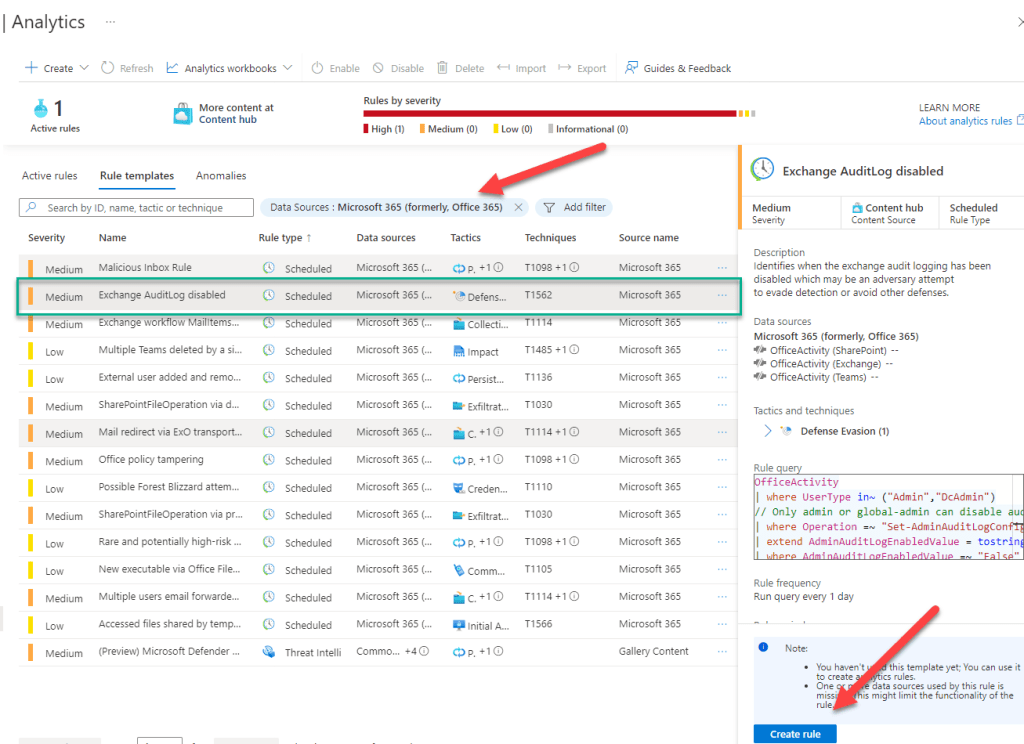
  • Once you’ve finished the initial setup, you’ll see many new templates on the ‚Analytics‘ page.
  • Let’s say that we would like to be alerted if someone is trying to cover their tracks by deactivating the audit logs. There’s a template for that. So we can select the template and click on ‚Create Rule‘.
  • As we create the rule from the template, we have multiple options. In this example we would like to automatically open an ‚Incident‘ and assign it to an owner (such as a Security Operations team).
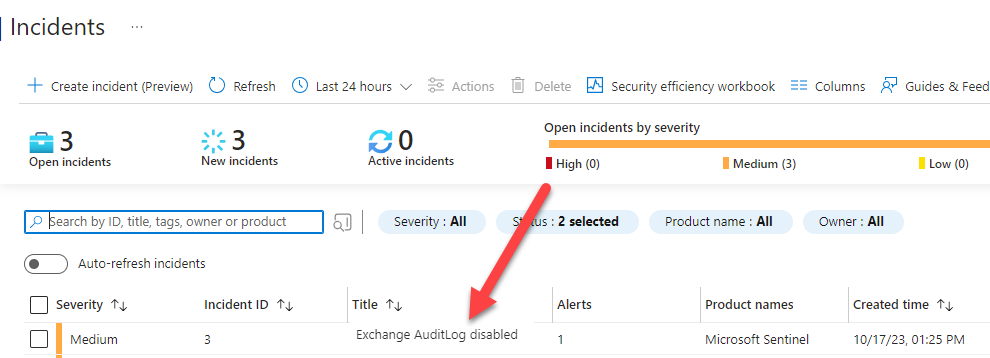
  • Once the rule has been created it will run on a fixed schedule (how often is configurable). The ‚Incident‘ will fire as soon as someone disables the Audit Log.
  • But don’t just take my word for it. To prove the point, we will now use trusty old Powershell to disable and then immediately re-enable the Audit Log. We’re doing this in a test environment, so please don’t try this at home. 🙂 These are the commands (you’ll have to connect to Azure Powershell first):
    • Set-AdminAuditLogConfig -UnifiedAuditLogIngestionEnabled $false
    • Set-AdminAuditLogConfig -UnifiedAuditLogIngestionEnabled $true
  • …and soon after you’ll see the ‚Incident‘ appear in Sentinel. Works as designed. 🙂

Now this test only scratches the surface of what’s possible with Sentinel. But what’s impressive here is how quickly the basic setup is up and running. Now we’re ready to go further with automation. We can use ‚Playbooks‘ in combination with ‚Logic Apps‘ to refine our security operations tasks and to integrate and extend the solution. More on that topic to follow soon.

And finally…

Here’s a reminder of ways you can interact with us:

  • ‚Hammertime‘ – Send uns your ideas and let us know what you think
  • Get the ‚T-Shirt‘ – Impress friends and family while supporting our site.

Azure PIM: Peace of Mind for IT Admins

The security landscape is changing and traditional security concepts need to be overhauled and renewed. There is an ongoing trend: moving away from network zones, firewalls and segmentation towards a more holistic approach. New ideas to reckon with are „Zero Trust“ and „Conditional Access“,. Simply put, this means that access is checked and verified every time. Since I have already written quite a few words about this topic, let’s change direction a bit and talk about a more specific concepts instead. RBAC, rights assignment and admin access are an important part of today’s story.

Security by obscurity – multiple admin accounts

If you look closely at some of the traditional security concepts, then a common theme is „Damage control“. Let’s say, a hacker has gained access to your network. However, because of segmentation, the path to additional assets is blocked. Unfortunately, the management overhead for these type of solutions tends to be very high, especially if there is no integration between different solutions. Are these solutions user-friendly? Let’s just say, that this aspect is often not the main driver or simply ignored. Let’s talk about the concept of RBAC (Role-based access control). In a perfect world, you might have several admin accounts. Each account is tailored to have just the rights that is required for the task at hand. You need to configure e-mail settings? Here is your mail server admin account. You’re planning to manage the file server? Here is another admin account, which you can use only for that task, etc, etc. Depending on your roles, you could end up with ten or even more accounts. Naturally, all these accounts would have an individual complex password and would be protected with MFA. 🙂 Can you imagine the confusion? Half of your admin day would be spent just trying to figure out which account applies to which task. In this fresh admin hell, you’d also be forced to use multiple different entry points to gain access. And what about the account lifecycle? New entries, job rotation, closing accounts etc… It is very likey that this type of approach will generate a lot of manual processes. The result is security by obscurity. You feel secure, but you’re not!

A much better approach is using a system such as PIM. There is a central ordering process and you get the rights you need, when you need them. All you need is a single admin account and PIM. You can setup this process as simple or as complicated as you like. And the best thing: The rights expire automatically, based on your requirements. Always think about the criticality of the asset you are trying to protect and architect the approval process accordingly. A common mistake ist to build complicated approval workflows for non-critical assets.

administration ancient antique architecture
PIM – Three Pillars

What are the three main pillars of PIM:

  • Least Privilege – Assign only the rights you need to do your job.
  • Just in Time – Access is provided as needed and has an expiration date.
  • Monitoring – Answering the question „Who had access and when“ becomes a breeze, as there are detailled audit trails.

How can you configure PIM? The entry point is alwas the Azure Portal. The focus of the solution are the typical Admin roles of Azure and M365. Here are some standard roles, that can be configured to work with PIM:

  • Global Administrator
  • Exchange Administrator
  • Sharepoint Administrator
  • Teams Administrator

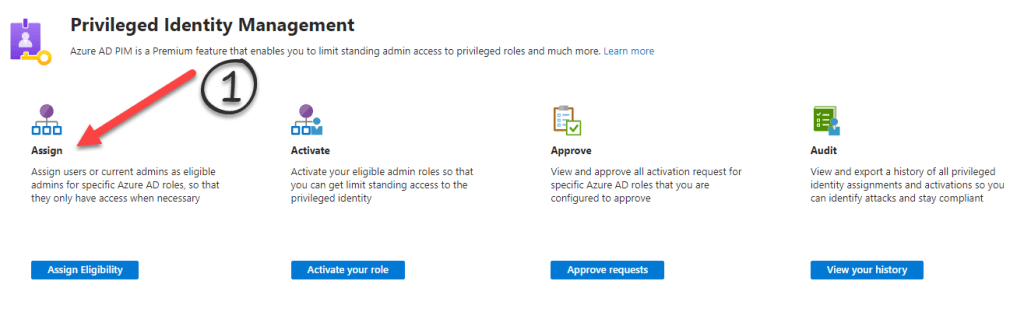
…. and many more. Using PIM is a 4 step process. The first line of defense is to define eligibility. Who is even allowed to request an administrative role (Step 1)? This could also be time-limited. For example, you could align your role assignments with a project schedule.

Some of the settings you can control individually for each role are:

  • For how long the permissions will apply (1 day, 1 week, forever…)
  • Additional MFA authentication requirements
  • If access will only be logged or if an approval is needed
  • Requesting additional justification
Role settings: Expiry and approval requirements

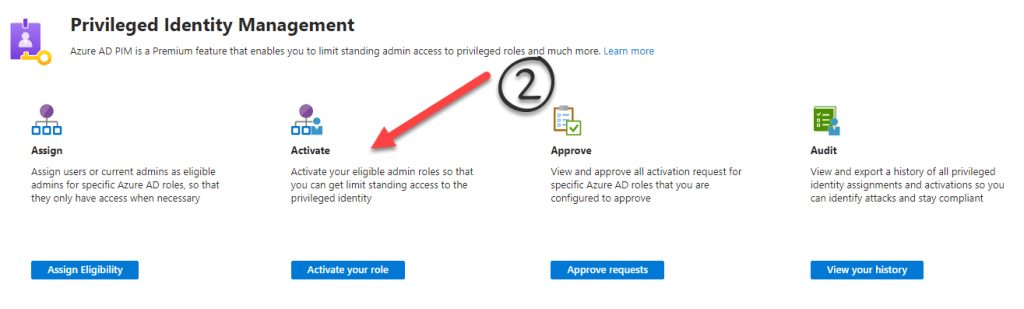
What are the steps of a PIM workflow? Let’s look at a practical example. Kevin works as an IT admin for the dynamic Import-Export Ltd. Today, Kevin’s plans are to cleanup the Microsoft Teams workspaces. He knows that this will require the Teams Administrator role. However, because the company has recently activated PIM for M365, he is aware that he needs to request the role before he can begin. The starting point for the workflow is the Azure Portal. (Step 2)

It’s Kevin’s lucky day! The Azure Administrator has already defined the eligibility requirements for the ‚Teams Administrator‘ role. Kevin can see a list of all the roles that he is eligible for. He picks the ‚Teams Administrator‘ role and clicks on ‚Activate‘.

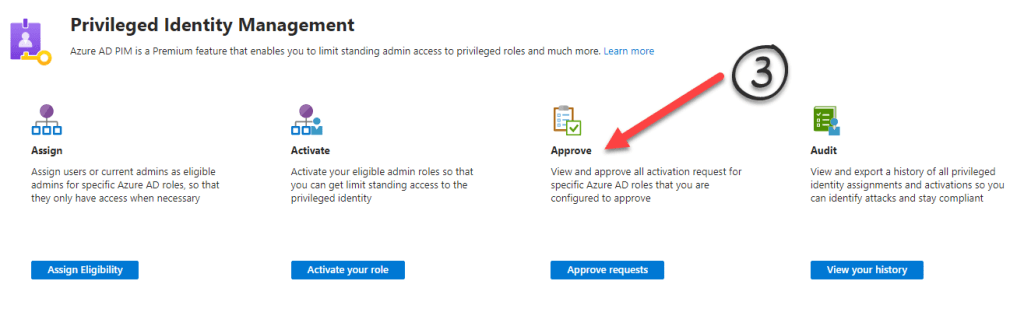
Here’s what’s been defined for the ‚Teams Administrator‘ role: It is valid for one week, after which a new approval is necessary. The IT team at Import-Export Ltd. is small and that’s why it’s been decided to only log the permission assignment. But Kevin will have to authenticate with MFA and the IT manager will be notified by e-mail. At the last meeting, Kevin talked extensively about his plans for a Teams cleanup, so no surprises there. In larger environments or if a role is seen as highly crititical, you can alway require an approval (step 3).

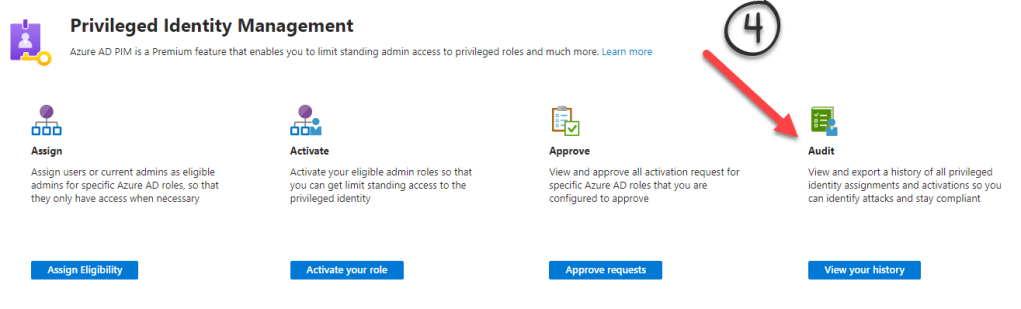
Fast forward: The festive season is approaching. But the IT manager at Import-Export Ltd. is working with an external auditor for one of those crucial ISO certifications. As the auditor works through his checklists, he would like to know who had „Teams Administrator“ access and when. Instead of scratching his head and making quizzical noises, the IT manager just presses a button in PIM (step 4) and provides a detailled report.

Yes, PIM requires an Azure P2 license, which means it is a ‚Premium Feature‘. What you’re paying for is an integrated, fully automated workflow and a detailled audit trail. PIM is easy to setup and can be up and running in a matter of days.

Keep it simple – try PIM

Artifical Intelligence – Practical Guide

It’s always fun to see IT trends and topics appearing in everyday newspapers, as is currently the case with Artificial Intelligence (AI). There are many wild theories and ideas to be found:

  • AI wants to rule the world
  • AI will make us all obsolete
  • AI must be stopped, before it’s too late

Is AI a disruptive technology, meaning that it will eventually change the way we work and live? I think we can safely answer this question with a hearty „YES“, even without gazing into a crystal ball. But what will these changes look like? It’s too early to tell at this point. However, the following article is a write-up of my personal experience with AI and will hopefully give you some valuable insights.

I use ChatGPT almost every day. And yes, it makes my life easier at work. But it cannot replace me, only assist me. So how do I work with ChatGPT? What are AI’s abilities? What can it do and what are the limitations? If I had to choose two words, then they would be ‚Timesaver‘ and ‚Interactive‘. One thing is clear, AI can do much more then just answer simple questions.

high angle photo of robot
How can I be of assistance?

But the first thing I did, was just that: Ask the ChatBot a few simple and easy questions, which would normally be answered by a human helpdesk employee. Questions like „How do I create an Inbox rule in Outlook?“ or „How do I reduce the size of my mailbox?“. The answers were correct and very detailled and concise. On the other hand, they weren’t much different from what I could have found out by typing the question into my favourite search engine. So does that mean, ChatGPT is like ‚Let me Google that for you‚ on steroids? This does ring true, at least partially. But the big difference here is the interactive element. I can exchange ideas with the ChatBot and ask direct follow-up questions. Because of this, I can save a lot of time.

Another big win is logfile review. Think about looking through a logfile for troubleshooting purposes. Sometimes it’s hard to see the forest, with all those trees! But you can paste your logfile into ChatGPT and it will be analyzed and explained, line by line. And you can ask questions about any given element, to get more information. But it helps if you already know what you’re looking for.

The same helpful effect can be found when you’re coding. Let’s say, you would like to automate a repetitive task but you’re stuck at a certain line in your program. Again, you can paste your code and let AI have a look. You’ll get a complete analysis of what your program does and it will suggest improvements as well as help with any error messages.

green pine trees
All trees look alike…. AI can help!

But AI is not without faults. Actually, sometimes you’ll get an incorrect answer. You can provide feedback and you’ll get a ‚Sorry! This is the correct answer.“ Meaning, you can’t trust AI and have to double-check everything. AI will not ask many questions, which means that it will sometimes just make (wrong) assumptions. It can also suggest over-complicated solutions to simple problems.

Sometimes AI will refuse to help you or will not answer a question. When asking for financial advice, the standard answer is „Ask your financial advisor….“. Often you’ll get the classic „Ask the vendor…“. And many answers are followed by some kind of disclaimer, which points to ChatGPT’s American roots. I wonder how long it will take before someone brings a lawsuit against a ChatBot because of a wrong answer?

And yes, you can use AI for silly things, like creating limericks or songs. Procrastination is not something new, as we know from the popularity of YouTube cat videos or meme sites….

Anyway I’m really not afraid of being made redundant by ChatGPT. The best use of AI can be made if you are already an expert in a subject. So I believe, that AI will make us more productive and that it is one more arrow in our set of tools. But it will not replace anybody anytime soon. As an example, think of a technical hotline. When you call the hotline number, you’ll have to wade through a moronic machine-made menu (1 for this, 2 for that..) before you’re made to listen to crappy elevator music for 10 minutes. What if the call could be answered by a AI voice instead? Of course, if the ChatBot can’t help, I would be forwarded too a human employee, just like today. AI is not a job killer but adds value to existing procedures.

Currently, ChatGPT by OpenAI is still in test mode and free of charge. A Pro subscription is available, with supposedly faster response times. You should be aware that all your request history is stored and linked to your account, so you’re not anonymous. This is similar to your Google search history, which is no big secret either.

A practical guide to KI

Finally, here’s a reminder of ways you can interact with us:

  • ‘Hammertime’ – Hammer us with your ideas and let us know what you think
  • Get the ‘T-Shirt’ – Impress friends and family while supporting our site.

Brave New World

Azure / M365 are quickly becoming the central hub for all systems and applications in your company. Although both are often associated with Microsoft only, the solution goes way beyond a single brand and in reality it helps to securely integrate 3rd party apps and providers.

About Passwords

When we logon to our computers in the morning, we are usually asked for a username (Authentication) and a password. This provides access to different systems based on our identity (Authorization). As we continue our daily work, we may suddently be prompted for an additional username or password. There are many reasons this can happen, but three of them are the most common:

  • Lack of integration into our corporate environment (no SSO, single-signon)
  • The application owner has put forward a requirement for additonal protection because of the sensitive data involved (Salary lists, HR databases…)
  • Another message we might encounter is a simple ‚Access Denied‘ without any further prompting for passwords. This basically just means that we are not authorized and need to request access via a servicedesk process or perhaps a call to IT. You might want to analyze these requests and implement role-based access, to reduce the number of helpdesk calls. But that’s a topic for another day.
close up photo of programming of codes
SSO Integration nicht vergessen

Lack of integration into our corporate environment (SSO is missing)

If all your applications are hosted in a corporate data center, then the technical integration follows a standard pattern. Usually, there will be a central directory service (Active Directory or similar) and your application will offer LDAP or even Kerberos support. Integration in this case, may just mean creating a service account and adding it to the application configuration. Good project managers will also think about security groups, to decide who within the company is allowed to access the application and also how to handle on-boarding procedures.

So far, so good. However, in the IT landscape of today, many applications are hosted in the Cloud. Salesforce, Dropbox, Acrobat, Zoom… to name only a few. Now, one way to approach the issue is to have a separate user database for each of these services, each one with a different password. Madness! And why should we force the user to remember different identities and passwords? This doesn’t make things more secure, quite the opposite.

  • A better and far more secure approach is to integrate all your cloud applications by using a single but secure Identity Provider. This can be done in a few simple and effective steps, as explained in my previous article.
black android smartphone on top of white book
Besonders schützenswerte Daten… wie sichern?

Protecting Application Data

When we talk about ‚additonal protection‘ for sensitive information… what does that mean? The first step is as always to define ‚who‘ has access. This step is simple, since it usually means creating a security group and adding your user accounts. But there are additional questions which need to be considered. Which device will be used to access the data? Can a sales employee review all the data in the customer database? Probably the answer is yes, at least once access has been provided. But what about downloading the data and forwarding it to others by e-mail? Without alerting anyone? Is it ok to look at customer data while on holiday from an Internet Café? In these modern times of working from home or working remotely, security is paramount. Is it really ok, that a single password should provide access from anywhere without additional safeguards? As we know, passwords can be guessed and password theft is common. Wouldn’t it be better, if high-risk applications were subject to a second level of authentication, for example by confirming your identity on your mobile phone (MFA)? For example, if you had the Microsoft Authenticator App installed, you would receive a pop-up every time you logon to Salesforce.

The good news, both options are available and we haven’t even started with DLP (Data Leak Prevention). If you’re interested in the subject and would like to dig deeper, here are two articles that I would recommend:

  • This article talks about how you can improve your security by activating MFA
  • This article reviews how ‚Conditional Access‘ can provide fine-tuned settings not just for answering who can access an application, but also from where and on which devices and what the security requirements are.

Final thoughts

It is a lot safer to have a single password and to protect and manage a single Identity Provider in a secure and unified way. Certainly better than having multiple user accounts, each which different password requirements. If you’ve ever seen ‚Weakest Link‘ on BBC you’ll know what I mean. 🙂

So is M365 / Azure really a secure Identity Provider? Will Microsoft get to know my password? What happens if I forget my single, secure password? These are important questions, which I will answer in a future article.

M365 as a central Identity Provider

Here’s a reminder of ways you can interact with us:

  • ‚Hammertime‘ – Send uns your ideas and let us know what you think
  • Get the ‚T-Shirt‘ – Impress friends and family while supporting our site.

Buying Software – Major Mishaps

Evaluating and picking a new software can be a daunting process. If you work in a small business, it’s usually a bit less complicated. Being agile and being able to try out new things is a competitive advantage for any small business. Sadly, as your business gets larger you can’t just install something and be done. There are established procedures and interfaces that you need to understand and take care of. These changes take time and that’s why software evaluation and implementation for medium and large businesses is crucial. It could be new ticketing system for the helpdesk or a new CRM program for your sales team. Regardless, if you avoid these 10 mishaps, this will help to make your project a success. So here are ten things you shouldn’t do when buying or evaluating new software.

1. Ignore Stakeholders

What is a stakeholder? It is anyone using the software or who is affected by it. It is probably the most important aspect of your project to identify them early and to make them part of the evaluation process. You may be tempted to take shortcuts and to not include some departments for the sake of expediency. However, this will come back to kick you in the backside later. Let’s say, you’re evaluating a new helpdesk software and your company has support departments around the world. If you only talk to the helpdesk people at headquarters then, you will alienate the other departments and they make become a roadblock to success when you’re trying to rollout the new program. Also there are features such as multi-language support that can only be identified if you talk to the right people.

angry little brothers fighting and pulling toy to sides
There can only be one

2. Missing Requirements

Don’t invite software vendors to showcase their application before you have an actual requirements list. If you do that, you’re wasting not only your own time but also the vendors time. Have a clear and weighted list of requirements and know what you’re trying to achieve before setting up meetings with vendors or demos. Only then will you be able to make an assessment what the software can achieve.

3. Mission creep

So the new accounting software can also do software deployment or the new CAD program can host a music database. Who cares? This may be a great sales argument in talks with the CEO but it has no bearing on your mission to find the right application. Don’t try to find the „Swiss Army Knife“ but instead focus on your actual requirements. Killing more than one bird with the same stone is a recipe for failure.

4. The Highlander Principle

From the start you should assign clear responsibilites. Who is in charge? If multiple teams or departments are working on the same project, you need to put a stop to that right away. Vendors will notice and it will make a chaotic and unprofessional impression both inside and outside the company. Unclear assignments can quickly become a show-stopper as the different teams begin to block each others progress.

people silhouette during sunset
Work together for success

5. Check and double-check

One thing you’ll notice as you put your requirements out to the vendors, is that for each ‚must‘ requirements they will always answer ‚Yes‘ or ‚Yes, but…‘. Rarely will you receive a ‚No‘. That is because vendors know that if they fail to meet the requirements, they may be kicked out of the evaluation process. Let’s say you ask for the program to have multi-tenat capability. What does that mean? The vendor may say ‚Yes‘ only to reveal that you need to install a new server for each tenant and buy additional licenses. It’s important to have the same understanding about any requirement you define. If in doubt, call it out.

6. Form over Function

Let’s say you’re evaluating a new backup software and you have found an application that has all the bells and whistles. On paper, at least. However, when you try to use the software it’s so complicated and has such a terrrible user interface that you start pulling out your hair. Another software may have a brilliant and easy to use GUI and may require far less in training hours for your staff. Would you rather buy a software that is made up of several parts that don’t fit together or something that has been developed from the group up to fit the task?

7. Cost is King

In any software evaluation, price is a factor but it shouldn’t be the most important one. Look at the service and support organisation because there might be hidden costs, that you are not immediately aware of. Does the price include training hours for your staff or do you have to pay extra? Can you get the support you need in the right languages and what are the business hours?

8. Missing References

Ask for references and talk to other companies that are using the application. Do they have the same business structure as your company? Let them show you the main features and also ask for negative feedback. Talk to people that haven’t been recommended by the vendor and discuss critical points before making a purchase decision.

low angle photo grayscale of person tightrope walking
Avoid the pitfalls, keep your eye on the target

9. Suppress Criticism

In some cases, you may already know an application from a previous project or employer. However, just because the software worked once, it doesn’t have to be like that every time. Listen to other voices and don’t fall for information bias. Always remember that you’ll have to be part of the implementation after the purchase decision and you need everyone on-board. Programs and people can change over time and even if the application was good once, it may no longer be the best fit.

10. No Transparency

Publish and distribute your processes and decision criteria as openly as possible. What was the decision process? Who was involved? Why was vendor x not included? If you try to be secretive about your purchasing decision, that will only give rise to gossip and rumours. Fight rumours early on, by addressing them and by being as transparent and open as possible. Do not endanger the success of the project by allowing rumours to spread.

Final Thoughts

This post is part of the ’10 things‘ series but as I’m writing these words, I can think of at least two more points that can go wrong. As with every project, there is the human factor. Working togehter and communicating with others can not be put in a checklist but if I needed to summarize then I would say this: Always choose a good project lead, who has experience in these matters and knows the pitfalls of software evaluation: 11. Don’t try to cut corners by not having a good project lead. 12. Provide enough time and resources to project members, so that they can take part in project meetings etc….

Here’s a reminder of ways you can interact with us:

  • ‚Hammertime‘ – Send uns your ideas and let us know what you think
  • Get the ‚T-Shirt‘ – Impress friends and family while supporting our site.
10 Things to avoid when buying software

Reninventing the Wheel

The pure Microsoft definition of it’s Endpoint Management solution is simple:

„Microsoft Endpoint Manager is a single, integrated endpoint management platform for managing all your endpoints.“

So one ring, to bind them all…. Sounds a bit like Tolkien, right?

Do you also think that the wheel of technology spins faster every day? However, if you look more closely, you will discover that most enterprise networks have at it’s core a basic set of concepts and ideas, which aren’t really that new. Windows Domains, Active Directory, Group Policy (GPO)…. These technologies have been around for at least 20 years. Although there have been some useful additions over time, such as the Group Policy preferences, or PSO (Password Setttings Objects): You will find Group Policy at almost every company, big or small. The concept revolves around the idea of ‚Configuration Management‘, meaning that a large number of systems is supposed to be setup the same way, with the same look and feel, the same settings. Everything from Network drive letters to screen saver backgrounds can be configured like this. What do you need? A Domain and at least one Domain Controller (DC). Every computer has it’s own computer account and there is frequent chatter between computer and Domain Controller, so as to receive the latest and greatest settings. What has never worked well in this concept are computers that are out in the field for a long time and out of reach of the corporate network.

As with everything else, there is a movement towards Cloud solutions. In this first part of multiple posts, we will be talking about Standard Windows Systems (Corporate Windows 10 PC’s) which are already managed via GPO and how we can also manage them through InTunes. This works well together and there’s no need to replace one with the other (at least not in the beginning). In future posts, we will also look at Non-Windows devices (Mac, Linux, iOS, Android) as well BYOD (Bring your own device) options which includes Windows devices not owned by the company (personal Windows devices).

One Management Tool (InTune) to rule all OS versions

What are the requirements to be able to manage a corporate Windows device with InTune (in addition to GPOs)?

  • Sufficient and correct licensing is a must. The licenses must be assigned (this could be Azure Premium P1 licenses, though other options do exist)
  • A ‚Hybrid Join‘ is a requirement. That means, that the computer must not only have an account in the Active Directory but must also have an account in Azure. If you haven’t already setup synchronization, that should be done first.
  • Next, you’ll need to change your On-Prem Group Policy settings and make sure that your Hybrid Joined devices are automatically enrolled in InTunes.

A question I get a lot: Can the Configuration Management in InTune replace what we are already doing with Active Directory and GPO’s today? At this point, I would say no. The reason is, that there are thousands of possible settings that can be configured with GPO but not all of these are available in InTunes (yet). It is important to think about this though, because we don’t want a mismatch between the two configuration options. There are plenty of tools for converting the one to the other as well as troubleshooting tools. Again, I promise to address these features in a future post.

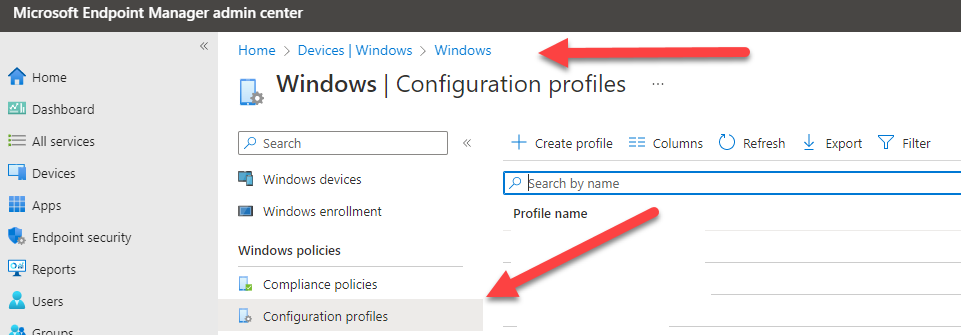
Having met all the prerequisites, we now need to head for the Endpoint Portal to continue or journey. What we’re interested in are the ‚Configuration Profiles‘ for Windows devices. When I refer to Windows devices, I’m usually talking about Windows 10 or newer. Although it is possible to create profiles for legacy Windows 8.1 systems, there is some extra effort involved and it’s probably better to get rid of them as soon as possible.

Pick a profile
About configuration profiles

If you go to ‚Home‘ ‚Devices‘ ‚Windows‘, you’ll want have a look at the configuration profiles. Click ‚Create Profile‘ to get started. First, you’ll have to choose your platform (Windows 10), Right away you can see, that there are two options:

  • Settings Catalog
  • Templates

What are templates? Well, they are a collection of settings for a specific area of configuration. But we can also start from scratch and pick our options from the ‚Settings Catalog‘.

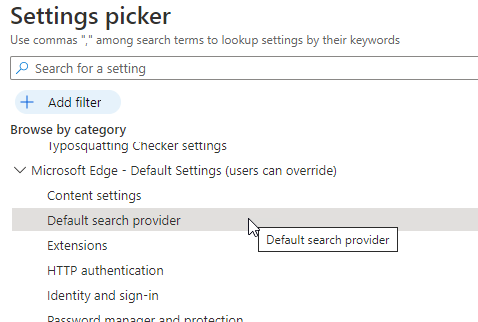
A good example of a possible setting would be the ‚Default Search Provider‘ for your Edge Browser:

Settings Picker
Pick your poision

Once you have configured your settings, there are some additional ways to control the deployment of your profile. Looking at the summary of the profile, the headings provide a good overview of the possibilites:

Create profile
Create a profile – details
  • What are ‚Scope Tags‘? Think about your administrative roles. Do you want everyone to be able to change every Configuration Profile? In a large company, you probably want to separate access to different profiles based on attributes such as the region, city or country. Just like in the ‚old days‘ with GPOs, not everyone has to be a Domain Admin. Scope Tags help you with role-based access. I’ll explain this in more detail in a future post.
  • What are ‚Assignments‘? This is about controlling which users or devices that the newly created profile will apply to. You can also define exceptions. For example, you may want to apply a security setting to all systems except the CEO (after his recent phone call to the IT department). 🙂

So now, we’ve created our first configuration profile. Will these changes take effect immediately? Those of us who have worked with Group Policy, remember the old and wise saying: At startup or every 90 minutes or may the GPUPDATE /force be with you. However, remember that InTunes has it’s own rules, which are very different. I’ll explain this in a future post and we’ll also look at questions such as conflict resolution and multiple profiles (with conflicting settings).

Here’s a reminder of ways you can interact with us:

  • ‚Hammertime‘ – Send uns your ideas and let us know what you think
  • Get the ‚T-Shirt‘ – Impress friends and family while supporting our site.
Approach the Coach
Reinventing the Wheel

Schatten IT

Schatten IT. Das ist wenn Mitarbeitende anfangen eigene Lösungen aufzubauen weil ihre Anforderungen und Wünsche von der zentralen Informatik-Abteilung nicht erfüllt werden können. Ein Beispiel könnten sein, wenn ich anfange meine Daten in Dropbox auszulagern weil ich dann von überall darauf zugreifen kann und es keine Zugriffs-Limitationen gibt ausser vielleicht dem Limit meiner Kreditkarte.

Das tönt ja erstmal gut? Wir können vermeintlich schwerfällige Prozesse umgehen und schnell und ohne andere gross zu involvieren in kurzer Frist etwas nützliches aufbauen. Meistens beginnen solche Sachen klein, man will mal was ausprobieren. Vielleicht hat es auch erstmal eine Art „Test“-Charakter und kann ja dann jederzeit wieder gelöscht werden. Durch die im Vergleich zu zentralen IT Lösungen „Einfachheit“ des Schatten-Dienstes, ist auch die Akzeptanz höher. Schnell kann mal noch einem Kollegen Zugriff geben, ganz an der IT vorbei. Im Internet-Café in den Ferien in Bali noch schnell die Budget-Zahlen herunterladen oder eine Präsentation bearbeiten.

Schatten IT verstösst unter Umständen gegen bestehende Gesetze

Wo ist denn das Problem? Es geht ja alles so super und einfach, warum zu viele kritische Fragen stellen. Aber Achtung: Es werden Risiken ausgeblendet und bewusst oder unbewusst in Kauf genommen. Gibt es eine Datensicherung? Wer hat Zugriff auf diese Daten? Was passiert wenn ein Konto gelöscht werden muss? Kann man nachvollziehen wer die Daten angeschaut oder heruntergeladen hat? Können durch die Hintertür Viren und Malware ins Unternehmen Einzug halten? Die meisten Firmen unterstehen gesetzlichen und regulatorischen Anforderungen. Wenn z.B. Patientendaten nicht besonders geschützt werden und diese ungewollt nach aussen gelangen, dann kann das finanzielle und rechtliche Konsequenzen für die Firma und indirekt auch für den Mitarbeitenden geben.

Soviel zur Problemstellung. Aber wie kann das nun verhindert werden? Einerseits ist es natürlich wichtig, dass die Anforderungen der User frühzeitig in Software Beschaffungen und Lösungs-Design mit berücksichtigt werden, damit nicht am Business vorbei geplant wird. Auch müssen die Zuständigkeiten klar geregelt sein. Schatten IT kann auch entstehen wenn einzelne Abteilungen oder Geschäftsbereiche eigene IT Budgets haben und versuchen sich gegenseitig zu konkurrenzieren. Lösungen, die nichts kosten gibt es nicht daher muss auch das nötige Budget zur Verfügung gestellt werden um Innovation zu unterstützen. Wird die IT als reiner Kostenblock gesehen, dann wird sie sich auch so verhalten.

Innovation kostet – auch bei der IT

Aber wie merke ich überhaupt, dass meine Firma durch Schatten IT Lösungen unterwandert ist und kann ich das in Zahlen benennen? Lässt sich das Problem Schatten IT mit Fakten belegen und ausweisen? Ja, das geht. Eine wichtige Quelle sind dabei Firewall Logs, denn hier sieht man konkret wenn externe Cloud Services regelmässig aufgerufen werden und von wem.

Spannen wir jetzt hier den Bogen zur Microsoft Lösung: „Defender for Cloud Apps“ ist Bestandteil der Defender Familie und kann unter anderem folgendes:

  • Firewall Logs einmalig oder regelmässig einlesen und Cloud Apps erkennen und auswerten
  • Die verwendeten Cloud Apps überwachen und auf ungewöhnliche Aktivitäten hinweisen (z.B. wenn jemand plötzlich grosse Mengen von Daten zu DropBox hochlädt)
  • Den Zugang zu diesen Cloud Apps einschränken oder blockieren

Das funktioniert eben nicht nur mit den eigenen M365 Applikationen sondern Microsoft hat eine aktiv bewirtschaftete Datenbank von tausenden von Cloud Applikationen und hat für jede davon eine Bewertung erstellt.

In einer ersten Phase liest man nun seine bestehenden Firewall Logs ein und lässt diese durch Defender for Cloud Apps auswerten. In einer zweiten Phase kann definiert werden, welche Applikationen zu unsicher sind und gesperrt werden. Oder man lässt einzelne Applikationen zu aber mit Auflagen. Zum Beispiel könnte man die Einschränkung machen, dass Dropbox eben nur noch von Geschäfts-PCs benutzt werden kann damit die Daten nicht im Internet-Café in Bali landen.

Zuletzt noch der Hinweis auf wichtige Links:

  • Der Vorschlagshammer – Bringe dich in die Diskussion ein und stelle Fragen.
  • Das T-Shirt: Damit siehst du nicht nur cool aus sondern unterstützt auch den Blog.

Zehn hartnäckige Cloud Mythen

Halloween ist bereits wieder vorbei aber nehmen wir doch diesen in der Neuzeit eher amerikanisch angehauchten Brauch als Anlass um über die hartnäckigsten Mythen im Zusammenhang mit der Cloud Nutzung zu sprechen. Einige davon sind tatsächlich gruselig!

In meinem früheren Beitrag Gedanken zum Tausendsassa habe ich die Unterschiede zwischen PaaS,IaaS und SaaS erklärt. Eine Cloud Strategie definiert für alle drei Bereiche ob und wie das Unternehmen vorgehen will. Doch warum ist es so schwierig, sich unvoreingenommen mit diesen Themen zu beschäftigen? Jedes Unternehmen sollte eine Cloud Strategie haben aber oft scheitert es daran, dass kein gemeinsames Verständnis über Cloud vorhanden ist.

Mythos 1 – Es braucht keine IT Fachleute im Betrieb mehr

Falsch. Es braucht immer noch IT Fachleute aber diese müssen ihre Kenntnisse um Cloud Themen erweitern. Die Cloud betreibt sich nicht von alleine. Die IT Abteilung wird zur Schnittstelle zwischen dem Nutzer und dem Cloud Anbieter und muss die Angebote auch überwachen. Auch die Migration von Daten und Diensten in die Cloud ist eine Herkules-Aufgabe, die ein fähiges IT Team braucht oder einen externen Dienstleister.

Mythos 2 – Die IT Löhne sinken weil die Cloud nicht mehr so komplex ist

Brauche ich nur noch IT Supporter, die Tickets an den externen Provider weiterleiten? Kann ich meine Engineering Abteilung einsparen? Nein. Zwar muss ich teilweise keine eigenen Server mehr betreiben aber viele der Lösungen, die z.B. in M365 angeboten werden sich hochkomplex. Nur wer bei den Features und Möglichkeiten den Ueberblick behält und die Zusammenhänge versteht kann der Firma einen echten Mehrwert bieten. IT Engineering findet nicht nur hinter der Firewall statt.

Der IT Fachmann – das unbekannte Wesen

Mythos 3 – Cloud Fachkräfte gibt es wie Sand am Meer

Tatsächlich, viele Firmen haben bereits eine Cloud Strategie formuliert oder sind schon im Begriff zu M365 und anderen Services zu migrieren. Es gibt aber gar nicht so viele Cloud Bewerber wie es Cloud Jobs gibt. Jeder möchte Cloud Engineer sein, weil hier der Bär steppt aber nicht jeder hat schon das nötige Wissen aufgebaut. Die Ausbildung erfolgt dann oft am Arbeitsplatz nach dem Try and Error Modell. Gute Cloud Fachkräfte mit Fachwissen sind aber eher dünn gesät. Auch externe Dienstleister suchen stets neue Fachkräfte um Cloud Projekte bei den Kunden umzusetzen.

Mythos 4 – Schon bald kann ich meine Server abstellen

Falsch. Eine Migration auf M365 bedeutet, dass über längere Zeit ein komplexer Hybrid Betrieb aufrecht erhalten werden muss weil man die eigenen Server ja nicht einfach von heute auf morgen abstellen kann. Während dieser Zeit müssen sowohl die bestehenden Server und Systeme im eigenen Server-Raum als auch die Cloud Systeme verwaltet werden. Schlimmer noch, es gibt viele Schnittstellen zwischen den Systemen, so dass diese ebenfalls noch überwacht werden müssen. Komplexität und Kosten steigen währen der Uebergangszeit an und die kann sich über mehrere Jahre hinziehen.

Mythos 5 – Ich kann für jedes Thema ein eigenes Cloud Produkt wählen

Jein. Natürlich kann man z.B. Dropbox nehmen für File Transfer, Amazon Cloud für Server Hosting, Azure als Identity Provider und sich überall das Beste herauspicken. Sind die Systeme dann erstmal im Haus kann man sich ja dann immer noch um die Schnittstellen kümmern und schauen wie die verschiedenen Provider zusammenarbeiten… Die verwenden ja alle Standards, oder? Eine solche Strategie ist ein enormer Aufwand weil es zu jedem Cloud Provider internes oder externes Fachwissen braucht. Es macht also Sinn möglichst viele Synergien zu nutzen und seine Kräfte nicht aufzusplitten. Da die meisten Cloud Lösungen pro User bezahlt werden müssen, kann eine Multi-Vendor Strategie auch sehr schnell sehr teuer werden.

Cloud Rezepte sind gefragt

Mythos 6 – Ich kann die Cloud einfach verbieten

Auch das ist leider nicht so. Cloud ist Alltag und die Benutzer kennen die Produkte von zu Hause oder von Bekannten und Kollegen. Ohne eigene Cloud Strategie entsteht eine Schatten IT, die sich nur noch schwer kontrollieren lässt. Der Geist kommt aus der Flasche ob man will oder nicht. Entweder kontrolliert oder unkontrolliert.

Mythos 7 – Das mit der Cloud ist nicht eilig, alles zu seiner Zeit

Es lässt sich bei allen Herstellern ein klarer Trend zu Cloud Lösungen feststellen. Selbst dort wo es möglich ist eine neue Software wie Microsoft Exchange noch im eigenen Server-Raum zu betreiben muss beim direkten Vergleich festgestellt werden, dass das Produkt nicht gleichwertig ist wie die Cloud Lösung. Zudem ist die Entwicklung im Cloud Bereich viel schneller, so dass neue Funktionen immer zuerst dort verfügbar sind. Frei nach Gorbatschow: „Wer zu spät kommt, den bestraft das Leben“. Wer keine Cloud Strategie formuliert und umsetzt, der verliert schneller als im lieb ist den Anschluss.

Mythos 8 – Das wichtigste ist die Sicherheit

Sicherheit ist wichtig. Ganz klar muss beim Aufbau einer Cloud Strategie das Thema Sicherheit weit oben auf der Liste stehen. Wann und wo brauche ich 2-Faktor Authentisierung um mich an meiner Cloud Lösung anzumelden? Welche Arten von Authentisierung unterstützt meine gewählte Cloud Lösung? Wo sind meine Daten gespeichert? Wer hat alles Zugriff auf diese Daten? Diese Liste ist nicht abschliessend und Sicherheit sollte auch bei Cloud Lösungen regelmässig überprüft werden. Aber bei all diesen Punkten darf nicht vergessen werden, dass es sich zum Beispiel bei M365 um eine Collaboration Lösung handelt. Es muss also möglich sein auch mit externen Inhalte zu teilen. Die Benutzbarkeit einer Lösung hat einen direkten Einfluss auf die Akzeptanz. Darum bei aller Sicherheit bitte niemals die Benutzbarkeit der Lösung vergessen und auch den Input der Nutzer abholen. Die Cloud ist kein Selbstzweck der IT.

Kopf in den Sand, hilft auch bei Cloud Themen nicht

Mythos 9 – Ich behalte die Kontrolle

Cloud Lösungen entwickeln sich ständig. Neue Features werden aufgeschaltet, bestehende Optionen werden angepasst oder teilweise auch wieder abgekündigt. Der Cloud Anbieter hat die Kontrolle darüber was er anbietet und wie. Leider ist es unterdessen üblich eher kurze Uebergangszeiten anzubieten wenn ein Feature abgeschaltet oder geändert wird. Es liegt dann an der internen IT den Ueberblick zu behalten und Aenderungen zu planen und zu kommunizieren.

Mythos 10 – Vorsicht bei Microsoft

Dieser Mythos dürfte noch aus den 80er und 90er Jahren stammen als man bei Microsoft vor allem mit sich selbst beschäftigt war und in vielen Bereichen eine sehr dominante Marktstellung hatte. Tatsächlich hat sich Microsoft in den letzten Jahren extrem gewandelt und arbeitet aktiv daran seine Cloud Angebote so offen wie möglich zu gestalten auch für Drittanbieter und die Konkurrenz. Früher ging es vor allem um PC Verkäufe aber heute will man M365 und Cloud Abos abschliessen und wiederkehrende Services verkaufen. Da passt eine Windows-only Strategie nicht mehr und wäre kommerziell auch unsinnig. Auf Microsoft Azure kann man problemlos auch Linux laufen lassen. Unter Windows kann man unterdessen Linux Scripts ausführen und Powershell läuft auch mit Linux um nur ein paar Beispiele zu nennen.

Hat dein Arbeitgeber oder deine Firma schon eine Cloud Strategie? Welche Mythen hast du selbst bei Diskussionen über Cloud Themen schon erlebt? Nimm an der Diskussion teil: Der Vorschlagshammer ist eine gute und einfach Möglichkeit um mit uns in Kontakt zu treten oder Wünsche für neue Beiträge einzubringen.

Und natürlich gibt es auch die Möglichkeit, das legendäre T-Shirt zu erwerben!

Im nächsten Beitrag sehen wir uns an wir wir Schatten IT erkennen und steuern können mit Microsoft Defender für Cloud Apps.