Defender – Identity Protection

German Version

What is something that all companies have in common? They need to protect their identities. And not just internal identities but external ones, as well. They need to know what changes have been made to important groups and accounts. Who made the changes and when? Are my key identities under attack? To be able to answer these questions, we need good reporting tools. What are cloud identities? Think of them as an extension of your internal accounts and groups. If you think of them that way, it clearly makes sense to use a single tool to report on both internal and external identities. Instead of using isolated tools that don’t give us the big picture, let’s replace them with something that doesn’t just look at Active Directory but that can extend that view to the cloud.

Protect your assets: Identities

Today we’re going to talk about ‚Defender for Identity‚. It’s one of the arrows in the quiver of the Defender family of products. And, you guessed it, the focus of this ‚arrow‘ is…Identities. Did you know that ‚Defender for Identity‚ can be installed in a day and provides immediate value? If you’re like most companies, you’ll have a ‚legacy‘ product that looks at Active Directory only. You pay per user licenses for something that you’ve probably already paid for as part of your Microsoft Cloud licenses. It’s striking how IT often relies on legacy 3rd party products, mostly because ‚that’s they way we’ve been doing it‘. Defender does not require any additional servers or infrastructure. All you have to do is install the agents (aka ’sensors‘) and you’re up and running. The user interface is web-based and easy to understand and work with. Using Defender can save you money, right out of the box. And it’s not just about replacing your internal Active Directory reporting tool (although that’s a quick win). You’re extending and combining your views, to include your cloud accounts.

Your Active Directory Domain Controller is at the heart of your internal Identitites. So it makes sense to have these key systems report directly to the M365 Cloud solution. Your goal has to be to discover the state of users and systems in realtime and to act accordingly. This is in line with modern authentication and Conditional Access. If you’re able to move away from static lists to dynamic discovery, you’ll be able to react more quickly and discover threats as they take place (rather than after the fact).

If you want to give it a spin, you’ll need these permissions:

  • Global Admin at Tenant level
  • Domain Admin rights for your On-Prem Active Directory

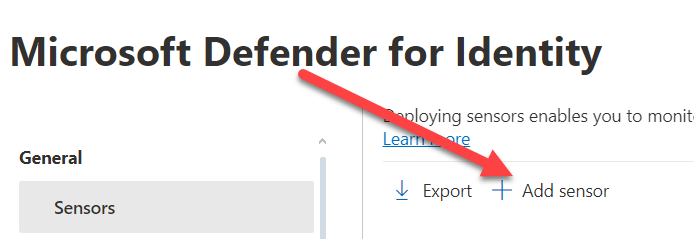
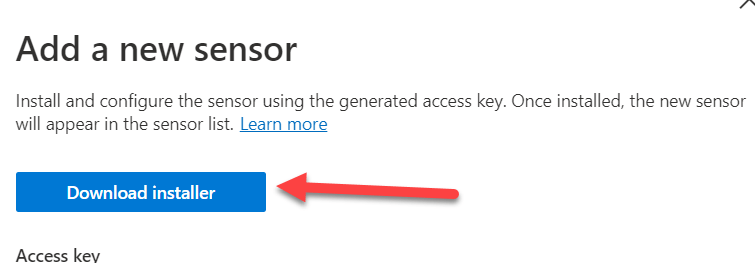
To get started, you’ll have to download the agent (Microsoft calls it ‚Sensor‘) from the Security Portal under ‚General Settings‘.

When you click on ‚Add Sensor‘, this will generate a random ‚Access Key‘. You’ll have to provide this key again when you run the setup on the Domain Controller, so don’t forget it. The recommendation is to install a ‚Sensor‘ on every Domain Controller to get the complete picture. And yes, there is a complicated und annoying way to run this on a member server instead (think ‚Port Mirroring’…). Why? Just do it the recommended way, and you’ll be fine.

Another option you’ll find under ‚General Settings‘ is the definition of the service accounts that are required. There are two different types of accounts:

  • Directory Service Account – this is account with read-only rights to your local Active Directory. All this account does is read the current state of the directory. So don’t give this account any admin rights, as they are not required.
  • Action Account – Yes, Defender can disable accounts or reset passwords pro-actively. If you install the ‚Sensor‘ directly on the Domain Controller (the recommended way) then the Local System Account will be used.

So is that all that’s needed to get ‚Defender for Identity‚ up and running? There is a missing step, and that is the activation of the Audit settings. You can’t report on something that’s not logged, so this is an important step. The good news is, that if you’re using any of the legacy Active Directory reporting tools, you probably don’t need to change much because most tools need these settings too. But don’t worry, if you fail to change these settings, Defender will tell you so as part of the health check. Details can be found here.

Be aware, that there is an initial 30-day learning period and during this time Defender builds a baseline of your network. The goal is to understand what is usual vs. unusual behavior. It’s possible to deactivate the learning period and to report on everything right away. However, this is not recommended as it may lead to false positives. Regardless, the reporting on changes to groups and accounts is available from day 1 and works a 100 percent from the start.

Next is an overview of the standard reports that you can run either ad-hoc or on a schedule. They are available from the Security Portal (Go to ‚Reports‘ ‚Identities‘):

  • Changes to sensitive groups – This includes both well-known groups such as Domain Admins but also your own definitions.
  • ‚Passwords in clear text‘ – Did you know, that even today, there are still programs that connect to AD by sending clear-text passswords, for example to run an LDAP query? Spin up your network sniffer and you’ll be able to read these passwords. To put an immediate stop to this, you’ll have to find the culprits firsts. And this report will show you the source of the problem.
  • ‚Lateral Movement‘ – Imagine that the front-door to your house is heavily secured. Unfortunately, there is another entrance via the garage, with only a simple lock. ‚Lateral movement‘ means that less important accounts and systems will be attacked to gain control of privileged accounts and systems. This report will help you to identify these types of attacks.
  • The ‚Summary‘ report does just what is says. It gives you a overview of all alerts and the status of the sensors over a period of time.

That all sounds wonderful, but how dow I replace my current monitoring solution so that can I report on all Active Directory changes?

Let’s recall the four steps that are required to replace your current AD Logging solution with ‚Defender for Identity‘ and at the same time extend your view to include all identies (Cloud and On-Prem):

  • Change your Audit settings for Active Directory
  • Download and install the Agent (aka ‚Sensor‘) on every Domain Controller (from the ‚Security Portal‘)
  • Define groups and accounts you want to monitor (in addition to the well-known groups)
  • Configure and schedule the reports to be notified of changes

That’s it! Let’s finish with five interesting facts about ‚Defender for Identity‘ that may help you on your journey to secure your environment:

  • You can configure ‚Honeytokens‘. These are accounts that only appear to be important but are there to draw out hackers. Attacks on honeytoken accounts will divert hackers from your real assets but will still trigger alerts for investigation.
  • Although ‚Defender for Identity‘ works quite well on it’s own, it will benefit from using additional Defender products. For example, you might learn from ‚Defender for Endpoint‚ that an attack has started by downloading a virus on a PC or by entering credentials on a phishing site.
  • If you store ‚Password Hash‘ in the cloud, then that means Defender can compare the values against known Darknet sources. If a match is found, that means a password has been compromised and should be changed asap. You can configure Defender to reset the password.
  • All the information gathered by Defender can be forwarded to ‚Sentinel‚ for further analysis and long-term archiving of events.
  • The default monitoring can discover a large number of well-known attacks such as ‚Brute Force‘, ‚Golden Tickets‘ etc. A complete list can be found here.

This article is the final one to be published in 2023. It remains for me to wish all the readers a happy new year and we’ll be back with new and interesting topics in January.

Approach the Coach

Defender – Identitäten richtig schützen

English Version

Was müssen alle Firmen ob gross oder klein tun? Sie müssen Ihre Identitäten schützen. Sowohl interne als auch externe. Wir möchten wissen wenn Aenderungen an wichtigen Gruppen oder Konten gemacht wurden oder wenn diese attackiert werden. Dazu gehört ein gescheites Reporting, d.h. eine Liste auf der ersichtlich ist, was wann geändert wurde. Die Cloud Identitäten sind eine Erweiterung der internen Konten und Gruppen, daher macht es Sinn ein einziges Tool für beides zu verwenden. Schneiden wir also die alten Zöpfe ab und vergessen die bestehenden Tools, die sich auf das interne Active Directory konzentrieren und das Gesamtbild ausblenden.

Das wichtigste schützen: Identitäten

Heute geht es um Microsoft ‚Defender for Identity‚, eines der Produkte in der Defender Familie. Dieser Teil von Defender fokussiert wenig überraschend auf…. Identitäten. Es kann in einem Tag installiert werden und bringt sofort Mehrwert. Oft haben Firmen, das schon in der Cloud Lizenz drin und nutzen es nicht. Statt dessen wird ein teures Drittprodukt verwendet ‚weil man das halt schon immer so gemacht hat‘. Dabei könnte mit dem Einsatz von ‚Defender for Identity‚ Geld eingespart werden und zudem ist es noch kinderleicht in der Bedienung und benötigt keine zusätzlichen lokalen Systeme. Es erweitert den Blick über das lokale Active Directory zu allen Identitäten.

Und ja, der Domain Controller (also das Herz der internen Identitäten) rapportiert per Agent direkt ins Internet an die M365 Cloud. Ziel ist es, den Status von Usern und Systemen in Echtzeit abzufragen und dann entsprechend zu reagieren. Das ist moderne Authentisierung, das ist Conditional Access.

Die Demo wurde mit diesen Rechten durchgeführt:

  • Global Admin auf Tenant Ebene
  • Domain Admin im On-Prem AD

Der Agent (Microsoft nennt es ‚Sensor‘ lässt sich im Security Portal bei den allgemeinen Einstellungen herunterladen.

Dabei wird ein generischer ‚Access Key‘ generiert, der dann bei der Installation wieder angegeben werden muss. Ich empfehle den Agenten auf JEDEM Domain Controller zu installieren. Es gibt wie immer auch eine komplizierte und äusserst mühsame Möglichkeit (Stichwort ‚Port Mirroring’…) einen Nicht-Domain Controller zu nutzen. Kann man machen, muss man aber nicht.

Ebenfalls unter den allgemeinen Einstellungen müssen die Konten definiert werden, die ins AD schauen bzw. auch schreiben könnnen. Dabei wird unterschieden zwischen:

  • Directory Service Account – ein Account mit Leserechten. Am besten wird ein eigenes Konto erstellt. Dieses Konto braucht keinerlei Adminrechte, es muss nur den Zustand des On-Prem AD auslesen können.
  • Action Account – Defender kann auch pro-aktiv Konten deaktivieren oder Passwörter zurücksetzen etc. Wenn der Agent (wie empfohlen) direkt auf dem Domain Controller installiert ist, wird der Local System Account verwendet.

Ist ‚Defender for Identity‘ jetzt schon einsatzfähig? Nein, denn damit Defender die Event Logs auswerten kann müssen die Audit Einstellungen angepasst werden. Es kann ja nichts ausgewertet werden, was nicht geloggt wird. Wer bereits ein anders Tool (z.B. Netwrix) für AD Auswertungen verwendet, muss wahrscheinlich wenig machen. Die Details sind hier zu finden.

Es gibt eine Lernperiode von 30 Tagen, in der Defender for Identity erstmal eine Baseline erstellt um zu verstehen was alles so passiert. Diese Lernperiode lässt sich auch deaktivieren aber dann kann es zu Fehlalarmen kommen. Das Reporting (d.h. welche Gruppen wurden geändert) ist aber schon ab Tag 1 zu 100 Prozent einsatzfähig.

Hier ein Ueberblick über Standard Berichte, die sowohl ‚ad-hoc‘ als auch zeitgesteuert abrufbar sind und zwar im Security Portal unter ‚Reports‘ ‚Identities‘:

  • Aenderungen an sensitiven Gruppen – Dabei geht es um bekannte Gruppen wie ‚Domain Admins aber man kann auch eigene Gruppen und Konten definieren
  • Passwörter im Klartext – Es gibt heute noch Programme, die unverschlüsselte LDAP Abfragen durchführen und dabei das Anmeldepasswort im Klartext versenden. Mit einem Network Sniffer kann man die Passwörter einfach auslesen. Sollte man sofort abstellen! Der Report zeigt uns die Quelle dieser Klartext-Abfragen.
  • ‚Lateral Movement‘ am besten zu Uebersetzen mit Quer-Bewegung. Stellen wir uns das so vor, das wir wenn die Haustür verschlossen ist, durch die Garage einbrechen, denn dort gibt es eine weniger geschützte Eingangstür. Also vermeintlich unwichtige Systeme und Konten angreifen um dann von dort Zugriff auf andere Konten zu erhalten. 
  • Zusammenfassung eine Liste von Alerts und Status der Sensoren über eine definierte Zeitperiode.

Ok, alles spannend aber ich möchte jetzt mein bestehendes Logging, dass alle Aenderungen an AD Gruppen etc. rapportiert ersetzen. Was braucht es dazu?

Zusammengefasst also nochmals die vier Schritte um ein bestehendes AD Logging abzulösen und dabei den Gesamtblick über alle Identitäten (Cloud und On-Prem) zu erhalten:

  • Auditing Einstellungen anpassen im Active Directory
  • Agent (Sensor) aus dem Portal herunterladen und auf allen Domain Controllern installieren
  • Gruppen definieren, die wir überwachen wollen (zusätzlich zu Standardgruppen)
  • Reports konfigurieren damit wir täglich wissen, was geändert wurde

Den Artikel abschliessen möchte ich mit fünf Fakten zu ‚Defender for Identity‘, die gut zu wissen sind:

  • Es ist möglich ‚Honeytokens‘ zu konfigurieren. Das sind Konten, die zwar nicht wichtig sind aber wichtig aussehen und das Interesse von Hackern auf sich ziehen sollen. Wird das Konto angegriffen, löst es einen Alert aus.
  • Werden weitere Produkte aus der ‚Defender‘ Familie (z.B. Defender for Endpoint‚ verwendet, kann noch besser erkannt werden wo ein Attacke begonnen hat. War es ein Virus oder Trojaner auf einem internen PC? Eine Phishing Website auf der Passwörter abgefangen wurden?
  • Wird der Password Hash in der Cloud gespeichert, kann erkannt werden wenn ein lokales Passwort kompromitiert und im Darknet verbreitet wurde. So ist es auch möglich Passwörter proaktiv zurückzusetzen.
  • Alle Informationen können auch an Sentinel geschickt werden zu weiteren Auswertung und Langzeit-Archivierung der Logs.
  • Ueberwacht wird eine Reihe von bekannten Attacken, wie Brute Force, Golden Ticket etc. Eine komplette Liste aller Alerts kann hier gefunden werden

Mit diesem Artikel verabschieden wir uns für dieses Jahr. Wir wünschen alle frohe Festtage und melden uns im neuen Jahr mit neuen spannenden Themen.

Approach the Coach

Azure Sentinel: Circle the Wagon

German Version

Remember those old Wild West movies? Whenever the trek of settlers was under attack, they would immediately circle the wagons. The same was true whenever the trek had to stop overnight. But why? Obviously, they felt protected within the circle. Attackers could easily be spotted and repelled. Can you spot the connection between Wild West tactics and modern network design? Yes, there are still companies that think in terms of ‚inside -good‘ – ‚outside – bad‘. Anyone inside the circle has to be one of us, one of the good guys. No need to double check! But what if someone steals a cowboy hat and sneaks into the camp at night?

white fedora hat hanged during golden hour
What’s hiding underneath the hat?

Users want to access everything from everywhere. They don’t care where the system is located. They might be using a mobile phone or a tablet or perhaps a trusty old desktop PC. Is it a ‚private‘ BYOD device or a ‚managed‘ company computer? It really shouldn’t matter. On the other hand, there is the continuous drive to optimize costs and to standardize processes. Cloud services support up- and down-scaling because new systems can be turned on (and off) at the touch of a button. This just in time approach means that you only pay what you need and when you need it. In this brave new IT world, there is no place for ‚circle the wagon‘ because your data or your systems can be anywhere in the world, thanks to Cloud services. But if anything goes, how can we ensure a high level of protection?

Looking at Azure and M365 environments, there’s of course ‚Conditonal Access (CAP)‚. Whenever someone tries to access a system, there is a transparent but detailed background check. Depending on the device type or user etc. we can ask for additional security checks (MFA) or deny access completely. For example a suspicious access pattern might lead to an immediate access revocation.But is this a sufficient level of protection? Hackers and Cyber criminals will always try to find new ways to get their hands on your company data and will look for weaknesses. You need to stay ahead of the curve. There has to be an intelligent early warning system that can discover attempted attacks and sound the alarm. The good news: There is no need to reinvent the wagon wheel. Today we will talk about ‚Sentinel‘.

So what do you need to use Sentinel?

An active Azure subscription. You may already have one for your M365 services, but if not you can get a free trial subscription here.

So what can Sentinel do?

  • Centrally retain logfiles from different Azure / M365 and 3rd party solutions for further analysis
  • Inform and alert (using both automated templates and manual rulesets)

What will Sentinel cost me?

To get a detailed overview you can alway use the Sentinel calculator. What it all comes down to is the amount of data you want to keep and for how long. There is also the matter of any automated workflows (Logic Apps) as you will be charged every time they are triggered. That may sound expensive, but really it isn’t. That’s because the recommended way to rollout Sentinel is gradually and not to enable everything at once. And there’s an (almost) free 30-day trial version. The important thing is to keep an eye on the charges. The most expensive monitoring and and alerting system will always be the one that’s not there.

So how does it work? How can I get this up and running quickly?

So here’s how you can activate and use Sentinel in a few quick and easy steps.

  • Logon to the Azure Portal
  • Look for ‚Sentinel‘ and click ‚Create‘ to setup a new Sentinel environment.
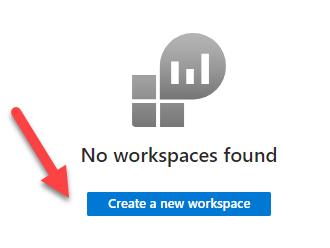
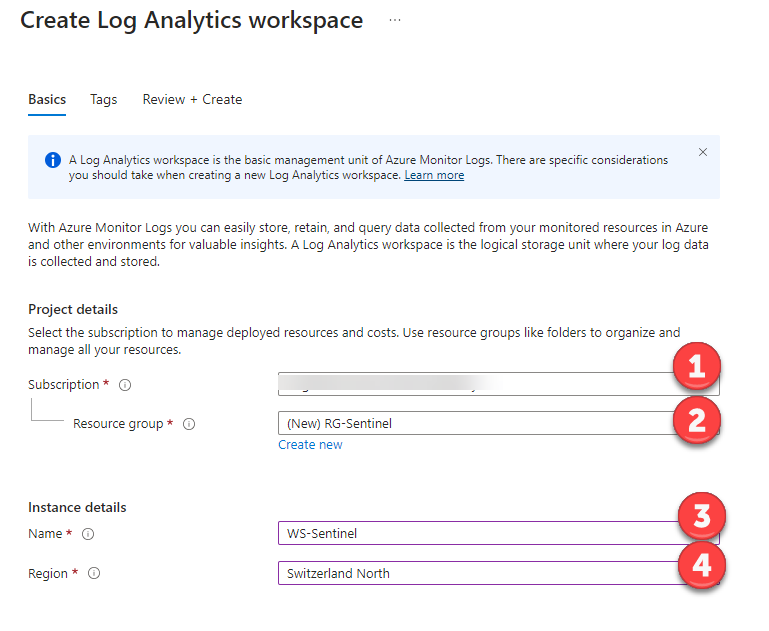
  • The first thing you’ll need is a ‚Log Analytics Workspace‘ (this is where the actual logdata is retained). So we’ll create a new workspace as part of the initial setup.
  1. Select your subscription
  2. Consider grouping objects in an ‚Azure Resource Group‘ (think of it as a type of management container)
  3. Pick a unique name for the workspace
  4. Pick your ‚Azure‚ region. Local laws and regulations may dictate a certain region but also keep in mind that there are cost differences between regions. See the calculator for details.
  • Once created, select the new workspace from the list
  • As a new user you may be elligible for the free 30-day trial. You’ll be asked to confirm this.
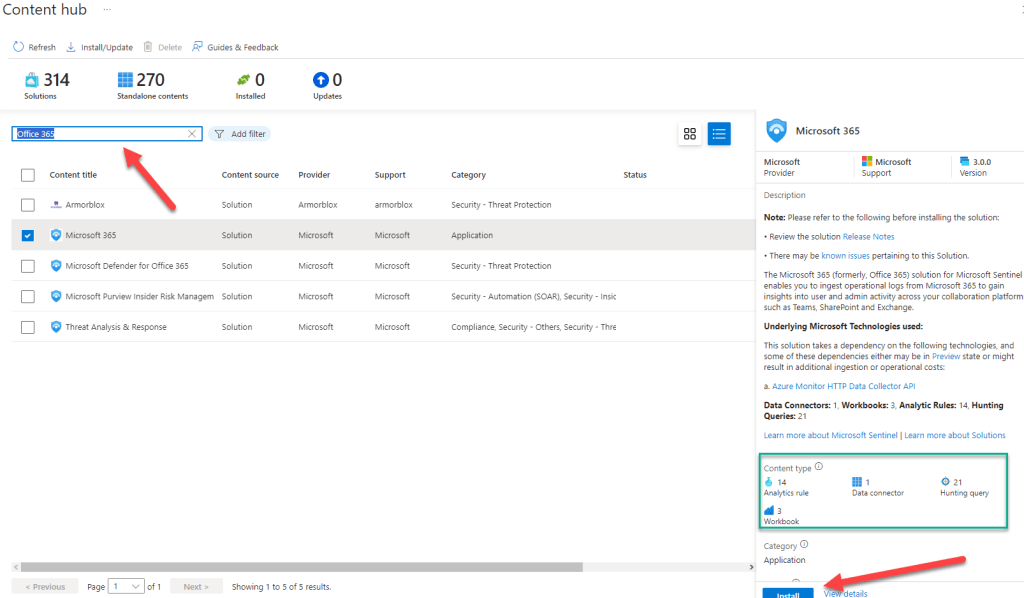
  • Your next stop is the ‚Content Hub‘. This is where you’ll find predefined out of the box solutions for both Microsoft and 3rd party applications and services. For example, a search for M365 or Azure will show you all the related solutions.
  • Select the solution you’re interested in and click ‚Install‘
  • The solution is now installed but it’s still not configured / connected. So the next stop in gettings things and up and running is the ‚Data Connectors‘ page.
  • Have a look at the bar next to the solution to see it’s current connection status:
    • grey -> not yet connected
    • green -> connected (after the configuration has been completed)
  • So next you’ll need to select the installed product and click on ‚Open Connector page‘.
  • The configuration options will differ, based on the selected solution. For example, when looking at the M365 solution you’ll need to choose the related applications (Exchange, Sharepoint, Teams).
  • Once you’ve finished the initial setup, you’ll see many new templates on the ‚Analytics‘ page.
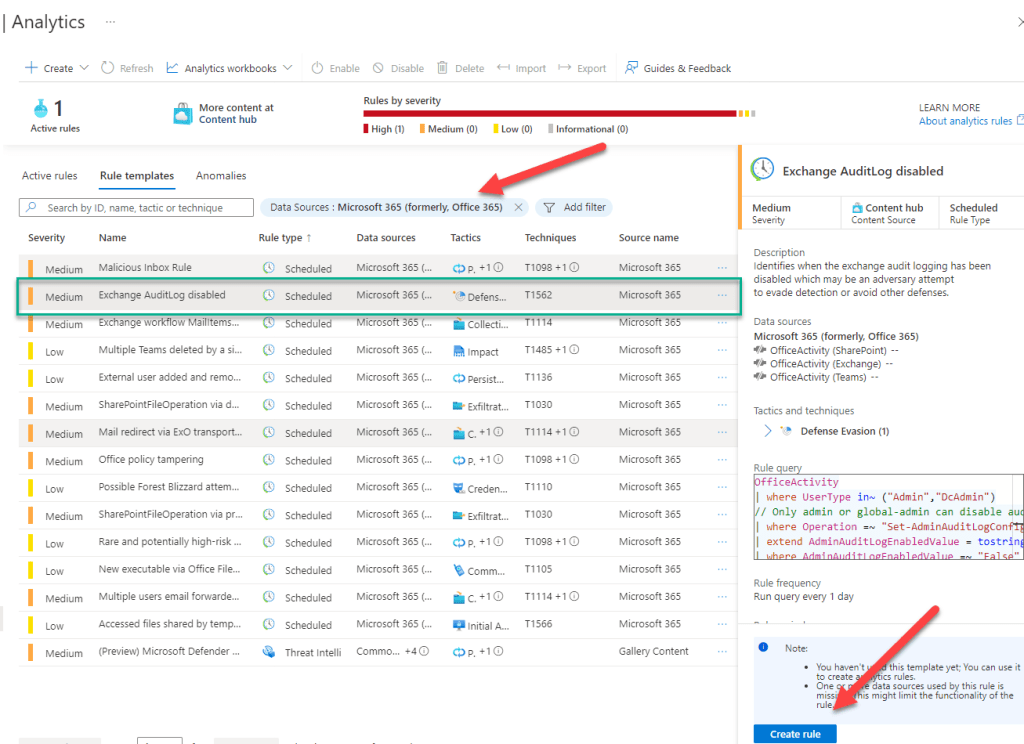
  • Let’s say that we would like to be alerted if someone is trying to cover their tracks by deactivating the audit logs. There’s a template for that. So we can select the template and click on ‚Create Rule‘.
  • As we create the rule from the template, we have multiple options. In this example we would like to automatically open an ‚Incident‘ and assign it to an owner (such as a Security Operations team).
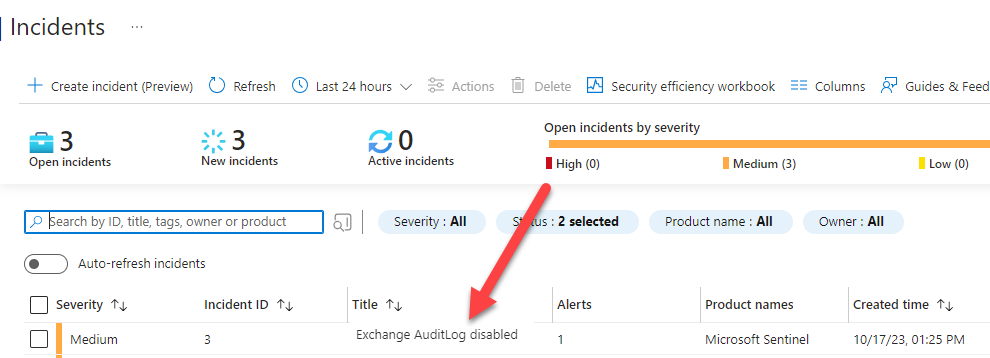
  • Once the rule has been created it will run on a fixed schedule (how often is configurable). The ‚Incident‘ will fire as soon as someone disables the Audit Log.
  • But don’t just take my word for it. To prove the point, we will now use trusty old Powershell to disable and then immediately re-enable the Audit Log. We’re doing this in a test environment, so please don’t try this at home. 🙂 These are the commands (you’ll have to connect to Azure Powershell first):
    • Set-AdminAuditLogConfig -UnifiedAuditLogIngestionEnabled $false
    • Set-AdminAuditLogConfig -UnifiedAuditLogIngestionEnabled $true
  • …and soon after you’ll see the ‚Incident‘ appear in Sentinel. Works as designed. 🙂

Now this test only scratches the surface of what’s possible with Sentinel. But what’s impressive here is how quickly the basic setup is up and running. Now we’re ready to go further with automation. We can use ‚Playbooks‘ in combination with ‚Logic Apps‘ to refine our security operations tasks and to integrate and extend the solution. More on that topic to follow soon.

And finally…

Here’s a reminder of ways you can interact with us:

  • Hammertime‘ – Send uns your ideas and let us know what you think
  • Get the ‚T-Shirt‘ – Impress friends and family while supporting our site.

Azure Sentinel: Wächter statt Wagenburg

English Version

Wurde im Wilden Westen ein fahrender Trek von Siedlern angegriffen, dann wurde zügig eine Wagenburg gebildet. Und auch während eines Zwischenstopps wurden jeweils die Wagen im Kreis aufgestellt. Warum? Innerhalb der Wagenburg war es sicherer. Angreifer konnten von innen erspäht und abgewehrt werden. Gibt es eine Verbindung vom Wilden Westen zum Netzwerk-Design? Es gibt Firmen, die immer noch interne Systeme als ‚gut‘ definieren und externe als ‚böse‘. Wenn jemand sich im inneren Kreis befindet, dann wird er nicht mehr so gross überprüft. Der gehört ja zu uns! Aber was, wenn sich jemand einen Cowboy-Hut anzieht und einfach nachts leise in die Wagenburg reinspaziert?

white fedora hat hanged during golden hour
Was verbirgt sich unter dem Hut?

Einerseits wollen die Benutzer von überall her mit allen Geräten auf alle Systeme zugreifen können, ob es jetzt ein Mobitelefon oder ein Tablet oder ein klassischer PC ist. Private Geräte wie auch geschäftliche Geräte kommen zum Einsatz. Auf der anderen Seite zwingt der Kostendruck zur Standardisierung und Skalierung und unter anderem darum werden immer öfter auch Cloud Services eingesetzt. Systeme lassen sich auf Knopfdruck hoch- bzw. runterfahren. Es wird nur bezahlt was genutzt wird. In dieser IT Welt lässt sich das Wagenburg-Modell nicht mehr aufrecht erhalten, auch weil Daten sich nicht zwingend auf internen Systemen befinden. Aber wie kann jetzt der Schutz trotzdem sicher gestellt werden, wenn doch alles erlaubt ist?

Im Azure und M365 Umfeld gibt es einerseits den bedingten Zugriff (CAP). Will jemand auf ein System zugreifen wird die Anfrage im Hintergrund jedesmal neu geprüft und kann dann je nach Art des Gerätes oder des Benutzers etc. zusätzliche Sicherheitsprüfungen auslösen (MFA). Bei Verdacht kann eine CAP den Zugriff auch ganz ablehnen. Aber reicht das aus? Denn natürlich werden Hacker und Cyberkriminelle versuchen einen Weg zu finden um auf Firmendaten zuzugreifen oder Schwachstellen auszunutzen. Es braucht ein intelligentes System, dass die Attacken frühzeitig erkennt und alarmiert. Die gute Nachricht: das gibt es natürlich schon! Das Rad muss nicht neu erfunden werden. Wir sprechen heute über ‚Sentinel‘ (zu deutsch ‚Wächter‘).

Was braucht es dazu?

Voraussetzung ist ein aktives Azure Abonnement. Wer nicht schon ein Abo hat (z.b. für M365) kann hier ein Probeabo lösen.

Was kann ich mit Sentinel?

  • Logs aus verschiedenen Azure / M365 Lösungen zentral ablegen und aufbewahren
  • Alarmieren und informieren (sowohl mit automatischen als auch eigenen Regeln)

Was kostet mich das?

Detailliert lässt es sich anhand des Sentinel Rechners sagen aber im Prinzip kommt es auf die Datenmenge an und wie lange diese gespeichert werden sollen. Ebenfalls kosten die automatisierten Abläufe (Logic Apps) bei jeder Ausführung. Das soll aber nicht abschrecken, denn in der Regel wird man im Sentinel nicht auf einen Schlag alles aufschalten sondern eins nach dem anderen. Es gibt auch eine 30-Tage Testversion. Wichtig ist einfach, die Kosten im Auge zu behalten. Ja, es kann viel kosten, muss aber nicht. Die teuerste Ueberwachung ist sowieso keine zu haben.

Und wie geht das jetzt?

Im folgenden erkläre ich, wie Sentinel in wenigen Schritten aktiviert und genutzt werden kann.

  • Wir melden uns beim Azure Portal an
  • Dort suchen wir nach Sentinel und wählen zuerst ‚Create‘ um einen neue Sentinel Umgebung zu erstellen
  • Für jeden Sentinel braucht es zuerst einen ‚Log Analytics Workspace‘ (hier werden die eigentlichen Logdaten gesammelt). Dieser wird gleich als nächstes erstellt.
  1. Das Abo / die Subscription muss ausgewählt werden
  2. Es wird empfohlen Azure Objekte in einer eigenen ‚Resource Gruppe‘ zu gruppieren (eine Art Verwaltungscontainer)
  3. Ein Name muss gewählt werden für den Workspace
  4. Es muss gewählt werden in welcher Azure Region der Workspace erstellt werden soll. Gesetzliche und regulatorische Vorgaben können eine lokale Ablage bedingen aber einige Regionen sind auch teurer als andere. Siehe Rechner.
  • Nach Erstellung den Workspace nochmals auswählen
  • Bei Erstnutzung gibt es einen 30-Tage ‚Free Trial‘ der bis zu einer bestimmten Datenmenge kostenlos ist. Das muss nochmals bestätigt werden.
  • Danach geht es zum ‚Content Hub‘. Hier finden sich vordefinierte Lösungen zu diversen Microsoft Produkten aber auch von Drittherstellern. Eine Suche nach ‚Microsoft 365‘ oder ‚Azure‘ zeigt die zugehörige Lösung an.
  • Gewünschte Lösung auswählen und installieren
  • Nun ist die Lösung installiert aber noch nicht verbunden. Dazu müssen wir zu ‚Data Connector‘ wechseln
  • Der Balken auf der linken Seite zeigt den Verbindungs-Status:
    • grau -> nicht verbunden
    • grün -> verbunden (Nach Konfiguration)
  • Installiertes Produkt auswählen und ‚Open Connector Page‘ um die Config abzuschliessen
  • Was konfiguriert werden kann ist sehr individuell. Beim M365 Connector sind es zum Beispiel die einzelen M365 Produkte wie ‚Exchange, Sharepoint, Teams‘.
  • Sobald ein Produkt installiert und konfiguriert wurde stehen unter ‚Analytics‘ diverse Vorlagen zur Verfügung.
  • In unserem Beispiel möchten wir informiert werden, wenn jemand das Audit Logging deaktiviert um seine Spuren zu verwischen. Dazu suchen und wählen wir die Vorlage und klicken auf ‚Create Rule‘
  • Wir haben diverse Einstellungsmöglichkeiten. In unserem Beispiel möchten wir eine einfache automatische Zuweisung des ‚Incidents‘ an einen Owner (z.B. Security Operations).
  • Diese Regel läuft nun im Hintergrund periodisch ab (wie oft ist einstellbar) und sollte jemand das Audit Log deaktivieren wird automatisch ein ‚Incident‘ erstellt.
  • Zum Beweis werden werden wir Powershell das Audit Log in unserem Test Tenant deaktivieren und sogleich wieder aktivieren (das bitte nicht zu Hause ausprobieren 🙂 Dazu verbinden wir uns mit Azure Powershell und führen diese Befehle aus:
    • Set-AdminAuditLogConfig -UnifiedAuditLogIngestionEnabled $false
    • Set-AdminAuditLogConfig -UnifiedAuditLogIngestionEnabled $true
  • Und kurze Zeit später erscheint im Sentinel der ‚Incident’….

Natürlich haben wir hier nur an der Oberfläche gekratzt. Aber es ist beeindruckend wie die Lösung nach kurzer Zeit einsatzbereit ist. Mit ‚Playbooks‘ kann die Automatisierung über ‚Logic Apps‘ eingebunden und verfeinert werden. Dazu mehr in einem späteren Beitrag.

Und zuletzt….

Zum guten Schluss noch einmal eine Erinnerung an wichtige Seiten:

  • Die Feedbackseite „Vorschlaghammer“ – hier kannst Du Fragen stellen oder Wünsche oder Ideen einbringen
  • Die T-Shirt Seite – hier kannst Du das ClickCoach Team unterstützen und dabei noch gut aussehen

Azure PIM: Peace of Mind for IT Admins

German version

The security landscape is changing and traditional security concepts need to be overhauled and renewed. There is an ongoing trend: moving away from network zones, firewalls and segmentation towards a more holistic approach. New ideas to reckon with are „Zero Trust“ and „Conditional Access“,. Simply put, this means that access is checked and verified every time. Since I have already written quite a few words about this topic, let’s change direction a bit and talk about a more specific concepts instead. RBAC, rights assignment and admin access are an important part of today’s story.

Security by obscurity – multiple admin accounts

If you look closely at some of the traditional security concepts, then a common theme is „Damage control“. Let’s say, a hacker has gained access to your network. However, because of segmentation, the path to additional assets is blocked. Unfortunately, the management overhead for these type of solutions tends to be very high, especially if there is no integration between different solutions. Are these solutions user-friendly? Let’s just say, that this aspect is often not the main driver or simply ignored. Let’s talk about the concept of RBAC (Role-based access control). In a perfect world, you might have several admin accounts. Each account is tailored to have just the rights that is required for the task at hand. You need to configure e-mail settings? Here is your mail server admin account. You’re planning to manage the file server? Here is another admin account, which you can use only for that task, etc, etc. Depending on your roles, you could end up with ten or even more accounts. Naturally, all these accounts would have an individual complex password and would be protected with MFA. 🙂 Can you imagine the confusion? Half of your admin day would be spent just trying to figure out which account applies to which task. In this fresh admin hell, you’d also be forced to use multiple different entry points to gain access. And what about the account lifecycle? New entries, job rotation, closing accounts etc… It is very likey that this type of approach will generate a lot of manual processes. The result is security by obscurity. You feel secure, but you’re not!

A much better approach is using a system such as PIM. There is a central ordering process and you get the rights you need, when you need them. All you need is a single admin account and PIM. You can setup this process as simple or as complicated as you like. And the best thing: The rights expire automatically, based on your requirements. Always think about the criticality of the asset you are trying to protect and architect the approval process accordingly. A common mistake ist to build complicated approval workflows for non-critical assets.

administration ancient antique architecture
PIM – Three Pillars

What are the three main pillars of PIM:

  • Least Privilege – Assign only the rights you need to do your job.
  • Just in Time – Access is provided as needed and has an expiration date.
  • Monitoring – Answering the question „Who had access and when“ becomes a breeze, as there are detailled audit trails.

How can you configure PIM? The entry point is alwas the Azure Portal. The focus of the solution are the typical Admin roles of Azure and M365. Here are some standard roles, that can be configured to work with PIM:

  • Global Administrator
  • Exchange Administrator
  • Sharepoint Administrator
  • Teams Administrator

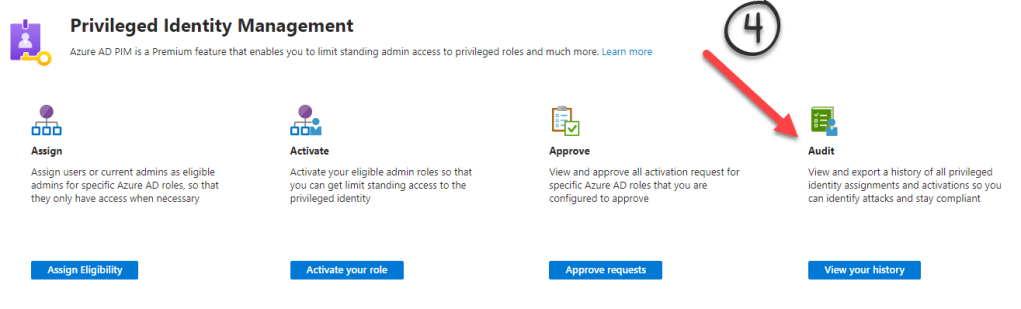
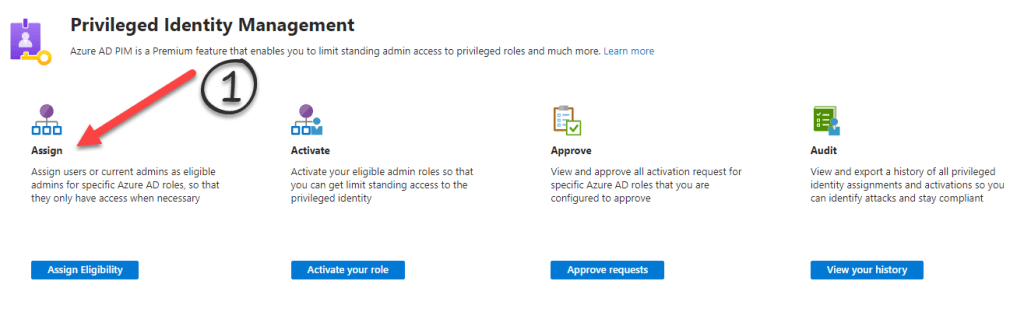
…. and many more. Using PIM is a 4 step process. The first line of defense is to define eligibility. Who is even allowed to request an administrative role (Step 1)? This could also be time-limited. For example, you could align your role assignments with a project schedule.

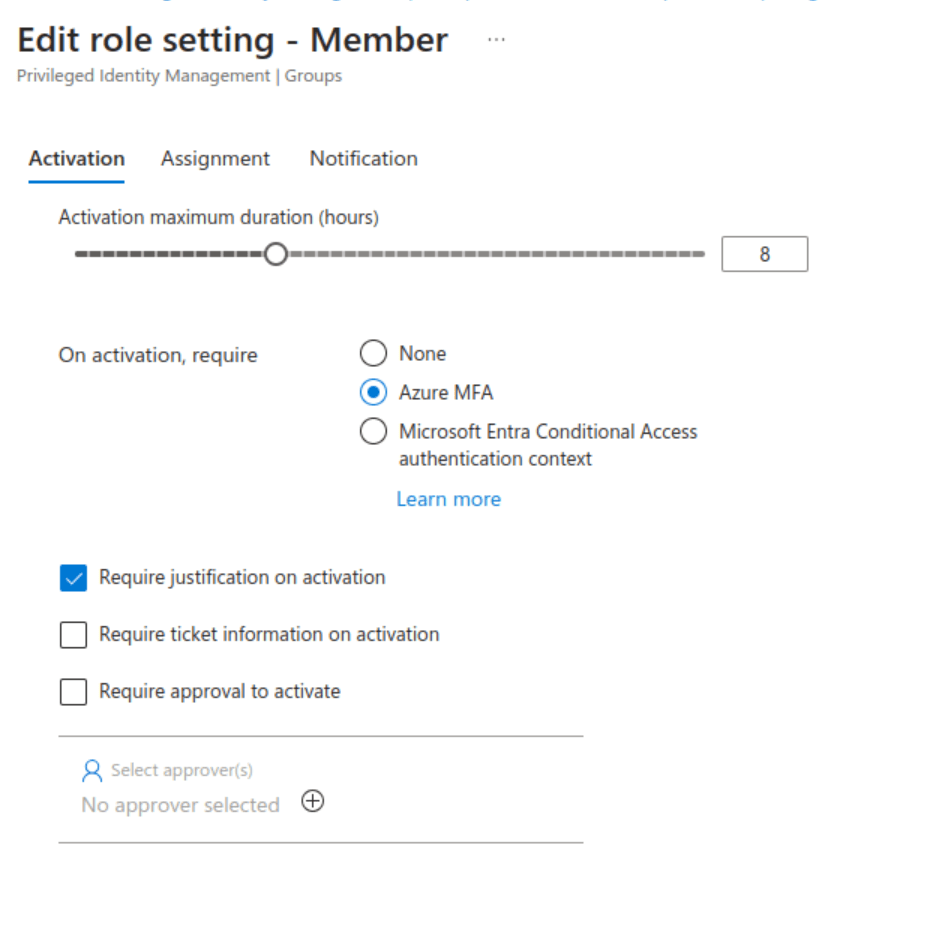
Some of the settings you can control individually for each role are:

  • For how long the permissions will apply (1 day, 1 week, forever…)
  • Additional MFA authentication requirements
  • If access will only be logged or if an approval is needed
  • Requesting additional justification
Role settings: Expiry and approval requirements

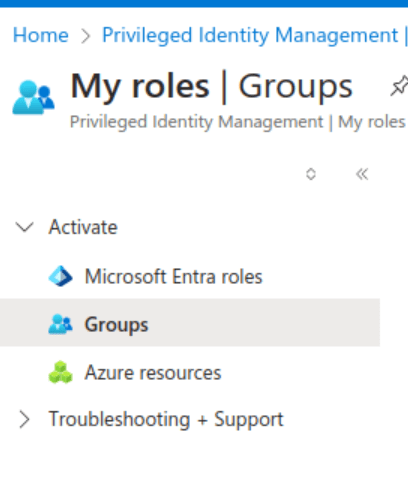
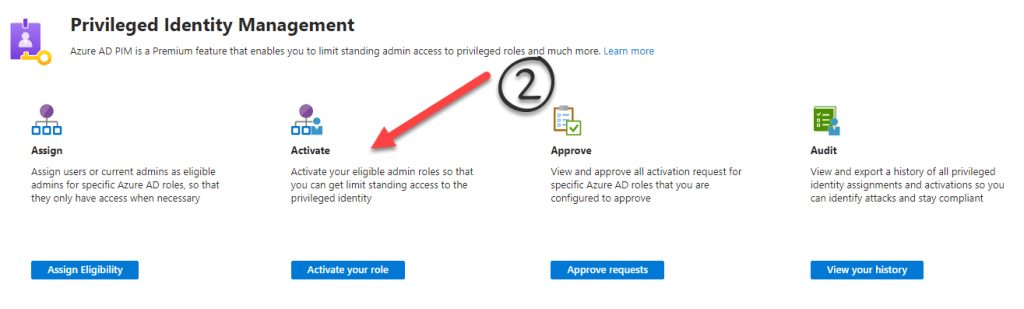
What are the steps of a PIM workflow? Let’s look at a practical example. Kevin works as an IT admin for the dynamic Import-Export Ltd. Today, Kevin’s plans are to cleanup the Microsoft Teams workspaces. He knows that this will require the Teams Administrator role. However, because the company has recently activated PIM for M365, he is aware that he needs to request the role before he can begin. The starting point for the workflow is the Azure Portal. (Step 2)

It’s Kevin’s lucky day! The Azure Administrator has already defined the eligibility requirements for the ‚Teams Administrator‘ role. Kevin can see a list of all the roles that he is eligible for. He picks the ‚Teams Administrator‘ role and clicks on ‚Activate‘.

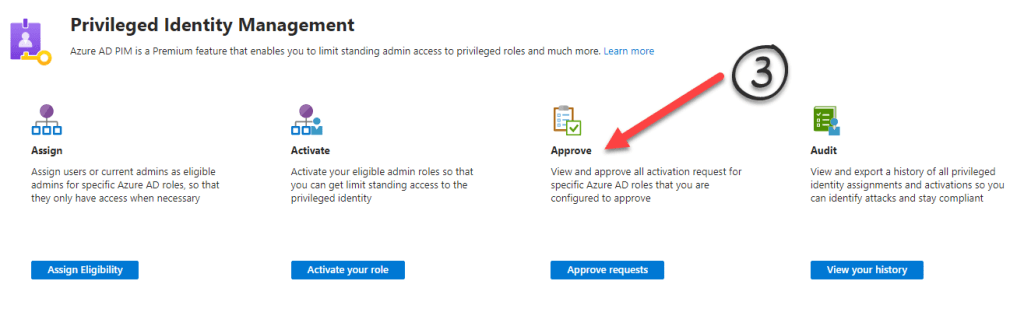
Here’s what’s been defined for the ‚Teams Administrator‘ role: It is valid for one week, after which a new approval is necessary. The IT team at Import-Export Ltd. is small and that’s why it’s been decided to only log the permission assignment. But Kevin will have to authenticate with MFA and the IT manager will be notified by e-mail. At the last meeting, Kevin talked extensively about his plans for a Teams cleanup, so no surprises there. In larger environments or if a role is seen as highly crititical, you can alway require an approval (step 3).

Fast forward: The festive season is approaching. But the IT manager at Import-Export Ltd. is working with an external auditor for one of those crucial ISO certifications. As the auditor works through his checklists, he would like to know who had „Teams Administrator“ access and when. Instead of scratching his head and making quizzical noises, the IT manager just presses a button in PIM (step 4) and provides a detailled report.

Yes, PIM requires an Azure P2 license, which means it is a ‚Premium Feature‘. What you’re paying for is an integrated, fully automated workflow and a detailled audit trail. PIM is easy to setup and can be up and running in a matter of days.

Keep it simple – try PIM

Azure PIM: Ordnung ins Admin Chaos

English Version

Die Sicherheits-Landschaft ist in Bewegung und altbewährte Konzepte müssen überdacht und erneuert werden. Der Trend geht weg von Zonierung und Segmentierung über Firewalls und hin zu „Zero Trust“ und „Conditional Access“, was bedeutet, dass bei jedem Zugriff immer wieder geprüft wird ob ich berechtigt bin. Dazu habe ich schon einiges geschrieben aber heute soll es speziell um Admin Konten und Rechtezuteilung gehen.

Pseudo-Sicherheit durch viele Admin Konten

Altbewährte Konzepte zielen eigentlich im Grunde immer auf die eine oder andere Art auf „Schadensbegrenzung“ hin. Auch wenn ein Hacker sich Zugang verschafft hat, soll er dann auf Grund der Abgrenzung nicht auf weitere Systeme kommen. Der Verwaltungsaufwand für nicht voll integrierte Lösungen ist aber enorm und ist meistens gegenläufig zur Benutzerfreundlichkeit. Ein Beispiel davon ist die Idee von unterschiedlichen Administratorenkonten für unterschiedliche Aufgaben (RBAC). Die theoretische Idee dahinter: Der Admin hat je nach Rolle ein anderes, massgeschneidertes Konto. Ein Konto um Mailserver zu administrieren, ein anderes um den Fileserver zu verwalten… etc. etc. Klingt doch gut? Je nachdem für welche Aufgaben ein IT Admin zuständig ist, hat er dann vielleicht zehn Konten. Alle mit MFA geschützt und komplexem Passwort…. Den halben Tag ist er mit Einloggen beschäftigt, den anderen Teil damit sich zu erinnern welches Konto für welche Aufgaben genutzt werden muss und über welches Portal er sich wo einloggen kann. Auch der Lifecycle (Neueintritt / Austritt / Funktionswechsel) ist dabei eine Herausforderung. Das Ergebnis: Es gibt viele manuelle Prozesse und es besteht die Gefahr einer Pseudo-Sicherheit.

Besser sind Systeme wie PIM. Man bestellt sich die Rechte, die man gerade braucht und definiert ein Ablaufdatum. Der Prozess muss nicht kompliziert sein, es kann auch nur geloggt werden. Jeder Prozess sollte im Verhältnis zum geschützten Asset stehen. Wenig Sinn macht es für einfache Rollen einen Approval-Prozess über mehrere Personen aufzubauen.

administration ancient antique architecture
PIM – Drei Säulen für ein Hallelujah

PIM hat drei Grundideen:

  • Least Privilege – man hat immer nur die Rechte, die man gerade braucht und nicht mehr
  • Just in Time – Der Zugriff wird gewährt und ist dann wieder weg. Keine dauerhaften Rechte
  • Monitoring – Es muss jederzeit nachvollziehbar sein wer wann welche Zugriffsrechte hat

PIM kann über das Azure Portal konfiguriert werden. Im Fokus stehen die vordefinierten M365 Adminrollen. Typische Rollen, die über PIM zugewiesen werden können:

  • Global Administrator
  • Exchange Administrator
  • Sharepoint Administrator
  • Teams Administrator

…. und viele mehr. Es können aber nur Rollen an Personen oder Gruppen zugewiesen werden, die vorher über ‚Assignments‘ definiert wurden. Als erste Sicherheits-Stufe wird also definiert wer überhaupt das Recht hat eine Rolle anzufordern. Auch das könnte weiter eingeschränkt werden. Läuft ein Projekt für einen Monat, könnte man festlegen, dass die Rechte nur während diesem Monat bestellt werden können.

Ebenfalls muss pro Rolle vorab geklärt werden:

  • Wie lange der Zugriff gilt
  • Ob eine zusätzliche MFA Abfrage nötig ist um das Recht zu erhalten
  • Ob eine Bewilliung nötig ist oder nur geloggt wird
  • Ob eine zusätziche Begründung nötig ist
Pro Rolle ist definierbar: Dauer und Bewilligunsprozes

Wie läuft nun der PIM Prozess ab? Sehen wir uns ein praktisches Beispiel an. Kurt arbeitet bei der dynamischen Import-Export AG und hat sich vorgenommen, heute mal die Teams Umgebung im M365 aufzuräumen und ein paar nicht benutzte Teams Workspaces zu löschen. Er weiss, dass er dazu Teams Administrator Rechte braucht. Kürzlich wurde in der Firma PIM für M365 eingeführt, daher ist ihm klar, dass er sich die Rechte bestellen muss. Bestellt wird auch wieder über das Azure Portal.

Kurt hat Glück und er wurde vom Azure Administrator bereits als eine der Personen definiert, die sich ‚Teams Administrator‘ Rechte bestellen dürfen. Alle Rollen, für die er berechtigt ist werden im Portal angezeigt. Also wählt er die Teams Rolle aus und klickt ‚Activate‘.

Für die Rolle ‚Teams Administrator‘ ist definiert, dass sie jeweils für 1 Woche gültig ist und danach ein neuer Antrag gestellt werden muss. Weil die Import-Export Firma von Kurt ein kleines IT Team hat wurde auf eine aktive Bewilligung verzichtet. Kurt muss sich zusätzlich per MFA ausweisen und es geht ein ein e-mail an den IT Leiter, zur Information. Der IT Leiter weiss, dass Kurt diese Woche die Teams Umgebung aufräumen will und ist daher nicht überrascht. Für grössere Umgebungen oder wenn es sich um sehr kritische Rollen handelt, kann auch ein Bewilligung verlangt werden.

Unterdessen ist es ist Jahresende bei der Import-Export AG. Auf Grund einer extrem wichtigen ISO Zertifizierung ist wieder mal ein externes Audit angesagt. Der Auditor möchte wissen wer dieses Jahr alles Teams Administrator Rechte hatte und wann. Statt mühsam in Logs zu forschen, lässt der IT Leiter per Knopfdruck einen PIM Auditbericht erstellen.

PIM benötigt eine P2 Azure Lizenz und ist damit ein ‚Premium Feature‘. Aber da es sich um einen integrierten, vollautomatischen Workload handelt, mit einem vollständigen Audit-Trail lohnt sich das allemal. PIM ist einfach aufzusetzen und kann in wenigen Tagen in Betrieb genommen werden.

Ordnung ins Chaos, dank PIM

Artifical Intelligence – Practical Guide

German

It’s always fun to see IT trends and topics appearing in everyday newspapers, as is currently the case with Artificial Intelligence (AI). There are many wild theories and ideas to be found:

  • AI wants to rule the world
  • AI will make us all obsolete
  • AI must be stopped, before it’s too late

Is AI a disruptive technology, meaning that it will eventually change the way we work and live? I think we can safely answer this question with a hearty „YES“, even without gazing into a crystal ball. But what will these changes look like? It’s too early to tell at this point. However, the following article is a write-up of my personal experience with AI and will hopefully give you some valuable insights.

I use ChatGPT almost every day. And yes, it makes my life easier at work. But it cannot replace me, only assist me. So how do I work with ChatGPT? What are AI’s abilities? What can it do and what are the limitations? If I had to choose two words, then they would be ‚Timesaver‘ and ‚Interactive‘. One thing is clear, AI can do much more then just answer simple questions.

high angle photo of robot
How can I be of assistance?

But the first thing I did, was just that: Ask the ChatBot a few simple and easy questions, which would normally be answered by a human helpdesk employee. Questions like „How do I create an Inbox rule in Outlook?“ or „How do I reduce the size of my mailbox?“. The answers were correct and very detailled and concise. On the other hand, they weren’t much different from what I could have found out by typing the question into my favourite search engine. So does that mean, ChatGPT is like ‚Let me Google that for you‚ on steroids? This does ring true, at least partially. But the big difference here is the interactive element. I can exchange ideas with the ChatBot and ask direct follow-up questions. Because of this, I can save a lot of time.

Another big win is logfile review. Think about looking through a logfile for troubleshooting purposes. Sometimes it’s hard to see the forest, with all those trees! But you can paste your logfile into ChatGPT and it will be analyzed and explained, line by line. And you can ask questions about any given element, to get more information. But it helps if you already know what you’re looking for.

The same helpful effect can be found when you’re coding. Let’s say, you would like to automate a repetitive task but you’re stuck at a certain line in your program. Again, you can paste your code and let AI have a look. You’ll get a complete analysis of what your program does and it will suggest improvements as well as help with any error messages.

green pine trees
All trees look alike…. AI can help!

But AI is not without faults. Actually, sometimes you’ll get an incorrect answer. You can provide feedback and you’ll get a ‚Sorry! This is the correct answer.“ Meaning, you can’t trust AI and have to double-check everything. AI will not ask many questions, which means that it will sometimes just make (wrong) assumptions. It can also suggest over-complicated solutions to simple problems.

Sometimes AI will refuse to help you or will not answer a question. When asking for financial advice, the standard answer is „Ask your financial advisor….“. Often you’ll get the classic „Ask the vendor…“. And many answers are followed by some kind of disclaimer, which points to ChatGPT’s American roots. I wonder how long it will take before someone brings a lawsuit against a ChatBot because of a wrong answer?

And yes, you can use AI for silly things, like creating limericks or songs. Procrastination is not something new, as we know from the popularity of YouTube cat videos or meme sites….

Anyway I’m really not afraid of being made redundant by ChatGPT. The best use of AI can be made if you are already an expert in a subject. So I believe, that AI will make us more productive and that it is one more arrow in our set of tools. But it will not replace anybody anytime soon. As an example, think of a technical hotline. When you call the hotline number, you’ll have to wade through a moronic machine-made menu (1 for this, 2 for that..) before you’re made to listen to crappy elevator music for 10 minutes. What if the call could be answered by a AI voice instead? Of course, if the ChatBot can’t help, I would be forwarded too a human employee, just like today. AI is not a job killer but adds value to existing procedures.

Currently, ChatGPT by OpenAI is still in test mode and free of charge. A Pro subscription is available, with supposedly faster response times. You should be aware that all your request history is stored and linked to your account, so you’re not anonymous. This is similar to your Google search history, which is no big secret either.

A practical guide to KI

Finally, here’s a reminder of ways you can interact with us:

  • Hammertime’ – Hammer us with your ideas and let us know what you think
  • Get the ‘T-Shirt’ – Impress friends and family while supporting our site.

Künstliche Intelligenz – praxisnah

English

Immer wieder spannend ist es, wenn Informatik-Themen in die allgemeine Berichterstattung überschwappen. Mit KI (Künstlicher Intelligenz) ist es wieder einmal so weit. Es werden wilde Theorien gehandelt:

  • KI will die Weltherrschaft übernehmen
  • KI macht uns alle überflüssig,
  • KI muss gestoppt werden – bevor es zu spät ist

Ist KI eine sogenannte ‚disruptive Technologie‘, das heisst wird sie die Art wie wir leben und arbeiten verändern? Diese Frage kann man mit ‚Ja‘ beantworten, ohne ein Hellseher zu sein. Aber wie genau diese Veränderungen aussehen werden? Dafür ist es noch definitiv zu früh. Der folgende Erfahrungsbericht soll einen Einblick in die Möglichkeiten geben, ohne Anspruch auf Vollständigkeit.

Ich nutze momentan ChatGPT fast jeden Tag. Und ja, es hilft mir bei der Arbeit. Aber es ersetzt mich nicht. Wie nutze ich ChatGPT? Was kann KI und was kann es nicht? Für mich sind hier die Schlüsselwörter ‚Zeitgewinn‘ und ‚Interaktivität‘. KI kann viel mehr als nur einfache Fragen beantworten.

high angle photo of robot
Wie kann ich helfen?

Das erste, was ich gemacht habe, ist aber genau das. Also dem ChatBot einige einfache Fragen zu stellen, die normalerweise ein menschlicher Helpdesk Mitarbeiter beanworten würde. Fragen wie ‚wie erstelle ich eine Posteingangs-Regel?‘ oder ‚Wie verkleinere ich mein Postfach?‘. Die Antworten waren korrekt und erstaunlich detailliert. Grundsätzlich aber nicht viel anders, als was man auch selber mit einer Suchmaschine finden könnte. Ist ChatGPT also eine Art ‚Let me Google that for you‚? Teilweise schon, aber was die KI ausmacht ist eben das interaktive Element. Ich kann mich mit der KI austauschen und Folgefragen stellen. Dadurch gewinne ich in der Praxis viel Zeit.

Ein grosser Mehrwert ergibt sich auch bei der Auswertung von Logdateien. Manchmal sieht man bei diesen Fehler-Analysen den Wald vor lauter Bäumen nicht. Wenn ich nun ein Logfile an ChatGPT weitergebe, kann er es Zeile für Zeile analysieren und auf Nachfrage einzelne Punkte erklären. Es hilft aber extrem wenn man zumindest weiss wonach man sucht.

Eine weitere Unterstützung ist KI auch beim Programmieren. Ein grosses Thema in der Informatik ist die Automatisierung von immer gleichen Abläufen. Auch hier kann man seine Code an die KI übergeben und diese analysiert ihn. Bei Fehlermeldungen gibt es Tipps, wie zu verfahren wäre oder welche Aenderung zum Ziel führt.

green pine trees
KI hilft Fehler zu finden – auch wenn alle Bäume fast gleich aussehen

KI macht auch Fehler. Die Antworten stimmen nicht immer. Oft muss man die KI auf Fehler hinweisen und dann kommt oft ein ‚Sorry, ja ist falsch und eigentlich wäre es so‘. KI ist nicht unfehlbar und man muss die Antworten stets überprüfen. KI fragt auch nicht nicht viel zurück und geht gerne von falschen Annahmen aus. Oder schlägt komplizierte Lösungen für einfache Probleme vor.

KI lehnt Hilfe auch gerne mal ab. Finanzielle Fragen beantwortet es fast immer mit „Da müssen Sie Ihren Finanzberater fragen….“ oder das klassische „Da müssen Sie den Hersteller kontaktieren….“ Zu vielen Fragen folgt ein langer ‚Disclaimer‘ was vermutlich ein Hinweis auf die amerikanischen Wurzeln von ChatGPT ist. Wann wird der erste ChatBot verklagt weil er falsche Antworten gegeben hat?

Natürlich kan man auch lustige Dinge tun, wie sich ein Lied oder ein Gedicht erfinden lassen aber das geht dann mehr unter das uralte und sehr menschliche Thema Zeitvertreib. So wie man sich ja im Internet auch Katzenvideos oder Memes anschauen kann.

Angst davor ersetzt zu werden habe ich nach meinen bisherigen Erfahrungen mit ChatGPT überhaupt nicht. Mein bisheriges Fazit ist, dass KI am meisten dort eine Unterstützung ist, wo man schon selber Bescheid weiss. Ich glaube es wird uns alle produktiver machen im Sinn eines Hilfsmittels aber es wird zumindest vorläufig niemanden ersetzen. Wenn wir heute auf eine Hotline anrufen, müssen wir uns zuerst durch ein idiotisches Menu wählen und dann stehen wir zehn Minuten in der Warteschlange. Wenn statt dessen eine KI Stimme meine Frage entgegen nimmt und beantwortet, dann wird kein einziger Arbeitsplatz vernichtet aber es ist eine qualitative Verbesserung. Wenn KI nicht Bescheid weiss, wird man zum menschlichen Mitarbeiter durchgestellt, wie bisher.

Im Moment ist ChatGPT von OpenAI noch experimentell und kostenlos aber wer will kann ein Pro Abo lösen, bei dem man angeblich schneller Antwort erhält. Ebenfalls ist zu beachten, dass man nicht anonym ist und der komplette Verlauf gespeichert wird. So wie der Suchverlauf bei Google etc. ja auch kein grosses Geheimnis ist.

Künstliche Intelligenz in der Praxis

Zum guten Schluss noch einmal eine Erinnerung an wichtige Seiten:

  • Die Feedbackseite „Vorschlaghammer“ – hier kannst Du Fragen stellen oder Wünsche oder Ideen einbringen
  • Die T-Shirt Seite – hier kannst Du das ClickCoach Team unterstützen und dabei noch gut aussehen

Brave New World

German / Deutsch

Azure / M365 are quickly becoming the central hub for all systems and applications in your company. Although both are often associated with Microsoft only, the solution goes way beyond a single brand and in reality it helps to securely integrate 3rd party apps and providers.

About Passwords

When we logon to our computers in the morning, we are usually asked for a username (Authentication) and a password. This provides access to different systems based on our identity (Authorization). As we continue our daily work, we may suddently be prompted for an additional username or password. There are many reasons this can happen, but three of them are the most common:

  • Lack of integration into our corporate environment (no SSO, single-signon)
  • The application owner has put forward a requirement for additonal protection because of the sensitive data involved (Salary lists, HR databases…)
  • Another message we might encounter is a simple ‚Access Denied‘ without any further prompting for passwords. This basically just means that we are not authorized and need to request access via a servicedesk process or perhaps a call to IT. You might want to analyze these requests and implement role-based access, to reduce the number of helpdesk calls. But that’s a topic for another day.
close up photo of programming of codes
SSO Integration nicht vergessen

Lack of integration into our corporate environment (SSO is missing)

If all your applications are hosted in a corporate data center, then the technical integration follows a standard pattern. Usually, there will be a central directory service (Active Directory or similar) and your application will offer LDAP or even Kerberos support. Integration in this case, may just mean creating a service account and adding it to the application configuration. Good project managers will also think about security groups, to decide who within the company is allowed to access the application and also how to handle on-boarding procedures.

So far, so good. However, in the IT landscape of today, many applications are hosted in the Cloud. Salesforce, Dropbox, Acrobat, Zoom… to name only a few. Now, one way to approach the issue is to have a separate user database for each of these services, each one with a different password. Madness! And why should we force the user to remember different identities and passwords? This doesn’t make things more secure, quite the opposite.

  • A better and far more secure approach is to integrate all your cloud applications by using a single but secure Identity Provider. This can be done in a few simple and effective steps, as explained in my previous article.
black android smartphone on top of white book
Besonders schützenswerte Daten… wie sichern?

Protecting Application Data

When we talk about ‚additonal protection‘ for sensitive information… what does that mean? The first step is as always to define ‚who‘ has access. This step is simple, since it usually means creating a security group and adding your user accounts. But there are additional questions which need to be considered. Which device will be used to access the data? Can a sales employee review all the data in the customer database? Probably the answer is yes, at least once access has been provided. But what about downloading the data and forwarding it to others by e-mail? Without alerting anyone? Is it ok to look at customer data while on holiday from an Internet Café? In these modern times of working from home or working remotely, security is paramount. Is it really ok, that a single password should provide access from anywhere without additional safeguards? As we know, passwords can be guessed and password theft is common. Wouldn’t it be better, if high-risk applications were subject to a second level of authentication, for example by confirming your identity on your mobile phone (MFA)? For example, if you had the Microsoft Authenticator App installed, you would receive a pop-up every time you logon to Salesforce.

The good news, both options are available and we haven’t even started with DLP (Data Leak Prevention). If you’re interested in the subject and would like to dig deeper, here are two articles that I would recommend:

  • This article talks about how you can improve your security by activating MFA
  • This article reviews how ‚Conditional Access‘ can provide fine-tuned settings not just for answering who can access an application, but also from where and on which devices and what the security requirements are.

Final thoughts

It is a lot safer to have a single password and to protect and manage a single Identity Provider in a secure and unified way. Certainly better than having multiple user accounts, each which different password requirements. If you’ve ever seen ‚Weakest Link‘ on BBC you’ll know what I mean. 🙂

So is M365 / Azure really a secure Identity Provider? Will Microsoft get to know my password? What happens if I forget my single, secure password? These are important questions, which I will answer in a future article.

M365 as a central Identity Provider

Here’s a reminder of ways you can interact with us:

  • Hammertime‘ – Send uns your ideas and let us know what you think
  • Get the ‚T-Shirt‘ – Impress friends and family while supporting our site.

Schöne neue Welt

English

Azure / M365 werden immer mehr zur Drehscheibe für alle Systeme und Applikationen in der Firma. Viele denken dabei nur an Microsoft aber die Lösung geht weit darüber hinaus und kann auch Drittanbieter sicher einbinden.

Ueber Passwörter

Wenn wir uns am Computer in der Firma anmelden brauchen wir einen Benutzernamen und ein Passwort (Authentisierung). Damit haben wir dann Zugriff auf viele Applikationen und Daten (Autorisierung). Nun kann es sein, dass wir beim Zugriff auf weitere Applikationen plötzlich wieder nach einen Benutzernamen oder Passwort gefragt werden. Das kann viele Gründe haben, aber zwei davon sind sehr häufig:

  • Die Applikation wurde nicht sauber in unsere Umgebung integriert (kein SSO)
  • Die Applikation enthält sehr sensitive Informationen und man möchte sie zusätzlich schützen (z.B. die Lohnbuchhaltung, Personaldatenbank etc.)

Es kann auch sein, dass wir einfach eine ‚Zugriff verweigert‘ oder ähnliche Fehlermeldung bekommen, ohne Passwortabfrage. In diesem Fall müssen wir den Zugriff erst noch beantragen. Damit nicht jeder der neu in die Firma kommt für seinen Job alles einzeln beantragen muss gibt es den rollen-basierten Zugriff aber das ist ein Thema für einen anderen Beitrag.

close up photo of programming of codes
SSO Integration nicht vergessen

Die Applikation wurde nicht sauber in unsere Umgebung integriert (kein SSO)

Wenn alle Applikationen der Firma im eigenen Rechenzentrum stehen, dann ist die technische Integration nicht besonders schwierig. In der Regel gibt es ein Active Directory, also ein zentrales Verzeichnis (mit oder ohne LDAP Unterstützung) und dann erstellen wir einen Service Account und gut ist. Wenn wir Glück haben macht sich der Projektleiter noch Gedanken über die Applikationsgruppen, d.h. wer kann was und wie kommen neue Benutzer in die richtige Gruppe.

So weit, so gut. Nun sind aber neue Applikationen oft in der Cloud. Salesforce, Dropbox, Acrobat, Zoom… um nur einige zu nennen. Nun kann ich hingehen und eine eigene Benutzerdatenbank in der Cloud bewirtschaften mit eigenen Passwörtern. Muss ich aber nicht. Und warum sollte sich der Benutzer verschiedene Identitäten merken? Das macht die Systeme nicht sicherer sondern bewirkt das Gegenteil.

  • Im Beitrag Passwortsalat fertig erkläre ich wie wir alle Cloud Applikationen, ob Microsoft oder nicht über einen Identity Provider anbinden können, in wenigen Schritten.
black android smartphone on top of white book
Besonders schützenswerte Daten… wie sichern?

Die Applikation enthält sehr sensitive Informationen

Was heisst zusätzlich schützen? Einerseits möchten wir einschränken, wer Zugriff hat. Das ist noch einfach, z.B. über eine Zugriffsgruppe. Doch mit welchem Gerät wird zugegriffen? kann ein Verkaufsmitarbeiter sämtliche Kundendaten ansehen? Vermutlich ja, wenn ihm der Zugriff erteilt wurde. Kann er auch die Addressdaten der Kunden herunterladen oder per e-mail weiterleiten, ohne dass jemand es weiss? Kann er die Kundendaten im Internet Café anschauen? Und in der Zeit von Home Office und Remote Work immer wichtiger ist auch, dass wir nicht nur ein Passwort eingeben müssen. Denn Passwörter können gestohlen oder erraten werden. Wir möchten zusätzlich, dass bei wichtigen Applikationen eine zweite Sicherheits-Stufe aktiviert wird. Das könnte eine Authenticator App auf dem Mobiltelefon sein (MFA).

Die gute Nachricht: Beides ist möglich und noch mehr! Wer sich in das Thema vertiefen möchte kann hier anfangen:

  • Im Artikel Du darfst nicht rein erkläre ich wie wir mit Conditional Access genau definieren wer zugreifen darf, von wo aus er zugreifen darf, von welchem Gerät aus er zugreifen darf etc.

Und noch zum Schluss

Es ist sicherer nur ein Passwort zu haben und das dafür einheitlich und gut zu schützen. Ist es unsicher, wenn ich M365 als Identity Provider verwende? Und kennt Microsoft mein Passwort? Was ist, wenn ich das ‚eine‘ Passwort vergesse? Diese Fragen werde ich im nächsten Beitrag beantworten.

M365 als zentraler Identity Provider

Zum guten Schluss noch einmal eine Erinnerung an wichtige Seiten:

  • Die Feedbackseite „Vorschlaghammer“ – hier kannst Du Fragen stellen oder Wünsche oder Ideen einbringen
  • Die T-Shirt Seite – hier kannst Du das ClickCoach Team unterstützen und dabei noch gut aussehen