
German Version
Approximately a year ago, I wrote about PIM here… The article remains highly relevant today, and I can only recommend it. This new post is meant as an addition, but it’s also valuable to read on its own.
Did you know that in Microsoft Azure, there are over 120 standard roles that can be individually assigned? You can find a detailed overview here. One area of Azure is the directory service ‚Entra‘, which manages identities. Here too, there are dozens of availabe roles.
Not all of these many roles are equally critical. Microsoft designates the particularly important roles as ‚privileged.‘ These roles have higher permissions and require special protection (using PIM).
RBAC sounds simple in concept, at least at first glance. You think about what rights you need for your work, and then someone assigns an appropriate role to your admin account. But what rights do you actually need? When asked specifically, you might just want to be able to do ‚everything.‘ Who wants to be restricted in their work? That’s why in many accumulated Active Directory environments, you often find an undocumented number of ‚Domain Admins‘. And the same happens in Azure environments these days: there are many ‚Global Admins.‘ This is like handing out the master key to the building because someone might need to access the boiler room. Baaad idea! It’s really worth investing some effort here to define the correct roles.

The Azure / M365 / Entra roles are all well documented and usually quite clear. For example, have a look at the ‚Teams Administrator‘ role. So someone dealing with Teams administration should get this role. Right? Unfortunately, it’s not that easy. There’s a difference between managing the entire Teams service (Role: Teams Administrator) and primarily handling Teams telephony functions (Role: Teams Telephony Administrator). You’ll have to work this out by asking the right questions.
One problem you’ll soon encounter is that the services in M365 are closely integrated. Behind Teams, there’s a SharePoint storage, and then there’s usually a M365 groups for sending mails to Teams members. To manage all three areas end-to-end, you might need:
- Exchange Administrator
- Teams Administrator
- Sharepoint Administrator
Managing access with PIM, you may have to request all three roles separately. Very cumbersome! Okay, we could also build custom roles where we try to mirror the Microsoft roles. This option is possible but it’s high maintenance, because there can always be changes to the Microsoft standard roles. The cloud environment is rapidly developing, so a static approach is probably the wrong way to go.
A better option is to create your own Entra RBAC group and integrate it into PIM management. After that, you can request rights to the self-created RBAC group via PIM and receive the functions of all linked Azure standard roles (for a limited amount of time). These linked role assignments can be changed as needed, but the ordering process remains unchanged. This simplified approach is ideal for reorganizations, etc.

Next, I’ll explain how to do this. The example assumes job responsibility for the three main services of M365 (Teams, Exchange, SharePoint).
Managing your own RBAC groups with PIM
What rights do I need to set this up?
- The role of ‚Privileged Role Administrator‘ – this role defines and updates the PIM roles.
What are the general steps?
- Create a new group in Entra and assign roles to it.
- Activate the group in PIM for management.
What are the detailed steps?
- Go to ‚https://portal.azure.com‚
- Microsoft Entra ID – Groups – New Group
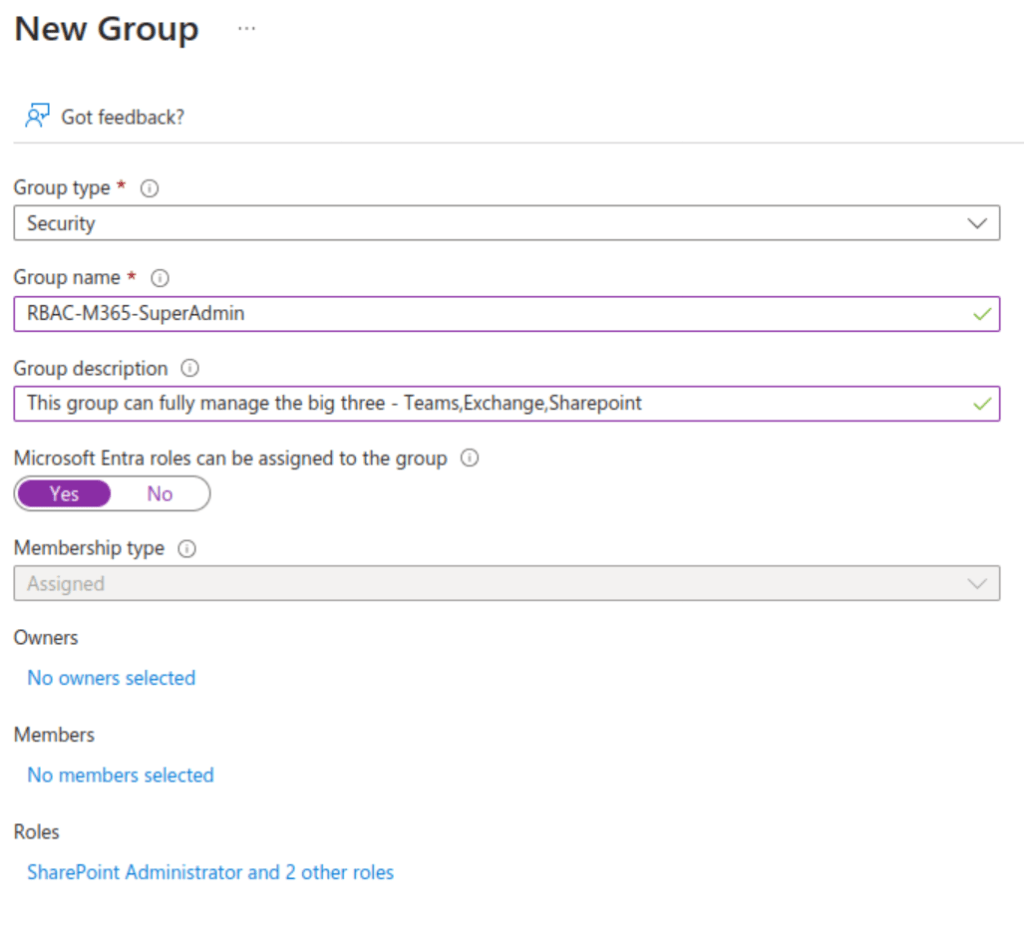
Are there any other considerations for the new group?
- The group type must be ‚Security.‘
- It needs a clear naming convention (e.g., RBAC).
- The ‚Microsoft Entra Roles can be assigned to this group‘ checkbox must be set to ‚Yes.‘
- Dynamic groups for RBAC are not supported.
- Clicking on ‚Roles‘ brings up the following dialog (summarized).
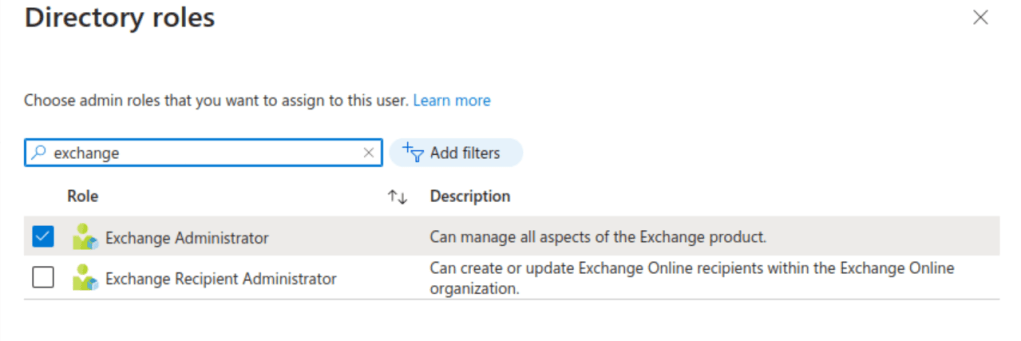
- Here you can directly assign the desired standard roles to the group (Exchange Administrator, SharePoint Administrator, Teams Administrator).

- The group type cannot be changed later, which must be confirmed again here (Create, Yes).
What else needs to be done in PIM?
- Switch to ‚PIM‘ in Entra and go to ‚Groups.‘
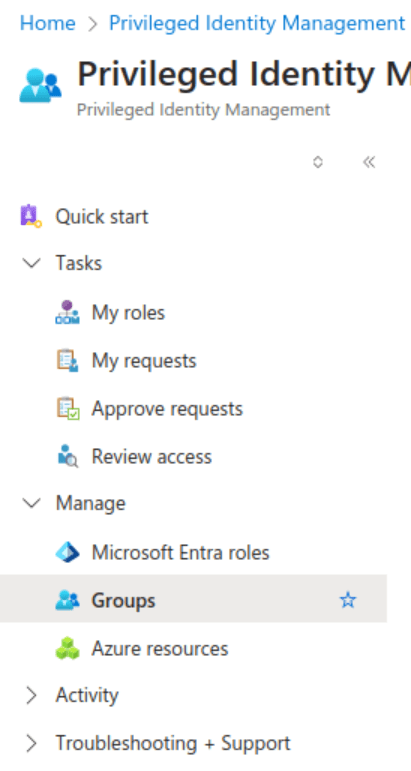
- Select ‚Group Discovery’…
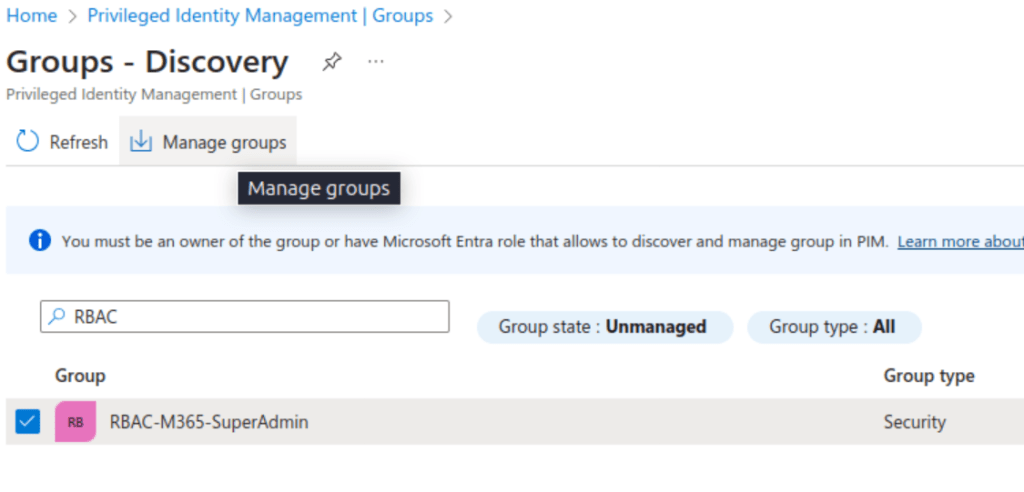
- Enter the name of the previously created group, check the box next to the group, and then select ‚Manage Groups.‘
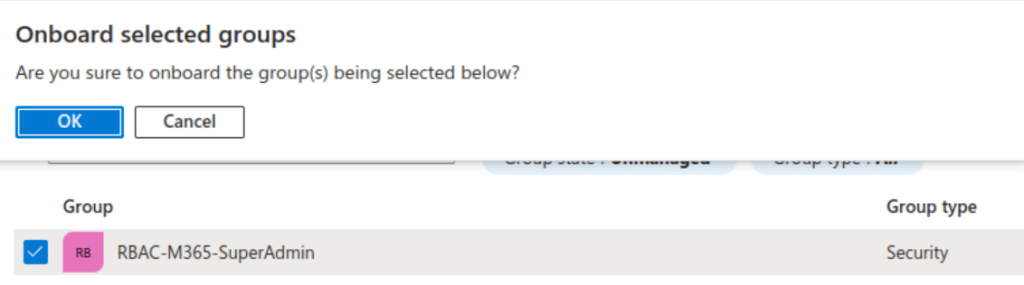
- Confirm the onboarding of the group by clicking ‚OK‘
What else should you know?
- Azure roles are permanently assigned to the RBAC group.
- The group is initially empty.
- Membership management is only through PIM.
- Everything that happens in PIM is logged.
Okay, but who can request this new role, and how long will the assignment last?

- An important step in PIM is to add all eligible persons under ‚Eligible Assignments.‘ Only those listed here can later request the role
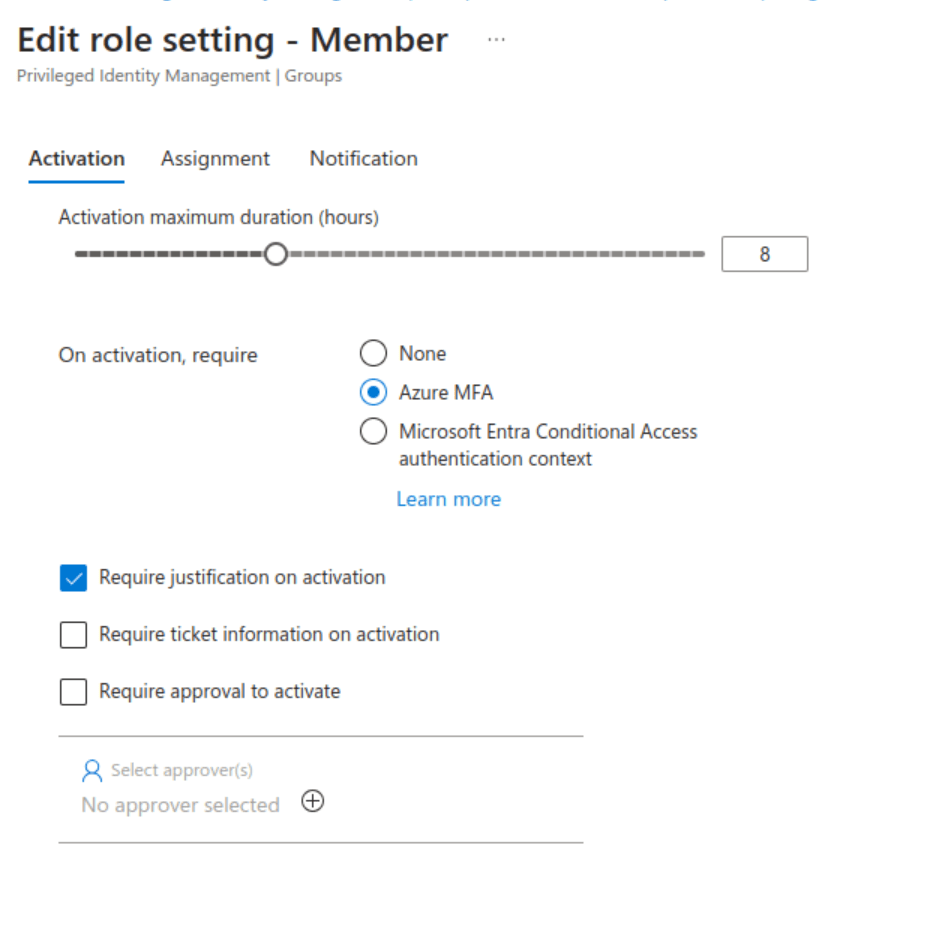
Just like with standard RBAC roles, you can also define:
- How long the assignment lasts.
- Whether someone is notified when the role is requested.
- Whether someone needs to approve the assignment first (Approval).
- Whether additional MFA authentication is required.
So how can I order the new role for myself?
- Access the Azure portal.
- Switch to PIM.
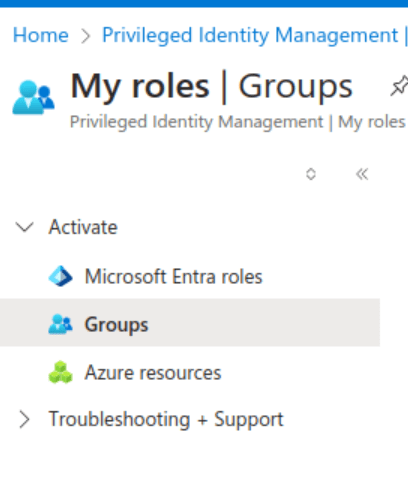
- The RBAC role appears here under ‚My Roles‘ ‚Groups.‘

- Clicking ‚Activate‘ requests the role, and depending on whether approval is needed or not, it’s assigned directly.
- In our example, the permission expires automatically after 8 hours.
And that’s it!
Here’s a reminder of ways you can interact with us:
- ‚Hammertime‘ – Send uns your ideas and let us know what you think
- Get the ‚T-Shirt‘ – Impress friends and family while supporting our site.

 ClickCoach - Approach the Coach