
Recently I’ve been spending a lot of time talking about PIM (Privileged Identity Management). It’s a good way of making sure that administrative accounts only have they rights they actually need and when they need them.
But let’s look at a diferent use case. Fred has just started his new job in accounting. Fred doesn’t really know what rights or permissions he needs but having the same rights as Lola (she’s been with the company for a while) seems like a great start. He doesn’t know about Active Directory or Entra but he can work those balance sheets like magic. ‚Access Packages‘ are a better fit for this use case.
- PIM: Provides role-based access to Entra and Azure resources
- Is mainly based on Entra roles
- You request access to a certain role or group
- Requires more IT knowledge (because you need to know the role you need)
- Access Packages: Provides role-based access to applications and data
- Is more focused on user activity and applications
- you request access to a predefined set of rights
But what are these ‚Access Packages‘ you keep talking about? How do they work?
Let’s say that Fred’s role mainly needs access to two applications:
- The main accounting application
- a program to calculate VAT payments
Let’s take a step back and think about what would happen if there was no formal way of requesting access…. Lola from accounting writes an e-mail to IT „Fred needs access! Same as me!“. So what can IT do? Should they just copy all group memberships and Bob’s your uncle? Unfortunately, if Lola also has access to the CEO’s expense reports, this could go very badly.
That’s were „Access Packages“ step in. The decision about what type of access is needed should not be made by IT but by the business departments. Only they know what type of access Fred needs (or doesn’t need).
Create an ‚Access package‘
So now we’re ready to create our very first „Access Package“. Go to the ‚Azure Portal‘ and look for ‚Identity Governance‘. Click on ‚New Access Package‘ to get started.

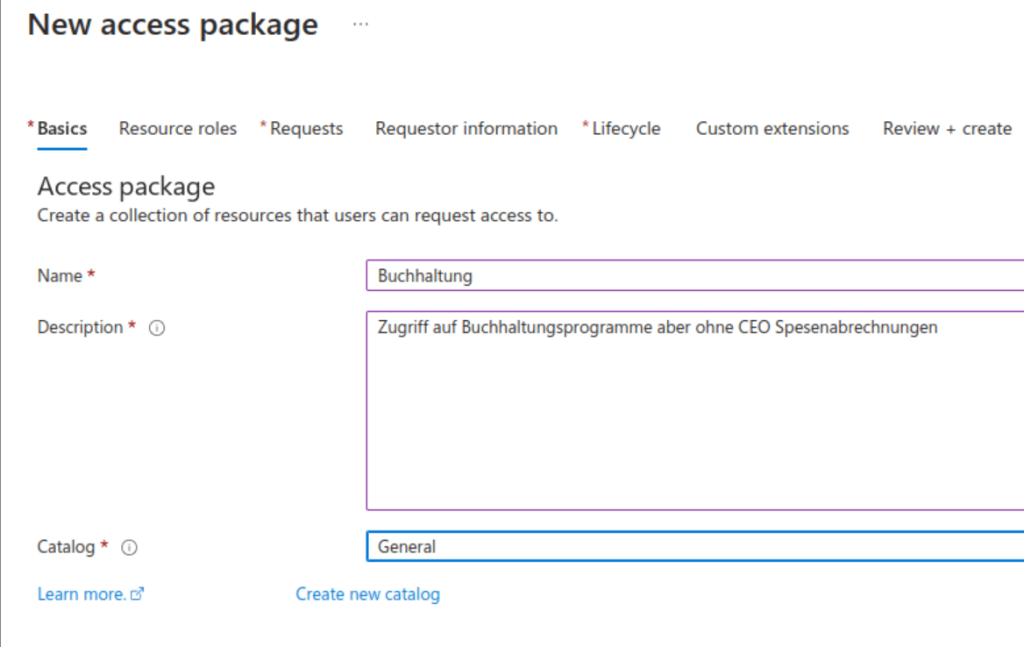
First we should set it up with a meaningful name and description.
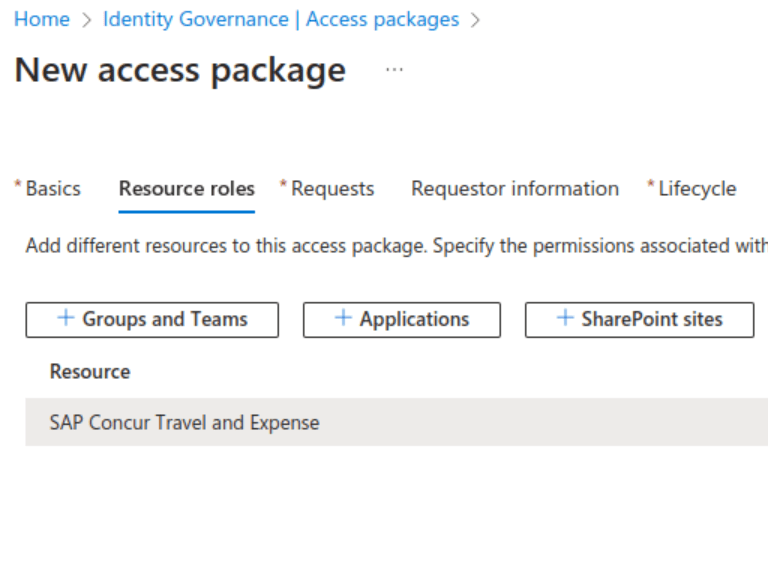
Now this next screen is the beating heart of the ‚Access Package‘. What do accounting employees need to do their job? In our example, we select a well-known accounting program with three letters (hint: SAP). But we can mix and match any number of groups and applications to create the perfect set.
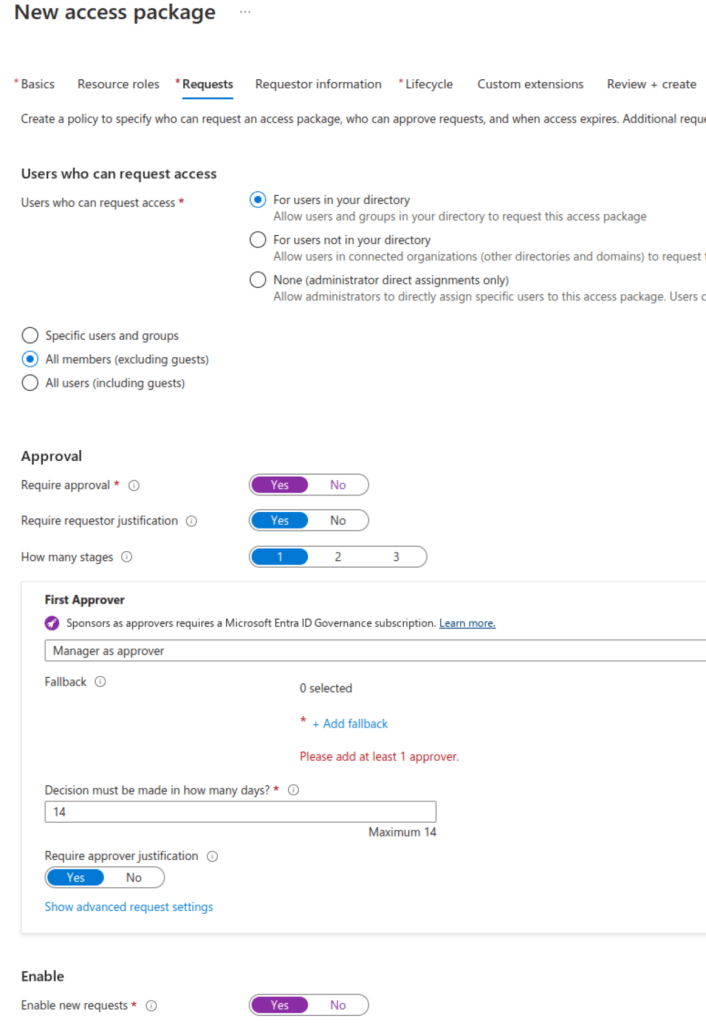
This brings us to the ‚Requests‘ tab, where we can further refine our access requirements.
- Who is allowed to ask for access? Remember: This doesn’t actually provide access, it only provides the right to ask for access. So don’t be too strict here since you want the business to decide. In our example, anyone within the company (except guest accounts) can request access.
- Wo is the approver? Although you can select ‚Manager‘, it’s usually best to setup a group with at least two people to ensure that requests can be answered in a timely manner.
- Why do you need this access? A justification can and should be required.
- How long will it take? By default, a request must be answered within 14 days.
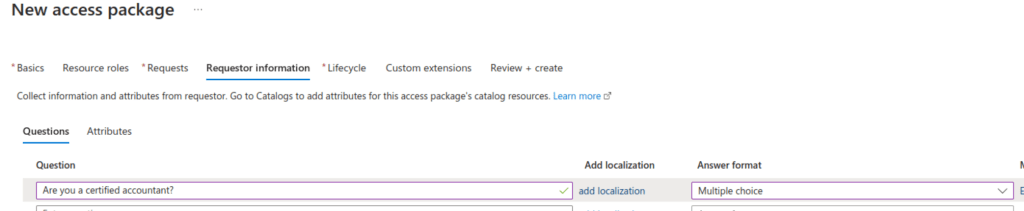
You also have the option of asking additional questions. What is your cost centre? Are you aware of the company regulations? Who is the president of the United States?
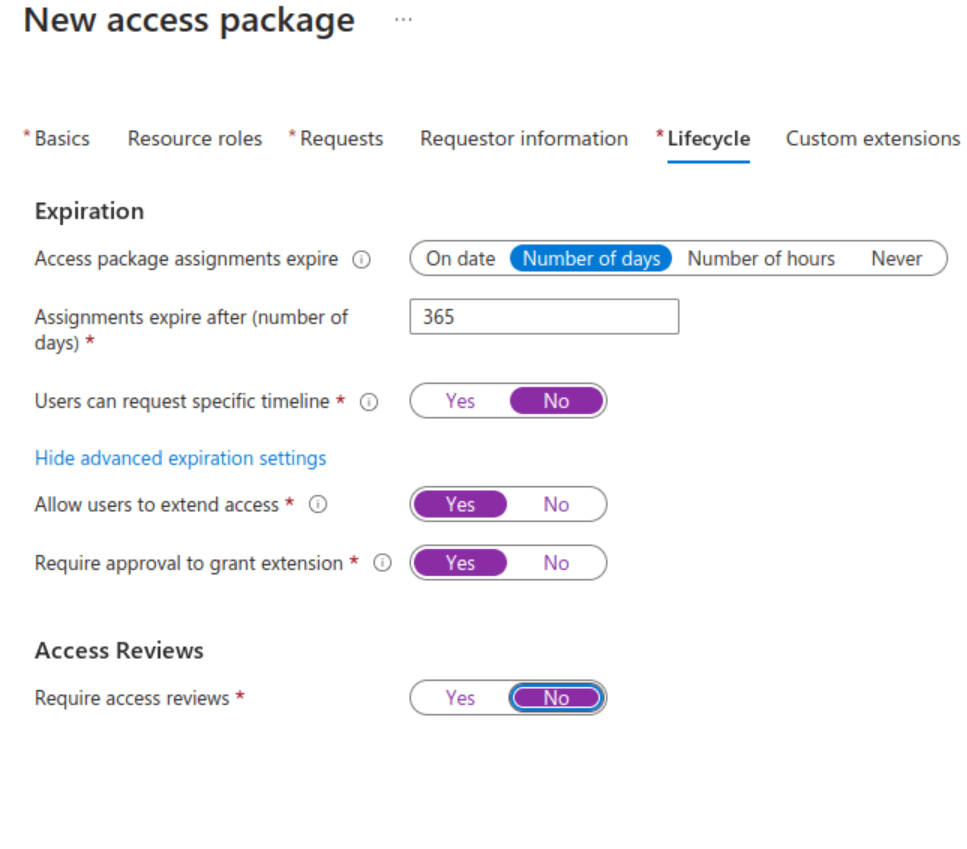
Job responsibilities are a moving target. People move between departments or they are on a short-term contract. That is why access should never be permanently granted.Here are some of the available options:
- Will the access expire or is it permanent?
- When will it expire?
- Can the user request an access extension?
- Will the extension require another approval?
- You could also directly link the request to an access review. However, as I will be talking about access reviews more specifically in another article, I have set this to ‚No‘ here.
Most of what we’re doing here requires an Azure P2 license. However, some extra features would also need an ‚Identity Governance‘ license. The details are listed here.
As soon as we click ‚Review and Create‘, our first ‚Access Package‘ is ready to go.
Requesting access
For a self-service type of concept to work, it’s really important to have a central and easily available web portal. Microsoft provides this in the form of the ‚Access Portal‘.

Select ‚Access Packages‘ to see a list of all available packages. Our recently created package will be visible here. Select it and click on ‚Request‘.
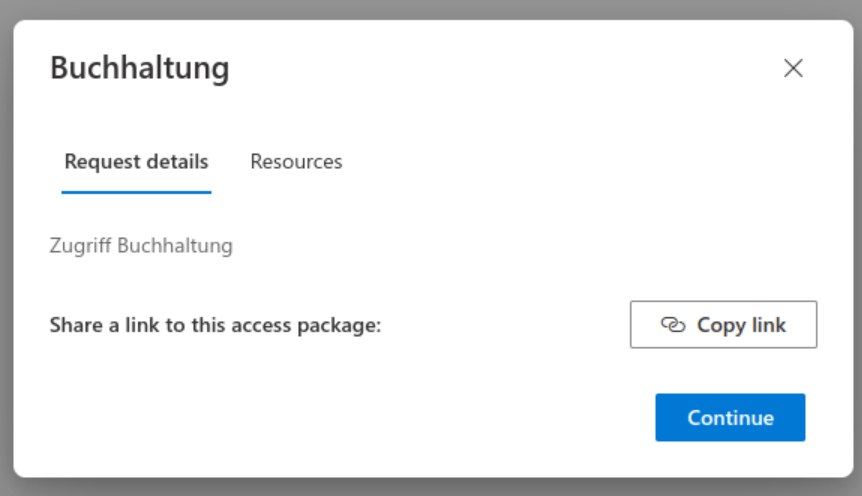
This will tell you:
- Which access package we are talking about
- What are the resources that we are requesting access to
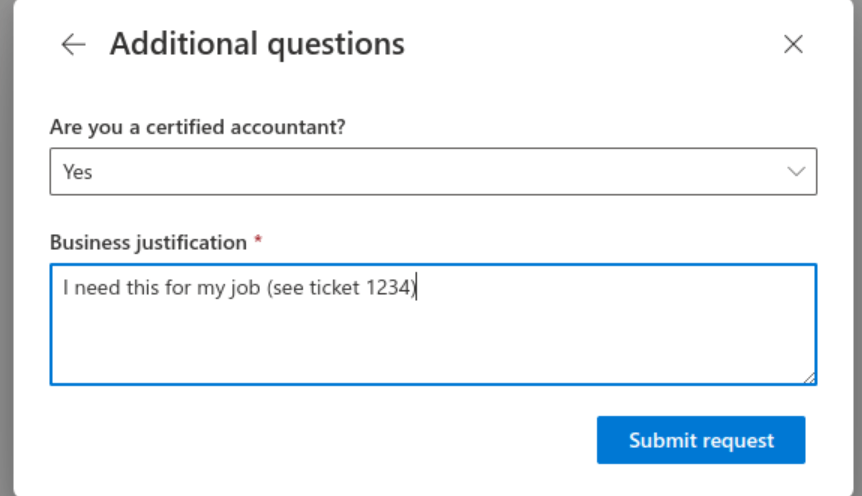
Since we defined some extra questions, you’ll have to answer them here before you can submit the request.
Granting access
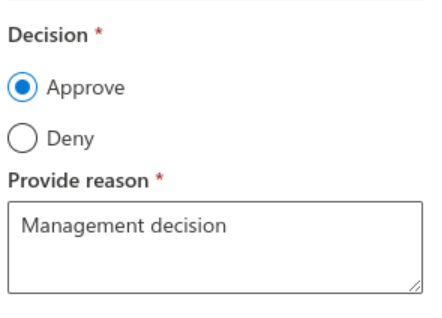
The request will be sent to the approver by e-mail and will contain a link. Clicking on the link will take us to the Access Portal. Only this time in the role as approver, we have to check out the ‚Approvals‘ section. This is where we can open the request and either approve or deny it.
Using access
Again, an e-mail will be sent to the requester, telling him or her that the request has been granted. You can check the status of the request by going back to the Access Portal.
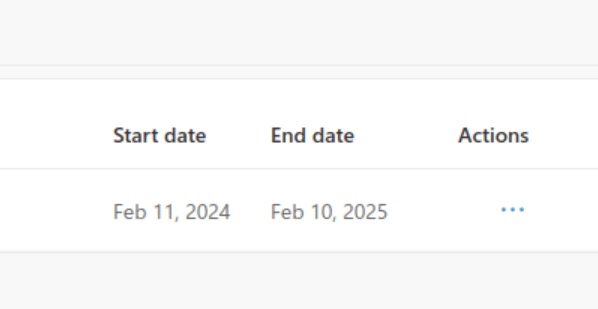
You“ll be able to see the start date and the end date. You can use the ‚Actions‘ to end your access ahead of the deadline, if you no longer need it.
Final thoughts
Microsoft has really put some thought into this and has provided a tool that can reduce the IT workload by making it possible for business departments to manage their own access rights. Entra roles are not currently supported but will be integrated at a later stage. In my next article, I will explain how this ties into ‚Access Reviews‘ and how the two options work together.
Feedback
- We’d love to hear from you. Leave your feedback or questions here.
- Would you like to support the Blog and look good at the same time? Try our T-Shirt

 ClickCoach - Approach the Coach