
The security landscape is changing and traditional security concepts need to be overhauled and renewed. There is an ongoing trend: moving away from network zones, firewalls and segmentation towards a more holistic approach. New ideas to reckon with are „Zero Trust“ and „Conditional Access“,. Simply put, this means that access is checked and verified every time. Since I have already written quite a few words about this topic, let’s change direction a bit and talk about a more specific concepts instead. RBAC, rights assignment and admin access are an important part of today’s story.

If you look closely at some of the traditional security concepts, then a common theme is „Damage control“. Let’s say, a hacker has gained access to your network. However, because of segmentation, the path to additional assets is blocked. Unfortunately, the management overhead for these type of solutions tends to be very high, especially if there is no integration between different solutions. Are these solutions user-friendly? Let’s just say, that this aspect is often not the main driver or simply ignored. Let’s talk about the concept of RBAC (Role-based access control). In a perfect world, you might have several admin accounts. Each account is tailored to have just the rights that is required for the task at hand. You need to configure e-mail settings? Here is your mail server admin account. You’re planning to manage the file server? Here is another admin account, which you can use only for that task, etc, etc. Depending on your roles, you could end up with ten or even more accounts. Naturally, all these accounts would have an individual complex password and would be protected with MFA. 🙂 Can you imagine the confusion? Half of your admin day would be spent just trying to figure out which account applies to which task. In this fresh admin hell, you’d also be forced to use multiple different entry points to gain access. And what about the account lifecycle? New entries, job rotation, closing accounts etc… It is very likey that this type of approach will generate a lot of manual processes. The result is security by obscurity. You feel secure, but you’re not!
A much better approach is using a system such as PIM. There is a central ordering process and you get the rights you need, when you need them. All you need is a single admin account and PIM. You can setup this process as simple or as complicated as you like. And the best thing: The rights expire automatically, based on your requirements. Always think about the criticality of the asset you are trying to protect and architect the approval process accordingly. A common mistake ist to build complicated approval workflows for non-critical assets.

What are the three main pillars of PIM:
- Least Privilege – Assign only the rights you need to do your job.
- Just in Time – Access is provided as needed and has an expiration date.
- Monitoring – Answering the question „Who had access and when“ becomes a breeze, as there are detailled audit trails.
How can you configure PIM? The entry point is alwas the Azure Portal. The focus of the solution are the typical Admin roles of Azure and M365. Here are some standard roles, that can be configured to work with PIM:
- Global Administrator
- Exchange Administrator
- Sharepoint Administrator
- Teams Administrator
…. and many more. Using PIM is a 4 step process. The first line of defense is to define eligibility. Who is even allowed to request an administrative role (Step 1)? This could also be time-limited. For example, you could align your role assignments with a project schedule.
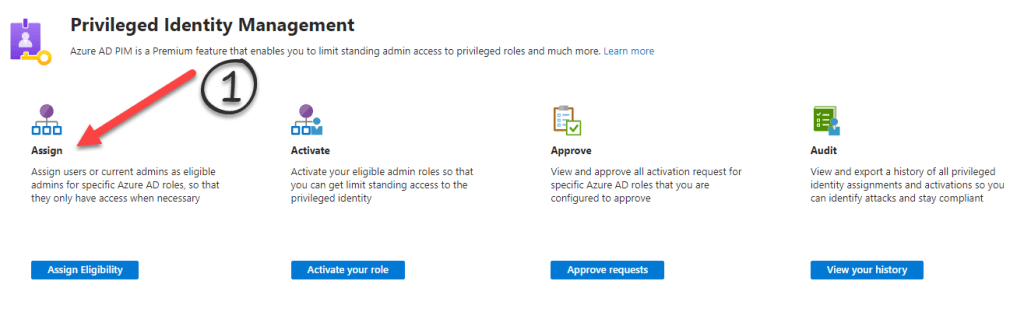
Some of the settings you can control individually for each role are:
- For how long the permissions will apply (1 day, 1 week, forever…)
- Additional MFA authentication requirements
- If access will only be logged or if an approval is needed
- Requesting additional justification

What are the steps of a PIM workflow? Let’s look at a practical example. Kevin works as an IT admin for the dynamic Import-Export Ltd. Today, Kevin’s plans are to cleanup the Microsoft Teams workspaces. He knows that this will require the Teams Administrator role. However, because the company has recently activated PIM for M365, he is aware that he needs to request the role before he can begin. The starting point for the workflow is the Azure Portal. (Step 2)
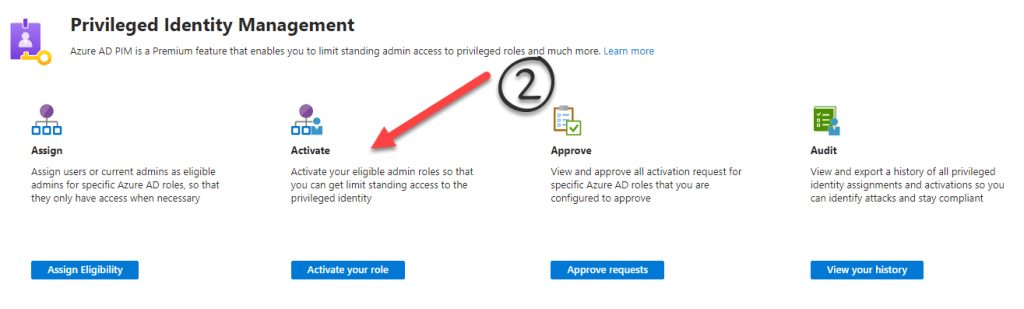
It’s Kevin’s lucky day! The Azure Administrator has already defined the eligibility requirements for the ‚Teams Administrator‘ role. Kevin can see a list of all the roles that he is eligible for. He picks the ‚Teams Administrator‘ role and clicks on ‚Activate‘.
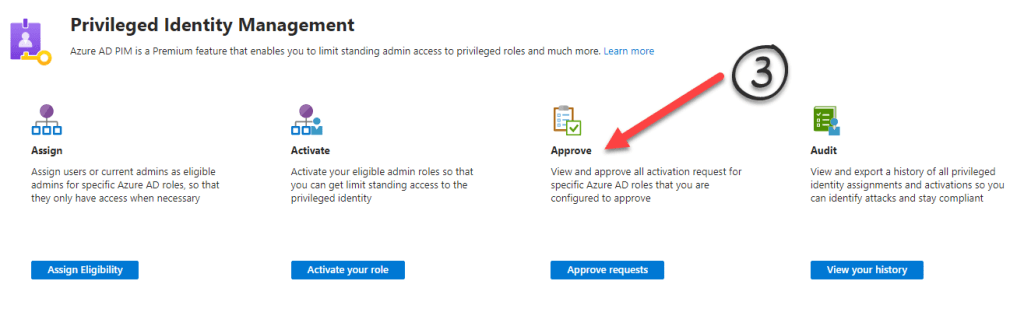
Here’s what’s been defined for the ‚Teams Administrator‘ role: It is valid for one week, after which a new approval is necessary. The IT team at Import-Export Ltd. is small and that’s why it’s been decided to only log the permission assignment. But Kevin will have to authenticate with MFA and the IT manager will be notified by e-mail. At the last meeting, Kevin talked extensively about his plans for a Teams cleanup, so no surprises there. In larger environments or if a role is seen as highly crititical, you can alway require an approval (step 3).
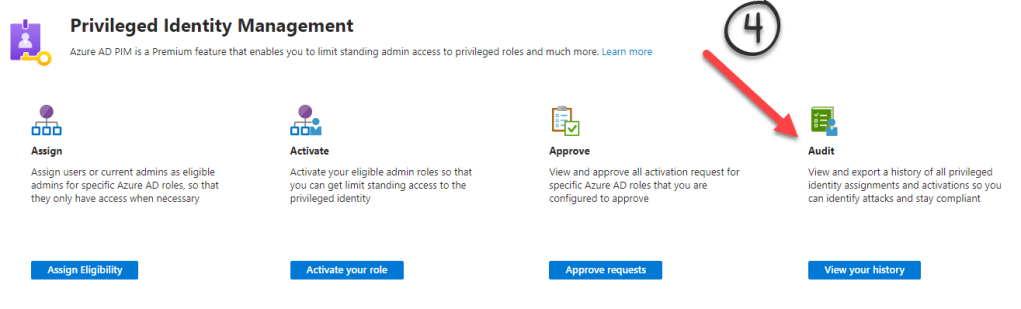
Fast forward: The festive season is approaching. But the IT manager at Import-Export Ltd. is working with an external auditor for one of those crucial ISO certifications. As the auditor works through his checklists, he would like to know who had „Teams Administrator“ access and when. Instead of scratching his head and making quizzical noises, the IT manager just presses a button in PIM (step 4) and provides a detailled report.
Yes, PIM requires an Azure P2 license, which means it is a ‚Premium Feature‘. What you’re paying for is an integrated, fully automated workflow and a detailled audit trail. PIM is easy to setup and can be up and running in a matter of days.

 ClickCoach - Approach the Coach