
The pure Microsoft definition of it’s Endpoint Management solution is simple:
„Microsoft Endpoint Manager is a single, integrated endpoint management platform for managing all your endpoints.“
So one ring, to bind them all…. Sounds a bit like Tolkien, right?
Do you also think that the wheel of technology spins faster every day? However, if you look more closely, you will discover that most enterprise networks have at it’s core a basic set of concepts and ideas, which aren’t really that new. Windows Domains, Active Directory, Group Policy (GPO)…. These technologies have been around for at least 20 years. Although there have been some useful additions over time, such as the Group Policy preferences, or PSO (Password Setttings Objects): You will find Group Policy at almost every company, big or small. The concept revolves around the idea of ‚Configuration Management‘, meaning that a large number of systems is supposed to be setup the same way, with the same look and feel, the same settings. Everything from Network drive letters to screen saver backgrounds can be configured like this. What do you need? A Domain and at least one Domain Controller (DC). Every computer has it’s own computer account and there is frequent chatter between computer and Domain Controller, so as to receive the latest and greatest settings. What has never worked well in this concept are computers that are out in the field for a long time and out of reach of the corporate network.
As with everything else, there is a movement towards Cloud solutions. In this first part of multiple posts, we will be talking about Standard Windows Systems (Corporate Windows 10 PC’s) which are already managed via GPO and how we can also manage them through InTunes. This works well together and there’s no need to replace one with the other (at least not in the beginning). In future posts, we will also look at Non-Windows devices (Mac, Linux, iOS, Android) as well BYOD (Bring your own device) options which includes Windows devices not owned by the company (personal Windows devices).

What are the requirements to be able to manage a corporate Windows device with InTune (in addition to GPOs)?
- Sufficient and correct licensing is a must. The licenses must be assigned (this could be Azure Premium P1 licenses, though other options do exist)
- A ‚Hybrid Join‘ is a requirement. That means, that the computer must not only have an account in the Active Directory but must also have an account in Azure. If you haven’t already setup synchronization, that should be done first.
- Next, you’ll need to change your On-Prem Group Policy settings and make sure that your Hybrid Joined devices are automatically enrolled in InTunes.
A question I get a lot: Can the Configuration Management in InTune replace what we are already doing with Active Directory and GPO’s today? At this point, I would say no. The reason is, that there are thousands of possible settings that can be configured with GPO but not all of these are available in InTunes (yet). It is important to think about this though, because we don’t want a mismatch between the two configuration options. There are plenty of tools for converting the one to the other as well as troubleshooting tools. Again, I promise to address these features in a future post.
Having met all the prerequisites, we now need to head for the Endpoint Portal to continue or journey. What we’re interested in are the ‚Configuration Profiles‘ for Windows devices. When I refer to Windows devices, I’m usually talking about Windows 10 or newer. Although it is possible to create profiles for legacy Windows 8.1 systems, there is some extra effort involved and it’s probably better to get rid of them as soon as possible.
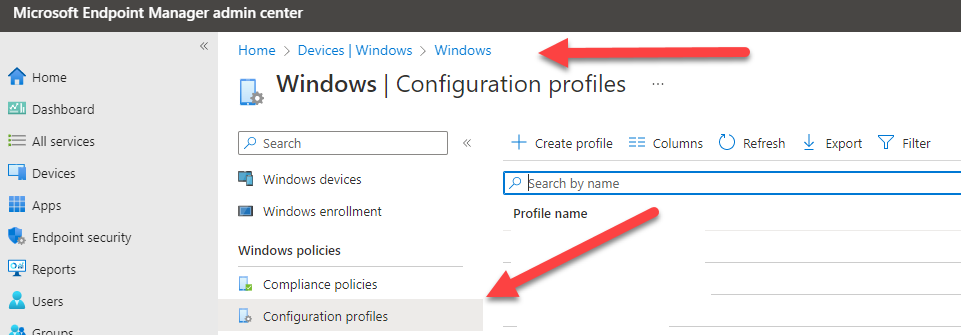
If you go to ‚Home‘ ‚Devices‘ ‚Windows‘, you’ll want have a look at the configuration profiles. Click ‚Create Profile‘ to get started. First, you’ll have to choose your platform (Windows 10), Right away you can see, that there are two options:
- Settings Catalog
- Templates
What are templates? Well, they are a collection of settings for a specific area of configuration. But we can also start from scratch and pick our options from the ‚Settings Catalog‘.
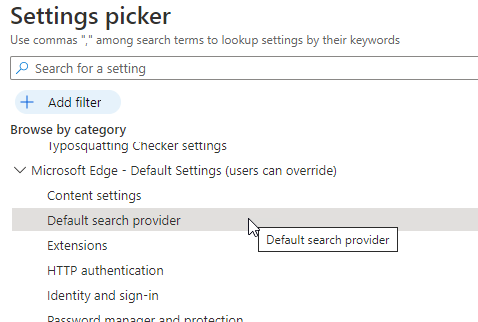
A good example of a possible setting would be the ‚Default Search Provider‘ for your Edge Browser:
Once you have configured your settings, there are some additional ways to control the deployment of your profile. Looking at the summary of the profile, the headings provide a good overview of the possibilites:

- What are ‚Scope Tags‘? Think about your administrative roles. Do you want everyone to be able to change every Configuration Profile? In a large company, you probably want to separate access to different profiles based on attributes such as the region, city or country. Just like in the ‚old days‘ with GPOs, not everyone has to be a Domain Admin. Scope Tags help you with role-based access. I’ll explain this in more detail in a future post.
- What are ‚Assignments‘? This is about controlling which users or devices that the newly created profile will apply to. You can also define exceptions. For example, you may want to apply a security setting to all systems except the CEO (after his recent phone call to the IT department). 🙂
So now, we’ve created our first configuration profile. Will these changes take effect immediately? Those of us who have worked with Group Policy, remember the old and wise saying: At startup or every 90 minutes or may the GPUPDATE /force be with you. However, remember that InTunes has it’s own rules, which are very different. I’ll explain this in a future post and we’ll also look at questions such as conflict resolution and multiple profiles (with conflicting settings).
Here’s a reminder of ways you can interact with us:
- ‚Hammertime‘ – Send uns your ideas and let us know what you think
- Get the ‚T-Shirt‘ – Impress friends and family while supporting our site.

 ClickCoach - Approach the Coach